心智圖資源庫 Zero-Based VIM Advanced Tutorial
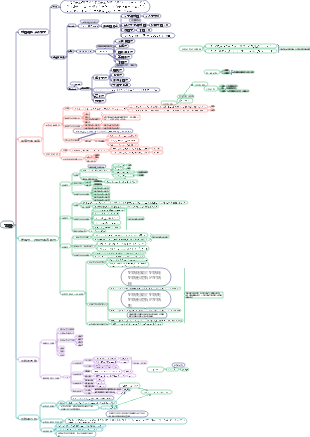
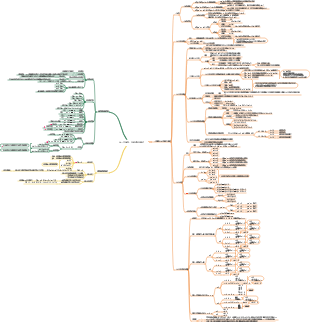
This work describes the shortcut instructions of the VIM editor of the Linux system. By summarizing the VIM help document and editing it in a structured form, readers can better read, understand, remember and use it. This work goes from simple to complex, from simple to complex, so that readers can better accept knowledge and memorize VIM shortcut commands more permanently.
編輯於2020-12-23 09:36:09Find a streamlined guide created using EdrawMind, showcasing the Lemon 8 registration and login flow chart. This visual tool facilitates an effortless journey for American users to switch from TikTok to Lemon 8, making the transition both intuitive and rapid. Ideal for those looking for a user-centric route to Lemon 8's offerings, our flow chart demystifies the registration procedure and emphasizes crucial steps for a hassle-free login.
これは稲盛和夫に関するマインドマップです。私のこれまでの人生のすべての経験は、ビジネスの明確な目的と意味、強い意志、売上の最大化、業務の最小化、そして運営は強い意志に依存することを主な内容としています。
かんばんボードのデザインはシンプルかつ明確で、計画が一目で明確になります。毎日の進捗状況を簡単に記録し、月末に要約を作成して成長と成果を確認することができます。 実用性が高い:読書、早起き、運動など、さまざまなプランをカバーします。 操作簡単:シンプルなデザイン、便利な記録、いつでも進捗状況を確認できます。 明確な概要: 毎月の概要により、成長を明確に確認できます。 小さい まとめ、今月の振り返り掲示板、今月の習慣掲示板、今月のまとめ掲示板。
Find a streamlined guide created using EdrawMind, showcasing the Lemon 8 registration and login flow chart. This visual tool facilitates an effortless journey for American users to switch from TikTok to Lemon 8, making the transition both intuitive and rapid. Ideal for those looking for a user-centric route to Lemon 8's offerings, our flow chart demystifies the registration procedure and emphasizes crucial steps for a hassle-free login.
これは稲盛和夫に関するマインドマップです。私のこれまでの人生のすべての経験は、ビジネスの明確な目的と意味、強い意志、売上の最大化、業務の最小化、そして運営は強い意志に依存することを主な内容としています。
かんばんボードのデザインはシンプルかつ明確で、計画が一目で明確になります。毎日の進捗状況を簡単に記録し、月末に要約を作成して成長と成果を確認することができます。 実用性が高い:読書、早起き、運動など、さまざまなプランをカバーします。 操作簡単:シンプルなデザイン、便利な記録、いつでも進捗状況を確認できます。 明確な概要: 毎月の概要により、成長を明確に確認できます。 小さい まとめ、今月の振り返り掲示板、今月の習慣掲示板、今月のまとめ掲示板。
VIM advanced tutorial
Introduction
A text editor for Linux systems
Four modes of VIM
Normal-mode
After starting VIM, it defaults to normal mode.
Used to browse files, copy, paste, delete and other operations
Insert-mode
In normal mode, press i key to enter insert mode
Enter the editing state and enter content through the keyboard
Command-mode
In normal mode, press: or / to enter command mode
Enter VIM commands to set up the environment, file operations, etc.
Visual-mode
In normal mode, press v, V, <ctrl> v to enter visual mode
When selecting text, there is a visual sense of mouse selection.
Open file with VIM
open a file
vim file1
file1 refers to the file name of the specific operation
Open multiple files at once
vim file1 file2
file1 file2 refers to the file name of the specific operation
Enter command mode
:ls lists all files opened by VIM
:bn displays the contents of the nth file
VIM display
Display multiple files at once
Split screen left and right
vim -On file1 file2 ... filen
capital letter O
Split screen up and down
vim -on file1 file2 ... filen
lowercase letter o
Split screen operation
Split screen method
Split the current file up and down
<Ctrl> w s
Split the current file and the newly opened file up and down
In command mode, :sp file
Split the current file left and right
<Ctrl> w v
Split the current file and the newly opened file left and right
In command mode, :vsp file
Switch cursor between files
Split screen up and down
Position the cursor above
<Ctrl> w k
Position the cursor below
<Ctrl> w j
Split screen left and right
Position cursor to the left
<Ctrl> w h
Position cursor to the right
<Ctrl> w l
Mobile split screen
Split screen up and down
Move split screen to top
<Ctrl> w K
Move the split screen to the bottom
<Ctrl> w J
Split screen left and right
Move split screen to left
<Ctrl> w H
Move split screen to the right
<Ctrl> w L
Turn off split screen
Close current split screen
<Ctrl> w c
Close split screen, if you are the last one to close VIM
<Ctrl> w q
Exiting VIM
Save the current modifications to the file, but do not exit the file
:w
Force save but do not exit the file
:w!
Save the current file modifications to the file file
:w file
Exit the file without saving changes to the file
:q!
Exit all files and do not save any file modifications.
:qa!
Exit the file and save changes to the file
:wq
:x
open another file
:e file
Discard all modifications to the file and restore the file to the last saved location
:e!
save as file
:save as file
normal mode
Move cursor quickly
h is to move the cursor to the left
I is to move the cursor to the right
j is to move the cursor downwards
k is to move the cursor upward
Page turning operation
View next page content
<ctrl>f
View previous page content
<ctrl> b
Copy, paste, delete, undo, restore, replace
copy
y
yw copy a word
yy copies a line
nyy copies n lines
y$ copies the cursor to the end of this number
Paste
p
p starts copying after the cursor
P capital P starts copying before the cursor
delete
d
dw delete a word
dnw delete n words
dd deletes an entire line
ndd deletes n lines starting at the cursor
d$ deletes the cursor to the end of the line
Cancel
u
recover
<ctrl> r
replace
r replaces the character where the cursor is currently located
R replaces all characters starting from the cursor
Insert mode
Normal mode input i,I,a,A,o,O,s,S
i is to insert the text to be entered before the character where the cursor is located.
I is to insert the text to be entered at the beginning of the line where the cursor is located.
a is to insert the text to be entered after the character where the cursor is located.
A is to insert the text to be entered at the end of the line where the cursor is.
o is the text to be entered at the beginning of the line next to the line where the cursor is located.
O is the line above the cursor and insert the text to be entered at the beginning of the line.
s deletes the character at the cursor and inserts the text to be entered.
S deletes the line where the cursor is located and inserts the text to be entered starting from the beginning of the current line.
command mode
Line number
Cancel line number
:set nonu
Show line number
:setnu
Locate line number
:n
Keyword search
/{target string}
n will look for the next match, N will look for the previous match
Delete multiple lines of text
:n1,n2d
n1 and n2 refer to the starting line number and ending line number, d is the delete keyword
text replacement
:{scope}s/{target}/{replacement}/{replacement flag}
Replace zempty with handsome in the line where the cursor is located
:s/zempty/handsome/g
Replace zempty with handsome in the text
:%s/zempty/handsome/g
Replace zempty in lines n1 to n2 with handsome
:n1,n2s/zempty/handsome/g
The scope of action is divided into current line, full text, selection, etc.
ab command
:ab email kickcodeman@gmail.com
Replace the entered email with kickcodeman@gmail.com
Visualization mode
V character visualization
There will be a VISUAl prompt at the bottom of the screen
Continue pressing v to exit
V row visualization
There is a VISUAL LINE prompt at the bottom of the screen
Continue pressing V to exit
<Ctrl> v block visualization
There is a VISUALBLOCK prompt at the bottom of the screen.
Continue pressing <Ctrl> v to exit