 Wondershare EdrawMind
MindMap Gallery Data mining tool——WEKA
- 45
Data mining tool——WEKA
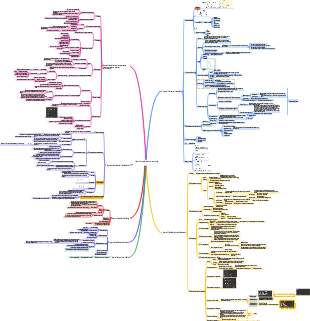
WEKA is a comprehensive data mining tool that integrates data preprocessing, learning algorithms (classification, regression, clustering, correlation analysis) and evaluation methods. This mind map introduces how to use WEKA. I hope it will be helpful to everyone!
Edited at 2023-07-07 16:09:18
- New Employee First - week Onboarding Plan
Mappa mentale per il piano di inserimento dei nuovi dipendenti nella prima settimana. Strutturata per giorni: Giorno 1 – benvenuto, configurazione strumenti, presentazione team. Secondo giorno – formazione su policy aziendali e obiettivi del ruolo. Terzo giorno – affiancamento e primi task guidati. Il quarto giorno – riunioni con dipartimenti chiave e feedback intermedio. Il quinto giorno – revisione settimanale, definizione obiettivi a breve termine e integrazione culturale.
- Analisi del campo di allenamento inglese
Mappa mentale per l’analisi della formazione francese ai Mondiali 2026. Punti chiave: attacco stellare guidato da Mbappé, con triplice minaccia (profondità, taglio, sponda). Criticità: centrocampo poco creativo – la costruzione offensiva dipende dagli attaccanti che arretrano. Difesa solida (Upamecano, Saliba, Koundé). Portiere Maignan. Variabili: gestione infortuni e condizione fisica dei big. Ideale per scout, giornalisti e tifosi.
- Analisi della lineup francese
Mappa mentale per l’analisi della formazione francese ai Mondiali 2026. Punti chiave: attacco stellare guidato da Mbappé, con triplice minaccia (profondità, taglio, sponda). Criticità: centrocampo poco creativo – la costruzione offensiva dipende dagli attaccanti che arretrano. Difesa solida (Upamecano, Saliba, Koundé). Portiere Maignan. Variabili: gestione infortuni e condizione fisica dei big. Ideale per scout, giornalisti e tifosi.
Data mining tool——WEKA
- New Employee First - week Onboarding Plan
Mappa mentale per il piano di inserimento dei nuovi dipendenti nella prima settimana. Strutturata per giorni: Giorno 1 – benvenuto, configurazione strumenti, presentazione team. Secondo giorno – formazione su policy aziendali e obiettivi del ruolo. Terzo giorno – affiancamento e primi task guidati. Il quarto giorno – riunioni con dipartimenti chiave e feedback intermedio. Il quinto giorno – revisione settimanale, definizione obiettivi a breve termine e integrazione culturale.
- Analisi del campo di allenamento inglese
Mappa mentale per l’analisi della formazione francese ai Mondiali 2026. Punti chiave: attacco stellare guidato da Mbappé, con triplice minaccia (profondità, taglio, sponda). Criticità: centrocampo poco creativo – la costruzione offensiva dipende dagli attaccanti che arretrano. Difesa solida (Upamecano, Saliba, Koundé). Portiere Maignan. Variabili: gestione infortuni e condizione fisica dei big. Ideale per scout, giornalisti e tifosi.
- Analisi della lineup francese
Mappa mentale per l’analisi della formazione francese ai Mondiali 2026. Punti chiave: attacco stellare guidato da Mbappé, con triplice minaccia (profondità, taglio, sponda). Criticità: centrocampo poco creativo – la costruzione offensiva dipende dagli attaccanti che arretrano. Difesa solida (Upamecano, Saliba, Koundé). Portiere Maignan. Variabili: gestione infortuni e condizione fisica dei big. Ideale per scout, giornalisti e tifosi.
- Recommended to you
- Outline



Data mining tool——WEKA
Introduction to WEKA
The full name of WEKA is Waikato Environment for Knowledge Analysis
WEKA is also the name of a bird in New Zealand. It is a machine learning/data mining open source software developed in Java by the WEKA team at the University of Waikato in New Zealand.
Get its source code
http://www.cs.waikato.ac.nz/ml/weka/
http://prdownloads.sourceforge.net/weka/weka-3-6-6jre.exe
In August 2005, at the 11th ACM SIGKDD International Conference, the WEKA group of the University of Waikato won the highest service award in the field of data mining and knowledge exploration. The WEKA system was widely recognized and was hailed as a leader in data mining and machine learning. Learning milestones in history is one of the most complete data mining tools available today. WEKA has been downloaded more than 10,000 times per month.
main feature
It is a comprehensive data mining tool that integrates data preprocessing, learning algorithms (classification, regression, clustering, correlation analysis) and evaluation methods.
Has an interactive visual interface
Provide algorithm learning and comparison environment
Through its interface, you can implement your own data mining algorithms
Explorer environment
Several tabs in area 1 are used to switch between different mining task panels.
Preprocess (data preprocessing): Select and modify the data to be processed.
Classify: Train and test classification or regression models.
Cluster: Clustering from data.
Associate: Learn association rules from data.
Select Attributes: Select the most relevant attributes in the data.
Visualize: View a two-dimensional scatter plot of the data.
Area 2 is some commonly used buttons. Including functions such as opening, editing, saving data and data conversion. For example, we can save the file "bank-data.csv" as "bank-data.arff".
In area 3, you can choose a filter to filter the data or perform some transformation on the data. Data preprocessing is mainly implemented using it.
Area 4 shows the basic information of the data set such as the relationship name, number of attributes, and number of instances.
All properties of the dataset are listed in area 5.
You can delete some attributes by checking them and "Remove". After deletion, you can also use the "Undo" button in area 2 to retrieve them.
The row of buttons above area 5 is used to quickly check.
Area 6 displays a summary of the current attribute selected in area 5.
The summary includes attribute name (Name), attribute type (Type), number and proportion of missing values (Missing), number of different values (Distinct), number and proportion of unique values (Unique)
The summary method is different for numeric attributes and nominal attributes. The figure shows a summary of the numeric attribute "income".
Numeric attributes display the minimum value (Minimum), maximum value (Maximum), mean (Mean) and standard deviation (StdDev)
Nominal properties show the count of each distinct value
Area 7 is the histogram of the selected attribute in Area 5.
If the last attribute of the dataset (which is the default target variable for classification or regression tasks) is a class label variable (e.g. "pep"), each rectangle in the histogram is divided into differently colored segments proportional to that variable.
If you want to change the basis of segmentation, just select a different classification attribute in the drop-down box above area 7.
Selecting "No Class" or a numerical attribute in the drop-down box will turn into a black and white histogram.
Area 8 The bottom area of the window, including the status bar, log button and Weka bird.
The status bar (Status) displays some information to let you know what is being done. For example, if Explorer is busy loading a file, there will be a notification in the status bar.
Right-clicking the mouse anywhere in the status bar will bring up a small menu. This menu gives you two options:
Memory Information--Displays the amount of memory available to WEKA.
Run garbage collector--Force the Java garbage collector to search for memory space that is no longer needed and release it, so that more memory can be allocated for new tasks.
The Log button allows you to view weka operation logs.
If the weka bird on the right is moving, it means that WEKA is performing an excavation task.
KnowledgeFlow environment
WEKA dataset
The data set processed by WEKA is a two-dimensional table of .arff file
A row in the table is called an instance, which is equivalent to a sample in statistics or a record in the database.
A vertical row is called an attribute, which is equivalent to a variable in statistics or a field in a database.
Such a table, or data set, in WEKA's view, presents a relationship (Relation) between attributes.
In the picture above, there are 14 instances, 5 attributes, and the relationship name is "weather".
The format in which WEKA stores data is an ARFF (Attribute-Relation File Format) file, which is an ASCII text file.
The two-dimensional table shown above is stored in the following ARFF file. This is the "weather.arff" file that comes with WEKA, which can be found in the "data" subdirectory of the WEKA installation directory.
The format in which WEKA stores data is ARFF (Attribute-Relation File Format) file
This is an ASCII text file (ASCII ((American Standard Code for Information Interchange): American Standard Code for Information Interchange))
The file extension is .arff
You can use WordPad to open and edit ARFF files
Lines starting with "%" in the file are comments and WEKA will ignore these lines.
After removing the comments, the entire ARFF file can be divided into two parts:
The first part gives the header information (Head information), including the declaration of relationships and the declaration of attributes.
The second part gives the data information (Data information), that is, the data given in the data set. Starting from the "@data" tag, what follows is the data information.
Relationship Statement
The relationship name is defined in the first valid line of the ARFF file, in the format: @relation <relationship name>
<relation name> is a string. If this string contains spaces, it must be enclosed in quotation marks (single or double quotation marks for English punctuation).
Property declaration
Attribute declarations are represented by a list of statements starting with "@attribute".
Each attribute in the data set has a corresponding "@attribute" statement to define its attribute name and data type (datatype): @attribute <attribute name> <data type>
Where <property name> must be a string starting with a letter. As with relationship names, if this string contains spaces, it must be quoted.
The order of attribute declaration statements is important, as it indicates the location of the attribute in the data section.
For example, "humidity" is the third declared attribute, which means that among the columns separated by commas in the data part, the data in column 2 (starting from column 0) 85 90 86 96 ... is the corresponding "humidity" value.
Secondly, the last declared attribute is called the class attribute, which is the default target variable in classification or regression tasks.
type of data
numeric numeric type
Numeric attributes can be integers or real numbers, but WEKA treats them all as real numbers. For example: @attribute temperature real
<nominal-specification> Nominal type
Nominal attributes consist of a <nominal-specification> list of possible category names enclosed in curly braces: {<nominal-name1>, <nominal-name2>, <nominal-name3>, ...}.
The value of this attribute in the dataset can only be one of the categories.
For example, attribute declaration: @attribute outlook {sunny, overcast, rainy} indicates that the "outlook" attribute has three categories: "sunny", "overcast" and "rainy". The "outlook" value corresponding to each instance in the data set must be one of these three.
If the category name has spaces, it still needs to be enclosed in quotes.
string string type
String properties can contain arbitrary text. For example: @attribute LCC string
date [<date-format>] date and time type
Date and time attributes are uniformly represented by the "date" type, and its format is: @attribute <attribute name> date [<date-format>]
Where <date-format> is a string that specifies how to parse and display the date or time format. The default string is the date and time combination format given by ISO-8601: "yyyy-MM-dd HH:mm: ss”
The string expressing the date in the data information part must comply with the format requirements specified in the statement, for example: @ATTRIBUTE timestamp DATE "yyyy-MM-dd HH:mm:ss" @DATA "2011-05-03 12:59:55"
Notice
There are two other types "integer" and "real" that can be used, but WEKA treats them both as "numeric".
The keywords "integer", "real", "numeric", "date", and "string" are case-sensitive, while "relation", "attribute" and "data" are not.
Data information
In the data information, the "@data" tag occupies an exclusive line, and the rest is the data of each instance.
Each instance occupies one line, and the attribute values of the instance are separated by commas ",".
If the value of an attribute is a missing value, it is represented by a question mark "?", and this question mark cannot be omitted.
sparse data
Sometimes the data set contains a large number of 0 values. In this case, it is more space-saving to store data in sparse format.
The sparse format is for the representation of an object in data information and does not require modification of other parts of the ARFF file.
For example data: @data 0, X, 0, Y, "class A" 0, 0, W, 0, "class B"
Expressed in sparse format, it is @data {1 X, 3 Y, 4 "class A"} {2 W, 4 "class B"}
Note: The leftmost attribute column of the ARFF data set is column 0. Therefore, 1 X means that X is the attribute value in column 1.
data preparation
data collection
Use ARFF file data directly.
Import from CSV, C4.5, binary and other format files.
Read data from SQL database via JDBC.
Obtain network resource data from URL (Uniform Resource Locator).
Data format conversion
The ARFF format is the best file format supported by WEKA.
When using WEKA for data mining, the first problem faced is often that the data is not in ARFF format.
WEKA also provides support for CSV files, and this format is supported by many other software (such as Excel).
WEKA can be used to convert CSV file format into ARFF file format.
Data resources
WEKA’s own data set C:\Program Files\Weka-3-6\data
Network data resources http://archive.ics.uci.edu/ml/datasets.html
.XLS——> .CSV——> .ARFF
Excel's XLS file allows multiple two-dimensional tables to be placed in different worksheets (Sheets), and each worksheet can only be saved as a different CSV file.
Open an XLS file and switch to the worksheet that needs to be converted, save it as CSV type, click "OK", "Yes" and ignore the prompt to complete the operation.
Open a CSV type file in WEKA and save it as an ARFF type file.
data preprocessingpreprocess
Data preprocessing tools in WEKA are called filters
Filters can be defined to transform data in various ways.
The Filter column is used to make necessary settings for various filters.
Choose button: Click this button to select a filter in WEKA.
When a filter is selected, its name and options appear in the text box next to the Choose button.
Load data
The first four buttons in Area 2 of Explorer's preprocess page are used to load data into WEKA:
Open file.... Opens a dialog box that allows you to browse for data files on the local file system.
Open URL.... Requests a URL address that contains data.
Open DB.... Read data from the database.
Generate.... Generates artificial data from some DataGenerators.
Remove useless attributes
Usually for data mining tasks, information like ID is useless and can be deleted.
Check the attribute "id" in area 5 and click "Remove". Save the new data set and reopen it
Data discretization
Some algorithms (such as correlation analysis) can only handle nominal attributes. In this case, numerical attributes need to be discretized.
Numeric attributes with limited values can be discretized by modifying the attribute data type in the .arff file.
For example, the "children" attribute in a certain data set has only 4 numeric values: 0, 1, 2, and 3.
We directly modify the ARFF file and change @attribute children numeric to @attribute children {0,1,2,3}.
Re-open "bank-data.arff" in "Explorer" and see that after selecting the "children" attribute, the "Type" displayed in area 6 changes to "Nominal".
For numerical attributes with many values, discretization can be accomplished with the help of a Filter named "Discretize" in WEKA.
Click "Choose" in area 2, a "Filter tree" will appear, find "weka.filters.unsupervised.attribute.Discretize" level by level, and click.
The text box next to "Choose" should now say "Discretize -B 10 -M -0.1 -R first-last".
Clicking this text box will pop up a new window to modify the discretization parameters.
ClassifyClassify
WEKA places both classification and regression in the "Classify" tab.
In both data mining tasks, there is a target attribute (category attribute, output variable).
We hope to perform classification prediction on the target attributes based on a set of characteristic attributes (input variables) of a WEKA instance.
In order to achieve this, we need to have a training data set in which the input and output of each instance are known. By observing the instances in the training set, a predictive classification/regression model can be built.
With this model, classification predictions can be made for new unknown instances.
Measuring the quality of a model mainly depends on the accuracy of its predictions.
Typical classification algorithms in WEKA
Bayes: Bayesian classifier
BayesNet: Bayesian Belief Network
NaïveBayes: Naive Bayes Network
xMultilayerPerceptron: Multilayer feedforward artificial neural network
SMO: Support vector machine (using sequential optimization learning method)
Lazy: Instance-based classifier
IB1: 1-nearest neighbor classifier
IBk: k-nearest neighbor classifier
Choose a classification algorithm
Meta: combination method
AdaBoostM1: AdaBoost M1 method
Bagging: bagging method
Rules: Rule-based classifier
JRip: Direct method - Ripper algorithm
Part: Indirect method - Extracting rules from decision trees generated by J48
Trees: Decision tree classifier
Id3: ID3 decision tree learning algorithm (continuous attributes are not supported)
J48: C4.5 Decision Tree Learning Algorithm (Version 8)
REPTree: Decision tree learning algorithm using error-reducing pruning
RandomTree: Combination method based on decision trees
Choose a model evaluation method (four types)
Using training set Using training set evaluation
Supplied test set Use test set evaluation
Cross-validation Cross-validation
Set the fold Folds
Percentage split retention method. Use a certain proportion of training examples for evaluation
Set the percentage of training instances
Click the More options button to set more test options:
Output model. Outputs a classification model based on the entire training set so that the model can be viewed, visualized, etc. This option is selected by default.
Output per-class stats. Output the accuracy/recall and true/false statistics of each class. This option is selected by default.
Output evaluation measures. Output entropy estimation measures. This option is not selected by default.
Output confusion matrix. Outputs the confusion matrix of the classifier prediction results. This option is selected by default.
Store predictions for visualization. Record the predictions of the classifier so that they can be represented visually.
Output predictions. Output the prediction results of the test data. Note that during cross-validation, the number of an instance does not represent its position in the dataset.
Cost-sensitive evaluation. The error will be estimated based on a value matrix. The Set… button is used to specify the value matrix.
Random seed for xval / % Split. Specifies a random seed that is used to randomize the data when it needs to be split for evaluation purposes.
Text result analysis
Click the start button, and the text result information displayed in the Classifier output window:
Run information Run information
Classifier model (full training set) A classification model constructed using all training data
Summary Summary of prediction effects for the training/testing set.
Detailed Accuracy By Class A detailed description of the prediction accuracy for each class.
Confusion Matrix Confusion Matrix, where the rows of the matrix are the actual classes, the columns of the matrix are the predicted classes, and the matrix elements are the number of corresponding test samples.
main indicators
Correctly Classified Instances Correct classification rate
Incorrectly Classified Instances Error classification rate
Kappa statistic Kappa statistics
Mean absolute error mean absolute error
Root mean squared error root mean squared error
Relative absolute error Relative absolute error
Root relative squared error relative square root error
TP Rate(bad/good) correct rate
FP Rate(bad/good) false positive rate
Precision(bad/good) accuracy
Recall(bad/good) feedback rate
F-Measure(bad/good) F-Measure
Time taken to build model Time taken to build model
Output graphical results
View in main window. View the output in the main window.
View in separate window. Open a separate new window to view the results.
Save result buffer (save the result buffer). A dialog box pops up to save the output results to a text file.
Load model (download mode). Load a pretrained mode object from a binary file.
Save model. Save a schema object to a binary file, that is, in JAVA's serial object format.
Re-evaluate model on current test set (re-evaluate the current test set). Test the specified data set through the established schema and use the Set.. button under the Supplied test set option.
Visualize classifier errors. A visualization window pops up to display the result graph of the classifier. Among them, correctly classified instances are represented by crosses, while incorrectly classified instances are represented by small squares.
Scatter plot of actual versus predicted classes. The results of correct classification are represented by crosses, and the results of incorrect classification are represented by boxes.
Visualize tree(tree visualization). If possible, a graphical interface pops up to describe the structure of the classifier model (this is only available for some classifiers). Right-click on a blank area to pop up a menu, drag the mouse in the panel and click to see the training instances corresponding to each node.
Visualize margin curve. Produce a scatter plot depicting the prediction margins. The margin is defined as the difference between the probability of predicting a true value and the highest probability of predicting something other than the true value. For example, accelerated algorithms work better on test data sets by increasing the margins on the training data set.
Create a scatter plot showing predicted marginal values.
four variables
Margin: predicted marginal value
Instance_number: Serial number of the inspection instance
Current: The number of instances with the current predicted margin value
Cumulative: The number of instances less than or equal to the predicted marginal value (consistent with Instance_number)
Click on test instance No. 8, which shows that the marginal value of this point is 0.5, and there are 7 instances with marginal values less than 0.5.
Visualize threshold curve (visualization of threshold curve). A scatter plot is produced to describe the trade-off problem in prediction, where the trade-off is captured by varying the threshold between classes. For example, the default threshold is 0.5, and the probability that an instance is predicted to be positive must be greater than 0.5, because the instance is exactly predicted to be positive at 0.5. And graphs can be used to visualize the accuracy/feedback rate trade-off, such as ROC curve analysis (positive ratio of correct and positive ratio of error) and other curves.
The threshold is the minimum probability of classifying the test instance into the current class. The color of the point is used to represent the threshold.
Each point on the curve is generated by changing the size of the threshold
ROC analysis can be performed
X-axis selects false positive rate
Y axis select true rate
ROC curve
The ROC curve (Receiver Operating Characteristic Curve) is a graphical method that shows the compromise between the true positive rate and the false positive rate of the Classification model.
Assuming that samples can be divided into positive and negative categories, interpret some conceptual definitions of ROC charts:
True Positive (TP), a positive sample predicted as positive by the model
False Negative (FN) is a positive sample predicted as negative by the model
False Positive (FP) is a negative sample that is predicted to be positive by the model
True Negative (TN) Negative samples predicted as negative by the model
True Positive Rate (TPR) or sensitivity TPR = TP / (TP FN) Number of positive sample prediction results/actual number of positive samples
False Positive Rate (FPR) FPR = FP / (FP TN) Number of negative sample results predicted to be positive/actual number of negative samples
(TPR=1,FPR=0) is an ideal model
A good classification model should be as close to the upper left corner of the graph as possible.
Visualize cost curve (visualization of cost curve). Produce a scatter plot that accurately depicts the expected costs, as described by Drummond and Holte.
ClusterCluster
Cluster analysis assigns objects to each cluster so that objects in the same cluster are similar and objects in different clusters are different.
WEKA provides cluster analysis tools in the "Cluster" of the "Explorer" interface
The main algorithms include:
SimpleKMeans — K-means algorithm supporting categorical attributes
displayStdDevs: whether to display the standard deviation of numerical attributes and the number of categorical attributes
distanceFunction: Select the distance function for comparison instances
(Default: weka.core.EuclideanDistance)
dontReplaceMissingValues: Whether not to use mean/mode to replace missing values.
maxIterations: maximum number of iterations
numClusters: Number of clusters for clustering
preserveInstancesOrder: Whether to pre-arrange the order of instances
Seed: set random seed value
DBScan — Density-based algorithm supporting categorical attributes
EM — Mixture model-based clustering algorithm
FathestFirst — K Center Point Algorithm
OPTICS — another algorithm based on density
Cobweb — concept clustering algorithm
sIB — clustering algorithm based on information theory, does not support categorical attributes
XMeans — an extended K-means algorithm that can automatically determine the number of clusters. It does not support categorical attributes.
Cluster ModeCluster Mode
Use training set — reports clustering and grouping results for training objects
Use training set — reports clustering and grouping results for training objects
Supplied test set — reports clustering results for training objects and grouping results for additional test objects
Percentage split — reports clustering results for all objects, clustering results for training objects, and grouping results for test objects
Supervised evaluation (Classes to clusters evaluation) — reports clustering and grouping results, class/cluster confusion matrices, and misgrouping information for training objects
Execute clustering algorithm
Click the "Start" button to execute the clustering algorithm
Observe clustering results
Observe the clustering results given by "Clusterer output" on the right. You can also right-click on the result generated this time in the "Result list" in the lower left corner and "View in separate window" to browse the results in a new window.
Note: The above execution information will only appear if supervised clustering is used (that is, the class label of the modeling data set is known).
text analysis
SimpleKMeans
Unsupervised mode: running information, KMeans results (number of iterations, SSE, cluster centers), grouping information of inspection objects
Supervised mode: running information, KMeans results (number of iterations, SSE, cluster centers), class/cluster confusion matrix, number and proportion of incorrectly grouped objects
Cluster center: mean for numerical attributes and mode for categorical attributes
DBScan
Unsupervised mode: running information, DBScan results (number of iterations, grouping information of each training object), grouping information of test objects
Supervision mode: running information, DBScan results (number of iterations, grouping information of each training object), class/cluster confusion matrix, number and proportion of incorrectly grouped objects
graphical analysis
Store clusters for visualization must be checked
Visualize cluster assignments: 2D scatter plot that can visualize the class/cluster confusion matrix
Important output information
“Within cluster sum of squared errors” is the standard for evaluating the quality of clustering—SSE, which is the sum of squared errors. The smaller the SSE value is, the better the clustering result is.
"Cluster centroids:" is followed by the location of each cluster center. For numerical attributes, the cluster center is its mean (Mean), and for categorical attributes it is its mode (Mode).
"Clustered Instances" is the number and percentage of instances in each cluster.
Observe visual clustering results
Right-click on the results listed in the "Result list" at the bottom left and click "Visualize cluster assignments".
The pop-up window shows the scatter plot of each instance.
The top two boxes are to select the abscissa and ordinate
The "color" in the second line is the basis for coloring the scatter plot. The default is to mark the instances with different colors according to different clusters "Cluster".
Association rules
WEKA association rule learning can discover dependencies between attribute groups:
For example, milk, butter bread, eggs (confidence 0.9 and support 2000)
For association rule L->R
Support - the probability of observing both the antecedent and the consequent support = Pr(L,R)
Confidence - the probability that the consequent will occur when the antecedent occurs. confidence = Pr(L,R)/Pr(L)
Main algorithms for association rule mining
The main algorithms for association rule mining on the WEKA data mining platform are:
Apriori--can derive all association rules that satisfy the minimum support and minimum support.
car: If set to true, class association rules will be mined instead of global association rules.
classindex: Class attribute index. If set to -1, the last attribute is treated as a class attribute.
delta: Use this value as the iteration decrement unit. The support is continuously reduced until the minimum support is reached or rules that meet the quantitative requirements are generated.
lowerBoundMinSupport: Minimum support lower bound.
metricType: metric type, set the metric basis for sorting rules. It can be: confidence (class association rules can only be mined with confidence), lift, leverage, and conviction.
Several measures similar to confidence are set up in Weka to measure the degree of association of rules. They are:
Lift: the ratio of confidence to consequent support lift = Pr(L,R) / (Pr(L)Pr(R)) When Lift=1, it means that L and R are independent. The larger the number (>1), the more it indicates that the existence of L and B in the same shopping basket is not an accidental phenomenon, and there is a strong correlation.
Leverage, balance: Under the assumption that the antecedent and the consequent are statistically independent, the proportion of instances that exceed the expected value and are covered by both the antecedent and the consequent. leverage = Pr(L,R) - Pr(L)Pr(R) When Leverage=0, L and R are independent. The larger the Leverage, the closer the relationship between L and R.
Conviction, credibility: also used to measure the independence of the antecedent and the consequent. conviction = Pr(L)Pr(!R) / Pr(L,!R) (!R means R did not occur) From its relationship with lift (reverse R and find the reciprocal after substituting it into the Lift formula), we can see that the larger this value is, the more relevant L and R are.
minMtric: Minimum value of the metric.
numRules: Number of rules to discover.
outputItemSets: If set to true, itemsets will be output in the result.
removeAllMissingCols: Remove all columns with missing values.
significanceLevel: importance level. Significance test (for confidence only).
upperBoundMinSupport: The upper bound of the minimum support. Starting from this value iteratively decreases the minimum support.
verbose: If set to true, the algorithm runs in verbose mode.
PredictiveApriori - combines confidence and support into prediction accuracy to become a single degree measurement method, and finds association rules sorted by prediction accuracy.
Terius - looks for rules based on the degree of confirmation. Like Apriori, it looks for rules whose conclusions contain multiple conditions, but the difference is that these conditions are 'or' to each other instead of 'and'.
None of these three algorithms support numeric data.
In fact, most association rule algorithms do not support numerical types. Therefore, the data must be processed, divided into segments, and discretized into bins.
Association rule mining algorithm operation information
Select AttributesSelect Attributes
Attribute selection is to search all possible combinations of all attributes in the data set to find the set of attributes with the best prediction effect.
To achieve this goal, attribute evaluators and search strategies must be set.
The evaluator determines how to assign a value to a set of attributes that represents how good or bad they are.
The search strategy determines how the search is performed.
Options
There are two options in the Attribute Selection Mode column.
Use full training set. Use the entire training data to determine how good a set of attributes is.
Cross-validation. The quality of a set of attributes is determined through a cross-validation process. Fold and Seed respectively give the fold number of cross-validation and the random seed when scrambling the data.
Like the Classify section, there is a drop-down box to specify the class attribute.
Execute selection
Click the Start button to begin the attribute selection process. When it completes, the results are output to the results area and an entry is added to the results list.
Right-clicking on the results list will give you several options. The first three (View in main window, View in separate window and Save result buffer) are the same as in the classification panel.
You can also visualize reduced data sets (Visualize reduced data)
Ability to visualize transformed data sets (Visualize transformed data)
Reduced/transformed data can be saved using the Save reduced data... or Save transformed data... option.
Data visualizationVisualize
WEKA's visualization page can visually browse the current relationship in a two-dimensional scatter diagram.
scatterplot matrix
When the Visualize panel is selected, a scatterplot matrix is given for all attributes, which are colored according to the selected class attribute.
Here you can change the size of each 2D scatter plot, change the size of each point, and randomly jitter the data (making hidden points appear).
You can also change the attributes used for coloring, you can select only a subset of a set of attributes to put in the scatter plot matrix, and you can also take a subsample of the data.
Note that these changes will only take effect after clicking the Update button.
Select individual 2D scatter plots
After clicking on an element of the scatter plot matrix, a separate window pops up to visualize the selected scatter plot.
The data points are spread across the main area of the window. Above are two drop-down boxes for selecting coordinate axes for the points. On the left are properties used as the x-axis; on the right are properties used as the y-axis.
Next to the x-axis selector is a drop-down box for selecting a coloring scheme. It colors points based on selected attributes.
Below the dotted area, there is a legend to explain what value each color represents. If the values are discrete, the colors can be modified by clicking on them in the new window that pops up.
There are some horizontal bars to the right of the dot area. Each bar represents an attribute, and the points in it represent the distribution of attribute values. These points are randomly spread out in the vertical direction, so that the density of the points can be seen.
Click on these bars to change the axes used for the main graph. Left-click to change the properties of the x-axis; right-click to change the y-axis. The "X" and "Y" next to the horizontal bar represent the attribute used by the current axis ("B" indicates that it is used for both the x-axis and the y-axis).
Above the property bar is a cursor labeled Jitter. It can randomly shift the position of each point in the scatter plot, that is, jitter. Dragging it to the right increases the amplitude of the jitter, which is useful for identifying the density of points.
If you don't use such dithering, tens of thousands of points together will look the same as a single point.
Below the y-axis selection button is a drop-down button that determines the method of selecting data points.
Data points can be selected in the following four ways:
Select Instance. Clicking on each data point will open a window listing its attribute values. If there is more than one point clicked, more sets of attribute values will also be listed.
Rectangle. Create a rectangle by dragging and select points within it.
Polygon. Creates a free-form polygon and selects its points. Left-click to add the vertices of the polygon, and right-click to complete the vertex settings. The start and end points are automatically connected so the polygon is always closed.
Polyline. You can create a polyline that separates points on both sides of it. Left click to add polyline vertices and right click to end the setting. Polylines are always open (as opposed to closed polygons).
When you select an area of a scatterplot using a Rectangle, Polygon or Polyline, the area will turn gray.
Clicking the Submit button at this time will remove all instances falling outside the gray area.
Clicking the Clear button will clear the selected area without any impact on the graphics. If all points are removed from the graph, the Submit button changes to a Reset button. This button can cancel all previous removals and return the graph to the initial state where all points are.
Finally, click the Save button to save the currently visible instance to a new ARFF file.
Knowledge flow interface KnowledgeFlow
KnowledgeFlow provides Weka with a graphical "knowledge flow" interface.
Users can select components from a toolbar, place them on the panel and connect them in a certain order to form a "knowledge flow" to process and analyze data.
For example: "Data Source" -> "Filter" -> "Classification" -> "Evaluation"
Weka classifiers, filters, clusterers, loaders, savers, and some other functions can be used in KnowledgeFlow.
The Knowledge Flow layout can be saved and reloaded.
Available components of KnowledgeFlow
There are eight tabs at the top of the KnowledgeFlow window:
DataSources--data loader
DataSinks--data saver
Filters--Filter
Classifiers--Classifiers
Clusterers--clusters
Associations—Associators
Evaluation—evaluator
TrainingSetMaker--Make a data set a training set
TestSetMaker--Make a data set a test set
CrossValidationFoldMaker--split any data set, training set or test set into several folds for cross-validation
TrainTestSplitMaker--Split any data set, training set or test set into a training set and a test set
ClassAssigner - Use a column as the class attribute of any data set, training set or test set
ClassValuePicker--Select a certain category as a "positive" class. This can be useful when generating data for ROC form curves
ClassifierPerformanceEvaluator --Evaluate the performance of a trained or tested classifier in batch mode
IncrementalClassi¯erEvaluator--Evaluate the performance of classifiers trained in incremental mode
ClustererPerformanceEvaluator--Evaluate the performance of trained or tested clusterers in batch mode
PredictionAppender--Adds the prediction value of the classifier to the test set. For discrete classification problems, you can add predicted class flags or probability distributions
Visualization—visualization
DataVisualizer--This component pops up a panel that allows the data to be visualized in a separate, larger scatter plot.
ScatterPlotMatrix--This component can pop up a panel with a matrix composed of some small scatter plots (clicking on each small scatter plot will pop up a large scatter plot)
AttributeSummarizer --This component pops up a panel with a matrix of histograms. Each histogram corresponds to an attribute in the input data.
ModelPerformanceChart --This component can pop up a panel to visualize threshold curves (such as ROC curves)
TextViewer--This component is used to display text data, and can be used to display data sets and statistics to measure classification performance, etc.
GraphViewer - This component can pop up a panel to visualize tree-based models
StripChart - This component can pop up a panel that displays a rolling data scatter plot (used to instantly observe the performance of the incremental classifier)