MindMap Gallery Network Engineer Linux server configuration and operation commands
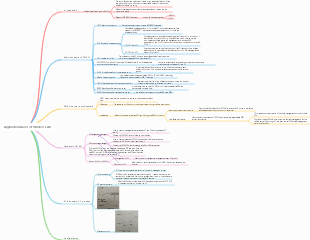
Mind map of Linux server configuration and operation commands, DNS server configuration, DHCP server configuration, common operation commands, etc.
Edited at 2023-11-10 16:43:58Avatar 3 centers on the Sully family, showcasing the internal rift caused by the sacrifice of their eldest son, and their alliance with other tribes on Pandora against the external conflict of the Ashbringers, who adhere to the philosophy of fire and are allied with humans. It explores the grand themes of family, faith, and survival.

This article discusses the Easter eggs and homages in Zootopia 2 that you may have discovered. The main content includes: character and archetype Easter eggs, cinematic universe crossover Easter eggs, animal ecology and behavior references, symbol and metaphor Easter eggs, social satire and brand allusions, and emotional storylines and sequel foreshadowing.
[Zootopia Character Relationship Chart] The idealistic rabbit police officer Judy and the cynical fox conman Nick form a charmingly contrasting duo, rising from street hustlers to become Zootopia police officers!
Avatar 3 centers on the Sully family, showcasing the internal rift caused by the sacrifice of their eldest son, and their alliance with other tribes on Pandora against the external conflict of the Ashbringers, who adhere to the philosophy of fire and are allied with humans. It explores the grand themes of family, faith, and survival.
This article discusses the Easter eggs and homages in Zootopia 2 that you may have discovered. The main content includes: character and archetype Easter eggs, cinematic universe crossover Easter eggs, animal ecology and behavior references, symbol and metaphor Easter eggs, social satire and brand allusions, and emotional storylines and sequel foreshadowing.
[Zootopia Character Relationship Chart] The idealistic rabbit police officer Judy and the cynical fox conman Nick form a charmingly contrasting duo, rising from street hustlers to become Zootopia police officers!
Linux server configuration
1. Installation
1. Select the system boot method First, set the order of the boot disk in the computer's CMOS, then put the installation CD into the CD-ROM drive and restart the computer. At this time, the system will perform a self-check. After the self-check is completed, the boot interface for installing the system will appear. This screen includes the following boot options: Install Red Hat Enterprise Linux 7. 0 (Install RHEL 7.) Test this media & install Red Hat Enterprise Linux 7. 0 (Test the installation file and install RHEL 7. 0) Troubleshooting (Fix the fault) General In this case, select the first item and then press Enter to enter the boot installation.
Configure partitions
1) Partition naming Linux identifies hard disk partitions through a combination of letters and numbers. The naming rules are as follows. The first two letters indicate the type of device where the partition is located, hd indicates IDE hard drive, and sd indicates SCSI hard drive. The third letter indicates which device the partition is on. hda indicates that it is on the first IDE hard disk, and hdb indicates that it is on the second one. On the IDE hard disk, sdc indicates that it is on the third SCSI hard disk. The number indicates the order of the partitions, 1~4 indicates the primary partition or extended partition, and the logical partition starts from 5.
8. 2. 2. 1 Introduction to Red Hat Enterprise Linux Linux distributions tend to be diversified. Currently, in the kernel part of the operating system, the commonly used version is 4.x.x. In order to facilitate installation, the operating system kernel is combined with various software and packaged together. As a Linux distribution, there are currently more than 300 distributions on the market. , such as Red Hat Linux, Slackware Linux, Open Linux, Informagic, SuSE Linux, Debian Linux, Redflag Linux, Turbo Linux, Linux-Mandrake and Red Flag Linux, etc.
2. Commonly used operating commands
1. System startup and shutdown operations
1) Start the system. Red Hat Enterprise Linux 7 boots the system through GRUB2. If the computer is equipped with multiple operating systems, generally as long as the correct configuration is performed during the installation process of Red Hat Enterprise Linux 7, GRUB2 will be displayed on the boot interface. The system list allows the user to choose which system to enter; if not selected, the system will automatically enter the default system after the specified time. If there are multiple operating systems in the boot system list, you can select one by pressing or up, and then press Enter after selecting. If this is the first time you run the system, the system will automatically enter the "Welcome" interface. Generally speaking, after the system performs self-test, the system will enter the Red Hat Enterprise Linux 7 login interface.
2) Use the reboot command to restart the computer. Under normal circumstances, press the Ctrl Alt Del key combination to restart the computer, but the formal usage is to execute the reboot command, and its syntax format is: reboot [-n] [-w] [-d] [-f] [-i]
3) Use the shutdown command to shut down or enter the single-user maintenance mode. The shutdown command can be used to close all programs running in the system, and can enter the human-system maintenance mode according to the user's needs, or perform restart or shutdown operations. The syntax of the shutdown command is as follows. shutdown [-t secs] [-rkhncfF] time [warning message]
2. Switch between text mode and graphics mode
In text mode, enter the startx command to directly enter the X Window System interface. In the XWindowSystem interface, you can also use text mode. The Linux host provides 6 virtual terminals under the console (Console), and each virtual terminal can execute its own program, as shown in Table 8.3.
Console key combination inlay 1 Ctrl Alt F1 X Graphical display 2 Ctrl Alt F2 Shell prompt 3 Ctrl Alt F3 Installation log (installation program information) 4 Ctrl Alt F4 System-related messages 5 Ctrl Alt F5/F6 Text (shell) display interface 7 Ctrl Alt F7 Installation prompt dialog box
At any time after logging into the XWindow System, press the Ctrl Alt Fn key combination to switch to the local terminal, where Fn refers to the F1 to F7 function keys. For example, press the Ctrl Alt F2 key combination to switch to the first virtual terminal; press the Ctrl Alt F3 key combination to switch to the second virtual terminal; and so on. To return to the original X Window System system interface, you can press the Ctrl Alt F1 key combination. Users can also directly log in to the text mode terminal by pressing the Ctrl Alt F7 key combination when the window login interface appears. Of course, in the Red Hat Enterprise Linux 7 graphical interface, you can also use the text mode while using the X Window System system through the terminal command program.
2. Command
Linux cp
Analysis: The Linux cp command is mainly used to copy files or directories. -a: Usually used when copying a directory, it retains links and file attributes, and copies all contents under the directory -d: Keep links when copying. The link mentioned here is equivalent to a Windows shortcut. -f: Overwrite existing target files without giving a prompt. -: Contrary to the -f option, a prompt is given before overwriting the target file, asking the user to confirm whether to overwrite. -p: In addition to copying the contents of the file, the modification time and access permissions are also copied to the new file. -r: If the given source file is a directory file, all subdirectories and files in the directory will be copied. -: Do not copy files, just generate link files.
-f If the target file already exists, the original file will be overwritten directly. -i If the target file already exists, you will be asked whether to overwrite it. -p preserves all attributes of the source file or directory -r copies files and directories recursively -d When copying a symbolic link, create the target file or directory as a symbolic link and point to the original file or directory connected to the source file or directory. -l creates a hard link to the source file instead of copying the file -s creates a symbolic link to the source file instead of copying the file -b Back up the target file before overwriting the existing file target -v displays in detail the operation process of the cp command -a Equivalent to the "dpr" option
1. Use the command cp to copy all files in the current directory test/ to the new directory test2, and enter the following command: cp -r test/test2
-f: Overwrite an existing target file without giving a prompt. -p: In addition to copying the contents of the file, the modification time and access permissions are also copied to the new file. -P, --no-dereference do not follow symbolic links in source files -i or --interactive: Interactively ask whether to overwrite existing files. If the target file already exists, cp will ask whether to overwrite it. -r or --recursive: Copy the directory and its contents recursively. Use this option if you want to copy a directory. -u or --update: Copy only updated files in the source file. If the source file is newer than the destination file, or the destination file does not exist, the source file is copied. -v or --verbose: Display verbose output listing each file copied. --preserve: Preserve the permissions, timestamps and other information of the source file, including -p, --preserve=mode,ownership,timestamps and other variants. -n, --no-clobber Do not overwrite existing files (disables the previous -i option). Avoid overwriting existing target files by copying. --remove-destination: Remove the destination file (if it exists) before copying. --backup[=CONTROL]: Create a backup file, CONTROL can be a number, none or off to control how the backup file is generated.
iptable Deny remote
iptables is a packet filtering firewall system integrated in the Linux kernel. Specific filtering rules can be added and deleted using iptables. By default, iptables maintains 4 tables and 5 chains. All firewall policy rules are written into these tables and chains respectively.
chkconfig iptables off permanently turns off the firewall chkconfig iptables on Automatic startup is on service iptables stop stop firewall service iptables start starts the firewall service iptables status Query firewall status
In the Linux system, you can use the (C) command to deny the remote host with the IP address 192. 168. 0. 2 from logging in to the server. A.iptables-A input-p tcp-s 192. 168. 0. 2-source-port22-j DENY B.iptables-A input-p tcp-d 192. 168. 0. 2-source-port22-j DENY C.iptables-A input-p tcp-s 192. 168. 0. 2-desination-port22-j DENY D.iptables-A input-p tcp-d 192. 168. 0. 2-desination-port22-i DENY Deny source 192.168.0.2 destination address access to the specified destination port
IS
In Linux, the (44) command displays files in order of modification time. A . Is - a B . Is - b C . Is - C D . Is - d Important option parameters are explained as follows: -a Displays all subdirectories and files in the specified directory, including hidden files. -c Sort files by modification time -d If the parameter is a directory, only its name is displayed without displaying the files under it. -i Display the file's i-node number in the first column of output. -1 displays file details in long format, This is the most commonly used parameter of the Is command. use-! The information listed in each line of the parameter is the file type and access permissions, the number of links, the file owner, the file group, the file size, the time of creation or latest modification, and the name.
[2021]33. In Linux, use the command " chmod - R xxx / home / abc " to modify the directory The access permissions of /home/abc are read, writable, and executable. The "xxx" in the command should be ().
r:4 w:2 x:1
3.linux
Directory commands and operations
Table of contents
①./bin: stores commonly used commands (ie binary executable programs) ②./boot: System kernel and startup-related files ③. /dev: stores device files ④. /etc: stores system configuration files Administrator user’s home directory ⑤./home: Home directories of all ordinary users /root: ⑥./lib: store library files ⑦./proc: Virtual file system directory, which stores memory mapping in process units ⑧./usr: Stores system applications and documents ⑨./var: Stores files that often change during system operation, such as system logs ⑩./mnt: Temporary mount point ⑪./tmp: stores various temporary files and is a location accessible to all users
First half of 2017 31. In the following description of the Linux directory, the correct one is (C). A. Linux has only one root directory, represented by "/root" B. There are multiple root directories in Linux, represented by "/" plus the corresponding directory name. C. There is only one root directory in Linux, represented by "/" D. There are multiple root directories in Linux, represented by corresponding directory names.
operate
2. Delete directories or files Command: rm [-rf] directory/file delete directory rm -r directory 1 recursively deletes the specified directory 1 under the current directory. rm -rf directory 2 recursively deletes the specified directory 2 in the current directory (does not ask) rm -rf * Delete all directories and files in the current directory rm -rf /* [Suicide behavior command! Use with caution! 】Will delete all directories and files in the root directory Delete Files rm file name deletes the specified file in the current directory rm -f file deletes the specified file in the current directory (does not ask)
3. Rename directory or file name Command: mv current directory/file directory/file name to be changed to mv aaa bbb Change directory aaa to bbb (rename) mv aaa.text bbb.text Change the file aaa to bbb (rename)
4. Directory switching command: cd --change directory cd / changes to the root directory cd /root switches to the root directory under the root directory cd .. switch to the upper level directory cd ~ switch to home directory cd - changes to the last visited directory
6. Copy directories or files Command: cp -r/cp directory/file name directory/target location of file copy -r represents recursion (only copying files does not require adding -r. If you copy a directory, you must add this -r option. After adding it, the folder will be copied. ——Including subfolders at the next level, and subfolders within subfolders, and so on.) Copy the aaa directory under the /data/a directory to the /usr directory cp -r /data/a/aaa /usr Copy the aaa.text file in the /data/a directory to the /usr directory cp /data/a/aaa.text /usr Back up the aaa.text file in the /data/a directory to bbb.text cp /data/a/aaa.text /data/a/aaa.text (copy the file in the current directory to back up the file The name cannot be the same as the original)
command prompt [root@localhost ~] # []: This is the separator symbol of the prompt and has no special meaning. root: displays the current logged in user. @: Delimiter symbol, no special meaning. localhost: The abbreviated host name of the current system (the full host name is localhost.localdomain). ~: Represents the last level directory of the directory where the user is currently located. Finally #: indicates the command prompt. The super user is # and the ordinary user is $. Tip: ~ is the current user’s home directory
[root@localhost ~] # command [options] [parameters] hint: Linux commands basically follow the above format. In all computer documentation and formatting rules, [] means optional. ls is the most common directory operation command, and its main function is to display the contents of the directory. Command name: ls. Original English meaning: list. Location: /bin/ls. Execute permissions: All users. Function description: Display the contents of the directory. Command: ls [-al] or ll ls displays all directories and files in the current directory ls -a View all directories and files in the current directory (including hidden files) ls -l or ll to view all directories and files in the current directory (display in list mode to display more information) ls /data View all directories and files in the specified directory (such as: ls /data)
The pwd command is a command to query the location of the directory. The basic information is as follows: Command name: pwd Original English meaning: print name of current/working directory Location:/bin/pwd Execute permissions: All users. Function description: Query the location of the working directory.
mkdir is the command to create a directory. The basic information is as follows. Command name: mkdir. Original English meaning: make directories. Location: /bin/mkdir. Execute permissions: All users. Function description: Create an empty directory. Command: mkdir --create directory command mkdir abc creates a folder named abc in the current directory mkdir /usr/abc creates a folder named abc in the specified directory
Delete user group
[First half of 2015] 32. In Linux, to delete the user group group 1, you should use the (C) command. A.[root@localhostl#delete group1 B.[ root @ localhost ]# gdelete group1/ C. [root @ localhost ]# groupdel group1 D.[root@localhost]# gd group 1
Related configuration files
The /etc/hostname file contains the host name of the Linux system, including the full domain name; The /etc/host.conf file specifies how to parse the host domain name. Linux uses the parsing library to obtain the IP address corresponding to the host name; The /etc/resolv.conf file is responsible for configuring DNS. It contains the host's domain name search order and the address of the DNS server.
3. DHCP server configuration
1. File location: etc/dhcp/dhcpd.conf or /etc/dhcpd.conf Lease information is stored in /var/lib/dhcp/dhcpd.leases default-lease-time 3600 lease default lease time max-lease-time 14400 maximum lease time
2. Configuration case: ddns-update-style none; * means not to update DDNS configuration subnet 192.168.1.0 netmask 255.255.255.0 { } represents a domain { option routers 192.168.1.254 *Indicates that the gateway address issued to the customer is 192.168.1.254 option subnet-mask 255.255.255.0 option domain-name-servers 192.168.1.1 option domain-name “educity.cn” *Indicates that the domain name of the client is educity.cn range 192.168.1.10 192.168.1.100 } host webserver { hardware ethernet 08:00:00:4c:58:23 *MAC address of the client host fixed-address 192.168.1.210 }
[Question 2] (8 points) The IP address of the internal mail server is (192. 168. 100. 253, and the MAC address is (01:A8:71:8C:9A:BB): The IP address of the internal file server is (192 . 168. 100. 252) The MAC address is 01:15:71:8C:77:BC.) The company's internal network is divided into 4 network segments. To facilitate management, the company uses a DHCP server to dynamically configure IP addresses for clients. The following is the code for the Linux server to configure DHCP for the 192. 168. 100. 192/26 subnet. Please complete it. Subnet (2) 192.168.100.192 netmask (3) 255.255.255.192 //Configure the subnet of the IP address assigned by the DHCP server { option routers 192. 168. 100. 254; //Configure gateway address option subnet-mask (4) 255. 255. 255. 192; //Configure subnet mask option broadcast-address (5) 192. 168. 100. 255; //Configure the broadcast address of the subnet option time-offset-18000; range(6) 192. 168. 100. 193 (7) 192. 168. 100. 253; //Configure the IP address pool, you need to exclude the gateway address default-lease-time 21600; //Configure the default lease period in seconds max-lease-time 43200; //Configure the longest lease period host servers { Hardware ethemet (8) 01: A8: 71: 8C: 9A: BB; //Configure the MAC address of the reserved host fixed-address 192. 168. 100. 253; hardware ethemet 01: 15: 71: 8C: 77: BC; fixed-address (9) 192. 168. 100. 252; //Configure the IP address of the reserved host } }
4. DNS server configuration
1. File location Configuration file content: /etc/named.conf The configuration file for configuring DNS addresses is /etc/resolv.conf Server startup and shutdown: service named start or service named stop
2. Client configuration
Under Linux systems, two methods are supported by default for domain name resolution: one is the hosts table, and the other is the DNS system. The Host table is stored in a simple text file. The file name is /etc/hosts. When performing DNS resolution, the system needs to specify a DNS server so that when the system wants to resolve the domain name, it can request the specified domain name server. Make an inquiry.
1) /etc/hosts The hosts table is stored in a simple text file, and the file name is /etc/hosts. In /etc/hosts, we can configure the corresponding relationship between host names and IP addresses. For example: [root@ecs-u4x~] #cat/etc/hosts 127. 0. 0. 1 localhost The above syntax indicates that the IP address corresponding to the host name localhost is 127. 0. 0. 1.2
2)/etc/resolv.conf In /etc/resolv.conf, we can configure the client’s DNS address. For example: [root@ecs-u4x~] #cat/etc/resolv.conf nameserver 8. 8. 8. 8 The above syntax indicates that the client's DNS address is configured as 8. 8. 8. 8
3) /etc/hosts.conf In /etc/hosts.conf, we can configure the order of domain name resolution. For example: [root@ecs-u4x~] #cat/etc/hosts.conf order hosts,bind The above syntax indicates that when the client performs domain name resolution, it first queries the /etc/hosts file. If the query cannot be found, the DNS system is used for resolution.
3. Server configuration
In the configuration file /etc/named.conf, the administrator needs to enter the corresponding statements to implement the corresponding functions. Below we use a case to understand the syntax of the configuration file.
1) named.conf For example: zone". "IN{ type hint; file"named.ca"; }; zone"educity.cn"IN{ type master; file"named.educity.cn"; }; zone"100. 168. 192.in-addr.arpa" IN{ type master; file "named. 192. 168. 100"; ); Configuration case description: zone". "IN{ type hint; file "named.ca"; }; zone". "zone". "in IN represents the root zone, type represents the type, and hint represents the type as the root. From the previous chapters, we know that there are 13 root domain name servers in the world. When the local DNS server cannot resolve, it will go to the root domain name server. So how does the DNS server know the address of the root domain name server? This address is stored in the file /var/named/named.ca. zone"educity.cn"IN{ type master; file"named.educity.cn"; }; This statement indicates that in the education.cn area, the current DNS server type is the primary domain name server. The mapping relationship between the host name and IP address of the host in the education.cn area is saved in the /var/named/named.educity.cn file. middle. zone"100. 168. 192.in-addr.arpa"IN{ type master; file "named. 192. 168. 100"; }; This statement configures the storage file location of the reverse zone record file. When performing reverse analysis, the IP address must be written in reverse for the name in the zone, and must be added at the end. in-addr.arpa, indicating that the host name record corresponding to the IP address of the network segment 192. 168. 100 is stored in the /var/named/named.192. 168. 100 file
2) Forward search area In the configuration file /var/named/named.educity.cn, the mapping relationship between the host name and IP address of the host in the education.cn area is recorded. For example: www.educity.cn INA 192. 168. 100. 100 xisai.educity.cn INA 192. 168. 100. 101 Linux.educity.cn IN CNAM www.educity.cn. Among the above three statements, the first two statements are A records, which record that in the education.cn area, the IP addresses corresponding to the hosts named www and xisai are 192. 168. 100. 100 and 192. 168. 100 respectively. . 101. The third statement is a CNAME alias record, which means that the domain name Linux.educity.cn points to www.educity.cn. Accessing Linux.educity.cn means accessing the IP address 192. 168. 100. 100.
3) The reverse lookup area is in the configuration file /var/named/named.192. 168. 100, which records the mapping relationship between the IP address and the host name of the host under the 192. 168. 100 network segment. 101 IN PTR abc.educity.cn This statement configures the PTR reverse pointer record, which means that the domain name corresponding to the IP address 192.168.100.101 is abc.educity.cn
test questions
1. The administrator added the following records to the /etc/hosts file in a certain Linux system. Which of the following statements is correct () 127. 0. 0. localhost.localdomain localhost 192. 168. 1. 100 linumu100.com web80 192. 168. 1. 120 emailserver A.linumu100.com is the host name of host 192. 168. 1. 100 B.web80 is the host name of host 192. 168. 1. 100 C.emailserver is an alias of host 192. 168. 1. 120 D.192. 168. 1. The format of the 120-line record is wrong Analysis of question 1: This question examines the format of the hosts file in the Liunx system. In the /etc/hosts file, the first column is the IP address, the third column is the host name, and the third column is the alias. So option A is correct.
2. In Linux systems, file() resolves host domain names. A. /etc/hosts B. /etc/host.conf C. /etc/hostname D. /etc/bind Analysis of question 2: In the Linux system, the file /etc/hosts resolves the host domain name, and /etc/host.conf describes the resolution sequence. Answer to question 2: A
3. In the Linux system, the content of the DNS query file is as follows. The default storage location of the file is (). When users perform DNS queries, the IP address of the preferred DNS server is (). Serach domain.test.cn Nameserver 210. 34. 0. 14 Nameserver 210. 34. 0. 15 Nameserver 210. 34. 0. 16 Nameserver 210. 34. 0. 17 (1) A. /etc/inet.conf B. /etc/resolv.conf C. /etc/inetd.conf D. /etc/net.conf (2) A. 210. 34. 0. 14 B. 210. 34. 0. 15 C. 210.34.0.16 D. 210. 34. 0. 17
Samba server configuration
Samba is a free software used to connect UNIX series operating systems with the SMB/CIFS (Server Message Block/Common Internet File System) network protocol of the Microsoft Windows operating system. In this version (v3), not only can you access and share SMB folders and printers, you can also integrate it into a Windows Server domain, act as a Domain Controller, and join Active Directory members. In short, this software builds a bridge between Windows and UNIX series OS.
The smb.conf file has three main configuration parameters: Global parameter field (global), directory sharing field (homes) and printer sharing field (printers). 1. Global parameter field Global parameter field (global): the overall configuration when the host is shared. Configuration example: [global] workgroup=CSAIGROUP server string=Linux Samba netbios name=LinuxSir security= [user|share|server|domain] hosts allow=192. 168. 1. 0/24 Configuration case description: workgroup specifies the name of the workgroup where the Samba server is located, which is CSAIGROUP. netbios name specifies the netbios name of the Samba server host, here it is LinuxSir. The server string is an explanation and description of the Samba server host. You can fill it in at will. Security specifies the level of security related to the password. Choose one of the four parameters: share, user, server, and domain. share means that anyone can access the share without a password; user means using the user password database of the Samba server itself: server means that the user account and password need to be entered, and another server is responsible for verifying user information, not the Samba server; domain means Use a server in the domain to verify user information. hosts allow indicates the network segment that is allowed to access the Samba server. For example, the accessible network segment configured here is 192. 168.
2. Directory sharing field Directory sharing field (homes): Define general parameters, such as establishing a shared file directory, etc. Configuration example: [homes] comment=Home Directories browseable= [yes|no] writable= [yes|no] create mask=0664 directory mask=0775 Configuration case description: The homes in [homes] represent the name of the shared directory, which is just a code name. Homes is a special resource sharing name. Each user in the Linux system has a home directory. For example, the home directory of smb1 is located at /home/smbl/. Comment represents the description of the directory, which can be filled in as needed. Browseable indicates whether all users can see this project, yes means yes, no means no. Writable indicates whether the content can be written, yes indicates yes, and no indicates no. create mask represents the permissions when the file is created, in this case it is 664. Directory mask represents the permissions when the directory is created, in this case it is 775.
3. Printer sharing field Printer sharing field (printers): printer configuration and sharing. Configuration example: [printers] comment=all printers #Indicates printing instructions path=/var/spool/samba #Indicates the printer queue location browseable= [yes|no] #Indicates whether to allow browsing of the printer valid users=jack, @root #Indicates which users and user groups can access guest ok= [yes|no] #Indicates whether the share is allowed to be accessed by the guest account writable= [yes|no] #Indicates whether the shared path is writable
Starting and shutting down the Samba server Enter service smb start or service smb stop on the command line interface to start or shut down the Samba server.
test questions
1. You can use (D) to realize data sharing between Linux platform and Windows platform. A. netbios B.NFS C. Appletalk D. Samba Analysis of question 1: Samba can realize data sharing between Linux and Windows platforms.
2. ( ) is the function of Samba in Linux system. A. Provide file and printer sharing services B. Provide FTP services C. Provide user verification services D. Provide IP address allocation services Analysis of question 2: Samba can provide file and print sharing services between different systems
FTP server configuration
The FTP server is used to transfer files between the client and the server. The protocol uses clear text to transmit data. In order to use the FTP server more safely, we mainly introduce the more secure vsftpd server. The content of this part of the exam mainly includes the storage path of the configuration file and the configuration use cases in the configuration file. Candidates need to be familiar with this part of the knowledge points. Configuration file storage path The configuration file of the vsftpd server is /etc/vsftpd/vsftpd.conf. We can configure statements in this file to implement the corresponding functions. The user_list file can perform flexible user access control on the vsftpd server. Its path is /etc/vsftpd/user_list.
Configuration case description: listen=yes(no), if yes, it means that the vsftpd server is started in independent mode. listen_address indicates the IP address that the machine listens to. listen_port represents the local FTP listening interface. write_enable indicates whether write permission is enabled. download_enable indicates whether downloading files is allowed. userlist_enable indicates whether to enable user_list list file, used to deny access to certain users. userlist_deny will only take effect when userlist_enable=yes. When yes, the user account is listed in a file, and users in the file will not be able to log in to the vsftpd server. max_clients means that if the vsftpd server is started in an independent mode, you can specify the maximum number of clients allowed to log in to the vsftpd server at the same time. max_per_ip can configure the number of concurrent connections for the same IP address. anonymous_enable indicates whether to enable anonymous login. local_enable is used to configure whether user accounts in this server are allowed to log in to the FTP server. Starting and shutting down the vsftpd server Enter service vsftpd start or service vsftpd stop on the command line interface to start the VSFTP server or shut down the vsftpd server.
listen=yes listens to the service running independently listen_address=X.X.X.X Set the listening IP address listen_port=21 sets the listening FTP port number write_enble=yes enables write permissions download_enable=yes allows downloading files userlist_enable=yes enables user_list list file userlist_deny=yes: prohibit Users in the user_list list. max_clients=0: Limit the number of concurrent client connections. max_per_ip=0: Limit the number of concurrent connections to the same IP address. Commonly used anonymous FTP configuration items are as follows. anonymous_enable=yes: Enable anonymous access (allow anonymous user access). anon_umask=022: Permission mask for files uploaded by anonymous users. anon_root=/var/ftp: FTP root directory of anonymous users. anon_upload_enable=yes: Allow file upload. anon_mkdir_write_enable=yes: Allow directory creation. anon_other_write_enable=yes: Open other people's write permissions. anon_max_rate=0: Limit the maximum transmission rate in bps. Commonly used local user FTP configuration items are as follows. local_enable=yes: Enable local system users. local_umask=022: Permission mask for files uploaded by local users. local_root=/var/ftp: Set the FTP root directory of the local user. chroot_local_user=yes: Lock the user in the home directory. local_max_rate=0: Limit the maximum transmission rate, in bps.
test questions
1. If Linux users need to change the default FTP port 21 to port 8800, they can modify the () configuration file. A. /etc/vsftpd/userconf B. /etc/vsftpd/vsftpd.conf C. /etc/resolv.conf D. /etc/hosts Analysis of question 1: The configuration file of the vsftpd server is /etc/vsftpd/vsftpd.conf. Through this file, the listen_port parameter can be modified to change the port. Answer to question 1: B
The FTP service of the Linux system is provided by the vsftpd server. The application layer protocol used by the server is (FTP), the transport layer protocol is (TCP), the default port number is (21), the VSFTPD start command is (Service vsftpd start), close The command is (Service vstfped stop)
Apache server configuration
1. Apache (transliterated as Apache) is the world’s number one web server software. It can run on almost all widely used computer platforms and is one of the most popular web server-side software due to its cross-platform and security features. 2. The path where the configuration file is stored: /etc/httpd/conf/httpd.conf 3. Enter service httpd start or service httpd stop in the command line interface to start the Apache server or shut down the Apache server.
Syntax description of main configuration files
1. Virtual hosts based on different IP addresses
Configuration example: <VirtualHost 173. 17. 17. 11> DocumentRoot /home/csai.com ServerName www.csai.com <VirtualHost> <VirtualHost 192. 168. 4. 11> DocumentRoot/home/educity.cn ServerName www.educity.cn <VirtualHost> Configuration case description: <VirtualHost 173. 17. 17. 11> DocumentRoot/home/csai.com ServerName www.csai.com The first half of the statement in the </VirtualHost> configuration example indicates that for the virtual host built with the IP address 173. 17. 17. 11, the document storage path is /home/csai.com, and the server name is www. csai.com, configure the meaning class of the second half of the statement in the case
2. Virtual hosts based on the same IP address and different ports
Listen 173. 17. 17. 11: 8080 <VirtualHost 173. 17. 17. 11: 80> DocumentRoot /home/csai.com ServerName www.csai.com </VirtualHost> <VirtualHost 173. 17. 17. 11: 8080> DocumentRoot /home/educity.cn ServerName</VirtualHost> www.educity.cn Configuration case description: Listen is followed by the listening host IP address and its port number. <VirtualHost 173. 17. 17. 11: 80> DocumentRoot /home/csai.com ServerNamewww.csai.com </VirtualHost> The upper half of the statement in the configuration case indicates that for the virtual host whose listening port number is 80, the document storage path is /home/csai.com, and its server name is www.csai.com. The lower half of the configuration case Paragraph sentences express similar meanings
3. Virtual hosts with the same IP address and different domain names (host names)
Configuration example: <VirtualHost 173. 17. 17. 11> DocumentRoot /home/csai.com ServerName </VirtualHost> <VirtualHost 173. 17. 17. 11> DocumentRoot/home/educity.cn ServerName www.educity.cn </VirtualHost>www.csai.com Configuration case description: <VirtualHost 173. 17. 17. 11> DocumentRoot /home/csai.com ServerName www.csai.com </VirtualHost> The first half of the statement in the configuration case indicates that for the virtual host 173. 17. 17. 11, the document storage path is /home/csai.com, and its server name is www.csai.com. When accessing this domain name It will automatically search for the homepage file in the /home/csai.com directory. The meaning of the second half of the statement in the configuration case is similar;
Questions:
1. In Linux systems, the default Web root directory when using the Apache server is (). A. . .htdocs B. /var/www/html C. /var/www/usage D. .lconf Analysis of question 1: In a Linux system, the default Web root directory when using the Apache server is /var/www/html. Answer to question 1: B
2. Multiple Web sites can be implemented on an Apache server through virtual hosts. The virtual host can be a virtual host based on (1) or a name-based virtual host. If a company sets up an imaginary host named www.business.com, it needs to add an address record to the server (2). The configuration information recorded at this address in the Linux system is as follows, please complete it. NameVirtualHost 192. 168. 0. 1 <VirtualHost 192. 168. 0. 1> (3) www.business.comDocumentRoot/var/www/html/business </VirtualHost> (1) A. IP B. TCP C. UDP D. HTTP (2) A. SNMP B. DNS C. SMTP D. FTP (3) A. WebName B. HostName C. ServerName D. WWW Analysis of question 2: The Apache server can implement virtual hosts based on IP addresses and names. Virtual hosts based on IP addresses need to configure IP address aliases on the machine, such as binding multiple IP addresses to the network card of a machine to serve multiple virtual hosts. This kind of virtual host based on IP address has a disadvantage, that is, it requires many IP addresses to serve its own virtual host. If there are not enough IP addresses, this method cannot be used. For name-based virtual hosts, you only need to set the document path of the corresponding virtual host to DocumentRoot and ServerName in the NameVirtualHost domain in the Apache server configuration file. The A record on the DNS server must be modified so that domains with different names point to the same server IP address;
3. The configuration file httpd.conf of an Apache server contains the configuration items shown below. Select the appropriate option at (1) so that users can access the Apache server through http://www.test.cn; when users access http://111.25.4.30:80, they will access (2) Virtual host. NameVirtualHost 111. 25. 4. 30: 80 ServerName www.othertest.com DocumentRoot/www/othertest ServerName (1) DocumentRoot/www/otherdate ServerName www.test.com ServerAlias test.com*.test.com DocumentRoot/www/test (1) A.www.othertest.com B.www.test.com C.www.test.cn D.ftp.test.com (2) A.www.othertest.com B.www.test.com C.www.test.cn D. ftp.test.com Analysis of question 3: This question tests the configuration of the Apache server. In the Apache server configuration file httpd.conf, NameVirtualHost is used to specify the IP address used by the virtual host. This IP address will correspond to multiple DNS names. If the Apache server uses the Listen parameter to control multiple ports, you can add the port number here to further distinguish different connection requests for different ports. Thereafter, use the VirtualHost statement, using the IP address specified by NameVirtualHost as a parameter, to define a corresponding virtual host for each name. According to the question requirements, users can access the Apache server through http://www.test.cn, but the ServerName in the configuration file lacks www.test.cn, so www.test.cn should be filled in in (1). When the user accesses http ://111. 25. 4. At 30:8, the first virtual host address www.othertest.com defined in the configuration file will be accessed. Answer to question 3: C, A