MindMap Gallery tmux usage
It introduces in detail the usage of tmux under Linux, shortcut keys, etc. It is full of useful information. Friends in need should quickly collect it!
Edited at 2023-11-28 10:45:41This is a mind map about bacteria, and its main contents include: overview, morphology, types, structure, reproduction, distribution, application, and expansion. The summary is comprehensive and meticulous, suitable as review materials.
This is a mind map about plant asexual reproduction, and its main contents include: concept, spore reproduction, vegetative reproduction, tissue culture, and buds. The summary is comprehensive and meticulous, suitable as review materials.
This is a mind map about the reproductive development of animals, and its main contents include: insects, frogs, birds, sexual reproduction, and asexual reproduction. The summary is comprehensive and meticulous, suitable as review materials.
This is a mind map about bacteria, and its main contents include: overview, morphology, types, structure, reproduction, distribution, application, and expansion. The summary is comprehensive and meticulous, suitable as review materials.
This is a mind map about plant asexual reproduction, and its main contents include: concept, spore reproduction, vegetative reproduction, tissue culture, and buds. The summary is comprehensive and meticulous, suitable as review materials.
This is a mind map about the reproductive development of animals, and its main contents include: insects, frogs, birds, sexual reproduction, and asexual reproduction. The summary is comprehensive and meticulous, suitable as review materials.
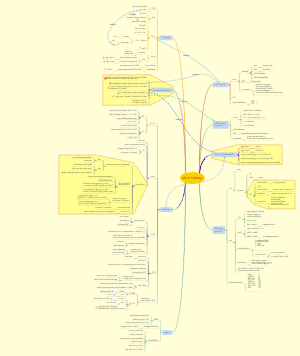
tmux usage
Session command operations
tmux creates a session. The default name is a number.
tmux new -s hansen creates a session named hansen
tmux detach disconnects the current session
tmux attach can be abbreviated as tmux a, enter the recently disconnected session
tmux attach -t hansen enters the session named hansen
tmux list-sessions lists all sessions, abbreviated as tmux ls
tmux rename -t s1 s2 renames session s1 to s2
tmux kill-session closes the last opened session
tmux kill-server closes all sessions
Window command operations
tmux window creates a new window in the current session
tmux choose-window select window
tmux kill-window -t 1 close window 1
tmux set-window-option synchronize-panes on/off turns on/off screen synchronization, which can be used to control multiple panes at the same time.
tmux join-pane -s window01 merges the first pane of the window named window01 to the current window
tmux join-pane -s windows01.2 .2 displays the specified second pane and merges it into the current window
Pane command operations
Pane shortcut key operations
Ctrl b PageUP/PageDOWN pane page up and down, corresponding to Shift PageUP/PageDown in Linux normal mode, press Enter key to exit
Ctrl b "The current second template is divided into two parts, and a new pane is created on the lower side.
Ctrl b % The current pane is divided into two parts on the left and right, and a new pane is created on the right
Ctrl b x close the current pane
Ctrl b z maximize the current pane
Ctrl b! Move the current pane to a new window to open. This requires that the original window has more than two panes valid.
Ctrl b ; Switch to the last pane used
Ctrl b q displays the pane number. Enter the pane number to switch to the corresponding pane before the number disappears.
Ctrl b { Displace current pane forward
Ctrl b } Displace current pane backward
Ctrl b Ctrl o Rotate all panes of the current window clockwise
Ctrl b arrow keys move the cursor to switch panes
Ctrl b o select next pane
Ctrl b Spacebar Cycles through panes in the built-in layout
Ctrl b Alt arrow keys adjust the edge of the current pane in units of 5 cells
Ctrl b Ctrl arrow keys adjust the edge of the current panel in units of one cell
Ctrl b t show clock
Ctrl b i displays current pane information
Window shortcut key operations
Ctrl b c New window
Ctrl b & close the current window
Ctrl b 0~9 switch to the specified window
Ctrl b p switch to the previous window
Ctrl b n switch to the next window
Ctrl b w opens the window list for switching windows
Ctrl b, rename the current window
Ctrl b . Modify the index number of the current window
Ctrl b ` Switch to the window with the specified number
Ctrl b. Modify the current window number, suitable for reordering windows
Ctrl b f quickly locate the window and enter keywords to match the window name
Session shortcut key operations
Ctrl b ? Display shortcut key help documentation
Ctrl b d disconnect current session
Ctrl b $ Rename current session
Ctrl b D select the session to disconnect
Ctrl b Ctrl z suspends the current session, just like system suspension, it can be restored with fg
Ctrl b r Force reload of current session
Ctrl b s show session list
Ctrl b: Enter command line mode, at this time you can directly execute the tmux command
Ctrl b ~ List prompt information cache
Ctrl b [Enter copy mode
Ctrl b ] Paste copied text
The default shortcut key for copy mode is emacs. You need to switch the mode to vi mode. The method is as follows: 1. show-window-options -g mode-keys to view the current mode 2. set-window-option -g mode-keys vi turns on vi mode, which supports C-d, C-u, hjkl, etc. 3. Enter Ctrl b [ to enter copy mode 4. Press Space to start copying, move the cursor to select the copied area 5. Press Entry to copy the text and exit copy mode 6. Press Ctrl b ] to paste the text