MindMap Gallery Basic Git Commands
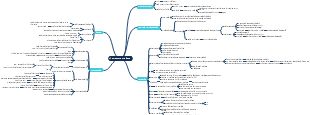
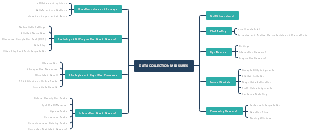
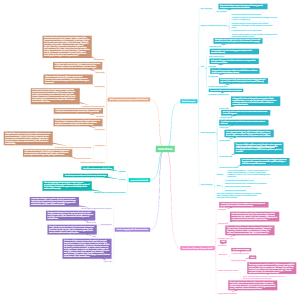
Programmers must understand Git because it is a very important version control system that greatly assists in collaboration, code management, version tracking, and other aspects of software development. As a programmer, it is very important to understand and be proficient in using Git. Git is an indispensable tool for both individual project management and collaborative development between teams. This is a mind map about Basic Git commands Every Developer Must Know. The map contains 5 main branches, namely: Git: configurations, Git: starting a repository, Git: starting files, Git: committing to a repository, and Git: branching. Each main branch has detailed descriptions of multiple sub branches. Suitable for people who want to learn about Git commands.
Edited at 2024-02-06 08:57:45Programmers must understand Git because it is a very important version control system that greatly assists in collaboration, code management, version tracking, and other aspects of software development. As a programmer, it is very important to understand and be proficient in using Git. Git is an indispensable tool for both individual project management and collaborative development between teams. This is a mind map about Basic Git commands Every Developer Must Know. The map contains 5 main branches, namely: Git: configurations, Git: starting a repository, Git: starting files, Git: committing to a repository, and Git: branching. Each main branch has detailed descriptions of multiple sub branches. Suitable for people who want to learn about Git commands.
For every programmer, mastering Git commands is an essential skill. Git is a powerful version control system used to track changes and collaborations in files. Mastering these Git commands has many benefits for programmers. Firstly, Git provides powerful version control capabilities, allowing programmers to track and manage the history of code changes. This helps to avoid code conflicts and loss, and facilitates backtracking and fixing errors. Secondly, the Git command simplifies team collaboration, allowing multiple programmers to work together on a project, effectively sharing and merging their respective code. This helps to improve the efficiency and quality of the team's work. In addition, the Git command also provides flexible branch management capabilities, allowing programmers to easily create, switch, and use different branches for development and testing. In short, mastering these Git commands can provide programmers with many conveniences, enabling them to manage and collaborate code more efficiently, improving project development efficiency and code quality. This is a mind map about Basic Git commands Every Developer Must Know. The map contains 5 main branches, namely: Git: configurations, Git: starting a repository, Git: starting files, Git: committing to a repository, and Git: branching. Each main branch has detailed descriptions of multiple sub branches. Suitable for people interested in Git commands.
JavaScript is a popular programming language that is widely used for developing dynamic and interactive web applications. In this mind map, we will explore the fundamental concepts and syntax of JavaScript, providing you with a solid foundation to start your journey in web development.
Programmers must understand Git because it is a very important version control system that greatly assists in collaboration, code management, version tracking, and other aspects of software development. As a programmer, it is very important to understand and be proficient in using Git. Git is an indispensable tool for both individual project management and collaborative development between teams. This is a mind map about Basic Git commands Every Developer Must Know. The map contains 5 main branches, namely: Git: configurations, Git: starting a repository, Git: starting files, Git: committing to a repository, and Git: branching. Each main branch has detailed descriptions of multiple sub branches. Suitable for people who want to learn about Git commands.
For every programmer, mastering Git commands is an essential skill. Git is a powerful version control system used to track changes and collaborations in files. Mastering these Git commands has many benefits for programmers. Firstly, Git provides powerful version control capabilities, allowing programmers to track and manage the history of code changes. This helps to avoid code conflicts and loss, and facilitates backtracking and fixing errors. Secondly, the Git command simplifies team collaboration, allowing multiple programmers to work together on a project, effectively sharing and merging their respective code. This helps to improve the efficiency and quality of the team's work. In addition, the Git command also provides flexible branch management capabilities, allowing programmers to easily create, switch, and use different branches for development and testing. In short, mastering these Git commands can provide programmers with many conveniences, enabling them to manage and collaborate code more efficiently, improving project development efficiency and code quality. This is a mind map about Basic Git commands Every Developer Must Know. The map contains 5 main branches, namely: Git: configurations, Git: starting a repository, Git: starting files, Git: committing to a repository, and Git: branching. Each main branch has detailed descriptions of multiple sub branches. Suitable for people interested in Git commands.
JavaScript is a popular programming language that is widely used for developing dynamic and interactive web applications. In this mind map, we will explore the fundamental concepts and syntax of JavaScript, providing you with a solid foundation to start your journey in web development.
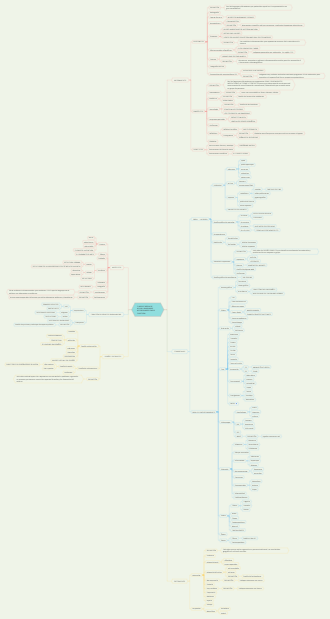
Basic Git Commands Every Developer Must Know.
Git: configurations
Setting up Git configurations for user name and email
Configuring user name use: git config --global user.name "Your Name"
Configuring email use: git config --global user.email "your@email.com"
Checking the configured user name and email
Verifying user name use: git config user.name
Verifying email use: git config user.email
Checking configuration settings
including these user-specific settings: git config --list
Git: starting a repository
Creating a new directory for the repository use: mkdir my_repo
Initializing a new Git repository use: git init
Navigating into the directory use: cd my_repo
Cloning an existing repository
Cloning a repository from a remote URL use: git clone <remote_url>
Pulling changes from a remote repository
Pulling changes from a remote repository use: git pull <remote_name> <branch_name>
Pushing changes to a remote repository
Pushing changes to a remote repository use: git push <remote_name> <branch_name>
git remote add origin ‹link>
$ git push -u origin master
S git pull
Git: starting files
Adding files to the staging area
Adding a single file use: git add <file_name>
Adding multiple files use: git add <file1_name> <file2_name> ...
Adding all files in the current directory use: git add .
git add --all
git add -A
git add .
Checking the status of files in the working directory and staging area
Checking the status of files use: git status
Removing a file from the staging area (keeping it in the working directory):
Command: git rm --cached <file-name>
Resetting changes of a file in the working directory to the last committed state:
Command: git reset <file-name>
الأمر يستخدم لإلغاء تغييرات ملف معين في النطاق الحالي دون تأثير على الملفات الأخرى. git reset: هذا الجزء من الأمر يشير إلى إجراء إعادة تعيين لتعقب التغييرات. <file-name>: هذا هو اسم الملف الذي ترغب في إلغاء التغييرات الخاصة به. عند تشغيل هذا الأمر، Git سيقوم بإلغاء تغييرات الملف المحدد وإعادته إلى الحالة التي كان عليها في آخر مرة تم التحقيق بها (commit). يمكن أن يكون ذلك مفيدًا إذا كنت قد قمت بتغييرات في ملف وترغب في التخلص منها أو التراجع عنها دون الحاجة إلى حذف الملف نهائيًا.
Git: committing to a repository
Creating a commit with a message
Creating a commit with a message use: git commit -m "Write your message here"
Change a commit with a message
This command allows you to modify the most recent commit message without creating a new commit. It replaces the last commit with a new one that has the updated message. Useful for fixing typos, adding details, or revising the last commit's message. ARABIC يتيح لك هذا الأمر تعديل أحدث رسالة التزام دون إنشاء التزام جديد. فهو يستبدل الالتزام الأخير بآخر جديد يحتوي على الرسالة المحدثة. مفيد لإصلاح الأخطاء المطبعية، أو إضافة تفاصيل، أو مراجعة رسالة الالتزام الأخير.
Creating a commit with a message use: git commit --amend -m "Write your new message here"
Viewing the commit history
Viewing the commit history use: git log
$ git reset --soft HEADA
Git: branching
Creating a new branch
Creating a new branch use: git branch <branch_name>
git branch
Switching to a different branch
Switching to a different branch use: git checkout <branch_name>
$ git checkout -b «branch-name›
Merging branches
Merging a branch into the current branch use: git merge <branch_name>
اذا تبي تتعمق افضل قائمه تشرح
git branching strategies
صوره
git reset: Purpose: Used to move the HEAD and branch pointers to a specific commit or reset the staging area. Common Usages: git reset --soft <commit>: Moves the HEAD and branch pointer to a specific commit, keeping changes staged. git reset --mixed <commit>: Moves the HEAD and branch pointer to a specific commit, unstaging changes. git reset --hard <commit>: Moves the HEAD and branch pointer to a specific commit, discarding changes in the working directory. Use Cases: To undo commits and reposition the branch pointer. To unstage changes that were previously added. git revert: Purpose: Used to create a new commit that undoes the changes made by a specific commit. Common Usage: git revert <commit> Use Cases: To safely undo changes without altering commit history. To keep a record of the fact that a commit was reverted. git checkout: Purpose: Used for switching branches, navigating commit history, or discarding changes in the working directory. Common Usages: git checkout <branch>: Switches to a different branch. git checkout <commit>: Moves to a specific commit in "detached HEAD" state. git checkout -- <file>: Discards changes in the working directory for a specific file. Use Cases: To work on a different branch. To view past commits without making changes. To discard local changes in a file.
git checkout
git checkout: Purpose: Used for switching branches, navigating commit history, or discarding changes in the working directory. Common Usages: git checkout <branch>: Switches to a different branch. git checkout <commit>: Moves to a specific commit in "detached HEAD" state. git checkout -- <file>: Discards changes in the working directory for a specific file. Use Cases: To work on a different branch. To view past commits without making changes. To discard local changes in a file.
git checkout <branch>
: Switches to a different branch.
git checkout <commit>
: Moves to a specific commit in "detached HEAD" state.
git checkout -- <file>
: Discards changes in the working directory for a specific file.
git revert
git revert: Purpose: Used to create a new commit that undoes the changes made by a specific commit. Common Usage: git revert <commit> Use Cases: To safely undo changes without altering commit history. To keep a record of the fact that a commit was reverted.
git reset
git reset: Purpose: Used to move the HEAD and branch pointers to a specific commit or reset the staging area. Common Usages: git reset --soft <commit>: Moves the HEAD and branch pointer to a specific commit, keeping changes staged. git reset --mixed <commit>: Moves the HEAD and branch pointer to a specific commit, unstaging changes. git reset --hard <commit>: Moves the HEAD and branch pointer to a specific commit, discarding changes in the working directory. Use Cases: To undo commits and reposition the branch pointer. To unstage changes that were previously added.
git reset --soft <commit>
: Moves the HEAD and branch pointer to a specific commit, keeping changes staged.
git reset --mixed <commit>
: Moves the HEAD and branch pointer to a specific commit, unstaging changes.
git reset --hard <commit>
: Moves the HEAD and branch pointer to a specific commit, discarding changes in the working directory.