 Wondershare EdrawMind
MindMap Gallery VMware Aria Operations
- 233
- 1
VMware Aria Operations
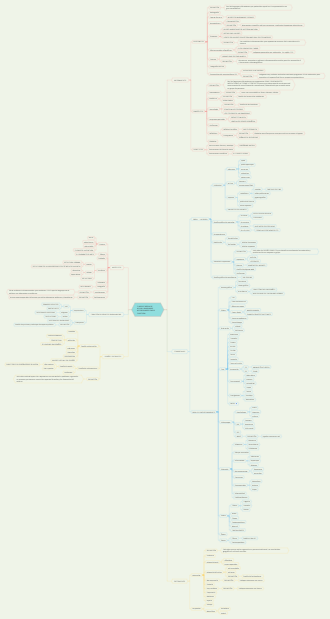
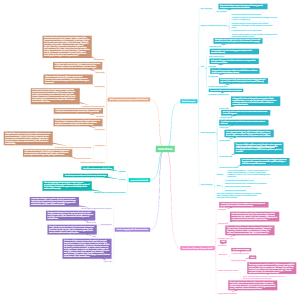
VMware Aria Operations is an intelligent operations management platform launched by VMware, which simplifies the installation and configuration process of multi cloud and hybrid cloud environments. Through Aria Operations, users can easily install and configure various VMware products and services, such as vCenter, NSX, etc. This platform provides an intuitive interface and powerful automation functions, greatly reducing manual configuration time and errors. After installing Aria Operations, the operations team can more efficiently manage complex IT environments, improve service quality and response speed. This is a mind map about VMware Aria Operations Install and Configure. The map contains 8 main branches, namely: Introduction to vRealize Operations, Capacity Optimization, Aria Operations Architecture, What If Scenarios and Costing, Performance Optimization, Deploying Aria Operations, Aria Operations Policies and Certificate Management, and Aria Operations Concepts. Each main branch has detailed descriptions of multiple sub branches. Suitable for people interested in VMware Aria Operations Install and Configure.
Edited at 2024-02-12 11:24:29
- VMware Aria Operations
VMware Aria Operations is an intelligent operations management platform launched by VMware, which simplifies the installation and configuration process of multi cloud and hybrid cloud environments. Through Aria Operations, users can easily install and configure various VMware products and services, such as vCenter, NSX, etc. This platform provides an intuitive interface and powerful automation functions, greatly reducing manual configuration time and errors. After installing Aria Operations, the operations team can more efficiently manage complex IT environments, improve service quality and response speed. This is a mind map about VMware Aria Operations Install and Configure. The map contains 8 main branches, namely: Introduction to vRealize Operations, Capacity Optimization, Aria Operations Architecture, What If Scenarios and Costing, Performance Optimization, Deploying Aria Operations, Aria Operations Policies and Certificate Management, and Aria Operations Concepts. Each main branch has detailed descriptions of multiple sub branches. Suitable for people interested in VMware Aria Operations Install and Configure.
- VMware Cloud Computing Mind Map
VMware Cloud is a cloud computing technology that allows users to run virtual infrastructure on virtualized hardware. The technology is designed for businesses, organizations, and individuals looking for secure, cost-effective, and efficient cloud solutions. It offers both flexible public cloud services and private cloud infrastructures that enable users to build their own hybrid environments with support from multiple hardware vendors and related providers.VMware Cloud provides high-performance cloud services for data storage, application development and deployment, high-availability applications, predictive analytics, mobility services, and more. EdrawMind is the best mind-mapping tool for creating similar mind maps.
VMware Aria Operations
- VMware Aria Operations
VMware Aria Operations is an intelligent operations management platform launched by VMware, which simplifies the installation and configuration process of multi cloud and hybrid cloud environments. Through Aria Operations, users can easily install and configure various VMware products and services, such as vCenter, NSX, etc. This platform provides an intuitive interface and powerful automation functions, greatly reducing manual configuration time and errors. After installing Aria Operations, the operations team can more efficiently manage complex IT environments, improve service quality and response speed. This is a mind map about VMware Aria Operations Install and Configure. The map contains 8 main branches, namely: Introduction to vRealize Operations, Capacity Optimization, Aria Operations Architecture, What If Scenarios and Costing, Performance Optimization, Deploying Aria Operations, Aria Operations Policies and Certificate Management, and Aria Operations Concepts. Each main branch has detailed descriptions of multiple sub branches. Suitable for people interested in VMware Aria Operations Install and Configure.
- VMware Cloud Computing Mind Map
VMware Cloud is a cloud computing technology that allows users to run virtual infrastructure on virtualized hardware. The technology is designed for businesses, organizations, and individuals looking for secure, cost-effective, and efficient cloud solutions. It offers both flexible public cloud services and private cloud infrastructures that enable users to build their own hybrid environments with support from multiple hardware vendors and related providers.VMware Cloud provides high-performance cloud services for data storage, application development and deployment, high-availability applications, predictive analytics, mobility services, and more. EdrawMind is the best mind-mapping tool for creating similar mind maps.
- Recommended to you
- Outline




ARIA Operations
Introduction to vRealize Operations
Introduction
Describe the role of vRealize Operations
About vRealize Cloud Management
Aria Operations
Delivers intelligent operations management
Visibility across physical, virtual, and Cloud
About vRealize Operations 8.6
vRealize Operations is available as both on-premises and SaaS offering
vRealize Operations Cloud
vRealize Operations 8.x
Key Features
Intelligent operations, with self-learning management tools
Policy-based automation that enables you to be more efficient by atutomation the key IT processes with policy-based control
Unified management that allows comprehensive visibility across applications and infrastructure in a single platform
List the vRealize Operations Use Cases
Continuous Perfomance Optimization
vRealize Operations assures hybrid cloud perfomance at minimal cost
Real-time predictive analytics and AI drive actions to automatically balance workloads and proactively avoid any contention
You can automate workload balancing and placement on
VMware vSphere
VMware Cloud Foundation
vSAN
VMware Cloud on AWS
Efficient Capaciy and Cost Management
Using a real-time, forward-lookin capacity analytics engine, vRealize Operations can predict the future demand and provide actionable recommendations.
Opitons by vRealize Operations can include:
Reclamation of resources
Procurement
Cloud migration planning
Intelligent Remeditiation
vRealize Operations uses generated alerts to notify you when objects in your environment experience problems
vRealize Operations provides transparency and visibility to resolve problems faster and efficiently
With Aria Operations, you can predict, prevent, and troubleshoot faster with actionable insights correlating metrics and logs, and unified observability from applications to infrastructure.
Integrated Compliance
To ensure your environment's adherence to common requirements, ARIA operations uses compliance templates.
The following regulatory compliance templates are available:
DISA
ISO
HIPAA
FISMA
CIS
PCI
You can also create your own custom templates
Navigate
Access the vRealize Operations product UI
About the Product UI
The product UI has several navigation areas and settings
Simplified Product Navigation
When you logged in to Aria Operations earlier, a list of menu items up appeared in the top Header and in the left navigation pane
The screenshot shows the new UI
About Cloud Accounts
You use vRealize Operations to connect and analyze data from the external data sources
In a new deployment, administration users are prompted to configure a cloud account to access the external data sources on the on-boarding page
Configuring the data display
You configure the content in vRealize Operations to suit your information needs using content types such as views, reports, dashboards, and widgets:
Dashboards are used to monitor the perfomance and state of objects in your virtual infrastructure
Widgets are panes in a dashboard that show information about attributes, resoucers, applications, or the overall process in your environment.
Views are reusable components that you can include in reports and dashboards to display data in different formats.
You build reports to represent objects and metrics in your environment. Reports can contain predefined or custom views and dashboards in a specified order.
Identify how the vRealize product UI supports use cases
Access the vRealize Operations administration UI
About the adminstration UI
The Aria Operations administration interface provides access to selected maintenance functions apart from what the product interface supports
Tasks to be perfomed at administration UI
Nodes and Roles
Data Adapters of the Nodes Selected
Comparing User Intefaces - Product UI VS Admin UI
The product and administration UIs are web application servers based on open-source Apache Tomcat
The client connects to the product or administration UI with a web browser using HTTPS over port 443
The administration UI connects to the administration API to retrieve information, store information, and start actions
The product UI communicates with the controller component to retrieve information, store information, and start actions
The product UI can also connect to the administration API to perform the administrative tasks.
Describe the role played by vRealize Operations administration UI
Key Points
ARIA Operations provides application-to-storage visibility across physical, virtual, and cloud infrastructures
Aria Operations identifies problems in any monitored system component
Aria Operations is available as an on-premise and SaaS offering
With vRealize Operations, you can predict, prevent, and troubleshoot faster with actionable insights correlating metrics and logs, and unified observability from applications to infrastructure
The Aria Operations administration interface provides access to selected maintenance functions other than what the product interface supports
All the menus in Aria Operations are consolidated to a single menu instead of dispersed menu items (in Header and Navigation Pane).
Aria Operations Architecture
Aria Operations Architecture Components
Importance
The components of the Aria Operations architecture support a scaled-out and high-availability deployment model. Using clusters and nodes, you can build and plan the right resources to meet the demands of your environment.
Identify the functions of components in a Aria Operations node
About Primary Node
A cluster contain a single or multiple Aria Operations Node. The first Aria Operations node that you deploy is called primary node
Master Node
The Primary node is the required initial node in a Aria Operations Cluster.
It has the following functions and characteristics
Collects and processes incoming data and performs administration for the cluster
Contains the central vPostgres database
Can function as a network time protocol (NTP) Server
Process Information
Admin UI and Product UI provides interface grafic
Collector
enable to run data adapters communicate with systems such vCenter, Aria Operations monitor what's going on in the vSphere World.
An Adapter is installed in the collector
The adapter connects to external systems and collects information about the objects
The collector listens for data from the adapters
Adapter Instance
Collects data from objects in your monitored environment
are instantiated and configured when you add a cloud account
Examples, the target system is the vCenter Server instance
The collector receives the data and sends the data to the controller
Controller
Access the mem main between is different layers or software
The controller determines mapping for data insertions and queries
Analytics
What Analyzes the data that is comming in
Analytic component perfoms several Functions
Process metrics
Calculates dynamic thresholds
Aria Operations is gathering perfomance metrics values once every five minutes, day after day, week after week, mounth after month
Start to learn paterns, what's the normal values for each perfomance metrics for every object in environment
Processes alerts and symptoms
Stores and retrieves statistical data from the file system database (FSDB)
Is designed to be able very quickly retrieve read data as we need
Stores and retrieves relationship data from the historical data service (HDS) vPostgres
able to capture information and store information about the relationship between objects that we are monitoring.
The status of each object is stored in the object cache
Persistence
What's store the data
There are number of different databases (Central vPostgres FSDB Cassandra Alerts/ Historical vPostgres
The persistence component persist data to a disk
Aria Operations maintains the following databases
Central vPostgress
Cassandra
File system database (FSDB)
All database tha we need is built-in Aria Operations external database itsn't necessary
All the components of Aria Operations software stack are implemented in the primary node.
Additional node types have a subset of the components
Identify the types of nodes and their roles in a Aria Operations Cluste HA
Primary Replica Node Role
Aria Operations supports high availability by enablinb a primary replica node for the Aria Operations primary node.
The Primary replica node receives redundant copies of data from the primary node.
The same components are installed on both the nodes
adding the primary Replica node
You can enable high availability (HA) for the Aria Operations cluster by converting a data node to a replica node
You need a minimum of two nodes to create a primary replica
Add Multiple Nodes
You can add multiple data dones simultanoeusly
Data Node
has a similar architecture to the primary and replica nodes
does not have a central vPostgres database and cannot act as an NTP server
Provides the core database functionality of collecting and processing the incoming data
Perfom the data collection and analysis only
Remote collector
Is an extra cluster node that allows Aria Operations to gather more objects in its inventory for monitoring
Remote Collector Groups
Witness node
About the Multinode Cluster
You can create a single node or multiple nodes cluster depending on your environment
Every node in the cluster is assigned one or more of these roles
Primary
Primary Replica
Data
Remote Collector
Outside of the cluster
The primary, primary replica, and data nodes are known collectively as analytics nodes.
Example Multinode Cluste
You can add and remove cluster elements
Options available in the administration UI include
Generating a passphrase
Adding multiple nodes
data
remote collector
Remote Collector Groups
For adapter resiliencey and load balancing, you can create a collector group and add remote collectors to the group
witness
Taking a node offline
You can also use the administration UI to remove a problematic node from the cluster without bringing the entire cluster down
Reloading a node
Shrinking the cluster
You can use the shrink cluster feature to reduce the number of nodes in your vRealize Operations Cluster
Communication in the Cluster
Aria Operations cluster uses pivotal GemFire to connect nodes to a shared memory cluster and map the work across the nodes
The primary node runs GemFire locator
GemFire it was design where all the components needs running on the same size in terms of CPU, Memory and Disks.
Memory sharing occurs across nodes using an internal transport bus
The distribution of data across the nodes is called partitioning
Aria Operations Continuous Availability
Configuring Availability
Aria Operations support HA, High Availability is not a disaster recovery mechanism
You can also configure continuos availability (CA), which prevents data loss in the event of one or more node failures.
You can enable CA in the Aria Operations cluster during installation or after Aria Operations is up and running
Requirements
Deploy Aria Operations vApp
Create and configure the primary node
Create and configure the witness node
To enable continuous availability within Aria Operations, the witness node must be deployed in the cluster
The witness node does not collector or store data as a part of the analytics cluster
Create and configure one data node with a static IP address
Enabling CA
Allocating Nodes
When you enable CA, you must allocate individual nodes to the fault domains using the Continuos Availability wizard
You assign the nodes by dragging them to the appropriate fault domain
The primary node is allocated to fault Domain #1 by default
Each data node add to Fault Domain #1 must have a pair in fault Domain #2 to preserve and replicate the data that is added to its peer
Yo can add a maximum of 16 data nodes including the primary node and divide them between the fault domains to create eight pairs
Preventing a Split-Brain Situation
When the network connectivity between the two fault-domains is lost, the cluster chantes to a split-brain situation
Split-brain is detected by the witness node
One of the fault domains is turned offline to avoid data inconsistency problems
Example Continuos Availability Enabled Cluster
Fault domains are listed separately in the cluster status
The second fault domain requires a replica primary node. In the example, the sa-vrops-03 data node is converted to a primary replica node
Key Points
Aria Operations instance consist of several architecture components that work together to collect and transpor data
A node consist of product and administration UIs, with the collector, controller, analytics, and persistence components
You can create a multinode cluster for scability and high availability
You can configure availability with either the high availability or continuous availability options
You can also configure continuos availability (CA), which prevents data loss in the event of one or more node failures.
Deploying Aria Operations
Importance
A Aria Operations cluster provides resources for analyzing your virtual infrastructure
A correctly deployed Aria Operations cluster can reduce support cost and improve perfomance
The deployed cluster must have a configuration appropriate to the size of your environment and availability requirements
You can change your Aria Operations cluster configuration to meet the changing needs of your environment
Deploying Aria Operations Nodes
Design and size Aria Operations cluster
Design yor Cluster
Before to Install the Aria Ops solution software, create the appropriate cluster design
The following parameters help you determine the best design
Number of objects to monitor including objects from the solutions that you want to install
Enabling high availability
Enabling continuos availability
Collecting data from remote locations
Types of nodes to deploy
Sizing Your Cluster: CPU and Memory
When you create nodes, follow the sizing guidelines:
Resource sizing must be identical across all the nodes in the cluster
Self-monitoring is the best way to address sizing
The number of objects monitored, and metrics collected per node decreases for multinode environments. For more information about Aria Operations sizing guidelines, see VMwre knowledge base article 2093783 at https://kb.vmware.com/s/article/2093783
Sizing your Cluster disk space
You can use the Aria Operations sizing tool to select the most appropriate configuration for your requirments
The sizing tool provides guidelines for initial sizing and accounting for the anticipated growth and data retention policy.
For existing deployments, you can use the tool to verify that your cluster is sized appropriately
Sizing tool Recommendation Example
The recommndations tab provides all the possible options for node sizes, and totals for objects and metrics collected.
Prepare an environment for a Aria Operations deployment
Networking Requirments for a Multinode Cluster
All nodes must perfom a successful DNS resolutions to the fully qualified domain name (FQDN) of the node
Forward DNS
Reverse DNS
Long name
Short Name
A static IP address and an FQDN must address the primary node and the primary replica node
All nodes in the cluster must be bidirectionally routable by the IP address or FQDN
Aria Ops support IPV6
Installations Prerequisites
Before you install the Aria Operations software, you must perform the prerequisite tasks
Verify that you have the adequate server capacity to deploy the required nodes
Determine the vCenter Server inventory location for your nodes
Verifiy that the networking requirments are met
Reserve the static IP address for the nodes in the Aria Operations cluster
Determine the NTP time source for synchronizing the primary node
Verifiy that you use supported web browser
Node Requirments
You must follow some general requirements to create a node on your environment
All nodes must run the same Aria Operations version
In the analytcs cluster, CPU, memory and disk size must be identicall for all nodes
Remote collector nodes might be of different sizes from each other or from the uniform analytics cluster node size
A remote collector node allows Aria Opertions to gather the remote objects to its inventory fo monitoring
You cannot use NAT between remote collectors and analytics nodes
Deploy a Aria Operations node
In the first stage of deploying the Aria Operations appliance, you deploy the OVF template
Download the OVF file to the local system
Use the vSphere Client to deploy the OVF template
Provide the required information for the deploy template task
Power on the virtual appliance after it is deployed
The Node is not selected during the deployment process
Securing the Aria Operations Console
After install a Aria Operations node, secure the console by logging in for the first time
Locate the node console in vCenter or by direct access
In vCenter server, you use Alt+F1 to access the login prompt
Log in as root
Enter the password
When prompted for the new password, enter the root password and save it securely for future use
Reenter the root password
Log out of the console
Describe different Aria Operations deployment Scenarios
Deployment Example 1
You have multiple vCenter Server instances in a single data center
You deploy at least one Aria Operation node and then scale out to monitor vCenter Server
Deployment Example 2
You have multiple vCenter Server instances in one data center and a vCenter Server instance in each of the remote data center locations
Deployment Example 3
You have multiple vCenter Server instances in one data center and a vCenter Server instance in each of the remote data center locations
Overview of Aria Operations Instalation
You deploy Aria Opeartions as a VMware Virtual Appliance
You use the vSphere Client to connect to vCenter Server and deploy the virtual appliance through the vCenter Server instance
The Aria Operations virtual appliance must be deployed on the ESXi host managed by vCenter Server
Configuring a Aria Operations Cluster
Install a Aria Operations Cluster
You perform generic steps when you install and configure Aria Operations
Types of Installations
After deploying the virtual appliance, you start the installation setup
Enter the node name in the address of your browser
Select the type of installation to perform
New Installation Workflow
If you select New Installation, the initial setup phase starts
You must provide the following information
Password for the administrator user account
Your own certificate or the default certificate
Node name
NTP server name
Workflow for Expading an Existing Installation
You can expand an existing installation by adding a new node to the Aria Operations cluster
Deploy another virtual appliance from the OVF file
In the address of your browser, enter the name of the node that you install
Click EXPAND AN EXISTING INSTALLATION
You are asked to provide information such as node name, node type (Data, Remote Collector, and Witness), and the primary node IP address or FQDN for the new node
View the Cluster
From the system status page, you can view the additional node that was added
With the second node added to the cluster, you can configure HA
ENABLE CA in grayout because not deployed Witness Node
Add a Aria Operations cluster configuration
Configuring a Aria Operations Node
In the second stage of the Aria Operations appliance deployment, you apply the configuration settings
Complete a Aria Operations cluster configuration
Postinstallations Tasks
After you install Aria Operations, consider the following postinstallation tasks
Configure the cloud accounts
Configure the additional solutions
Change the administration password
Adding a Cloud Account
When the Aria Operations cluster is installed and running, you can add cloud accounts to populate the application with objects from your environment
Configuring the vCenter Server Cloud Account
Specify the vCenter Server system that you want to manage
About the vCenter Server Adapter
The cloud accounts and other accounts have adapters for communication and integration with other products, applications, and functions
After a management pack is installed and the adapters are configured, you can use Aria Operations Manager Tools to manage the objects in you environment
An OK status indicates that the adapter is configured correctly and receiving data
About the Aria Operations Repository
Aria Operations includes management packs that are installed when Aria Operations is installed
You can access the native management packs and add or upgrade the other management packs from the repository page
Adding Solutions from VMware Marketplace
Solutions are delivered as PAK files that you can download from VMware Marketplace
You use the repository page to upload the solution management pack file to the Aria Operations instance
Describe the different Aria Operations deployment scenarios
Perform the basic management tasks
Changing SSH and Password from the UI
You can use the administration UI to reset the administration password and enable or disable SSH
Key Points
After you verify that the prerequisites are met, you must follow practices for installing Aria Operations for successful deployment
You can deploy Aria Operations nodes in various configurations depending on the environment and user needs
High availability is a feature of Aria Operations that enables data to be stored on a secondary node for redundancy to protect data loss
Aria Operations sizing tool provides guidelines for initial sizing and accounting for anticipated growth and time series data retention policy
Aria Operations includes management packs that are preinstalled
These are solutions installed when Aria Operations is installed
Aria Operations Concepts
Importance
Aria Operations helps you collect metrics and data from vSphere and other environments such as storage, networking, and cloud.
The information is consolidated, analyzed, and presented in a unified manner
Understanding the architecture and the other key concepts ensures that you can correctly interpret the information presented by Aria Operations.
Interfaces and key Capabilities in Aria Operations
Identify the components of the product UI
About the Quick Start Page
The Quick Start page (home page) is the default landing page in the Aria Operations product UI
Operations Overview
The Operations Overview dashboard provides a quick overview for the whole environment
Widget Inter Action
Major Product UI Areas
Aria Operations Product UI Page
Navigating the Product UI
Top-level navigation is provided in the header, which you can find at the top of the Aria Operations interface
The interface provides the following features
Global search text box that enables you to go to a page quickly with information about any object in Aria Operations
Refresh icon that you can refresh to update the information displayed in the UI
Notifications list that provides access to detailed pages about high-priority notifications
Options menu that provides access to preferences, and help. The about option provides the version number and other information about your Aria Operations instance including user logout commands
About administration Page
Aria Operations administrators use the administration page to manage and maintain the aria operations instance
Administrators perfom any noncluster configuration in Aria Operations from the page
About Dark Theme
You can set the user interface to display in light or dark colors
You can enable the Aria Operations dark theme for the product UI from the User Preference menu
Aria Operations License Information in the UI
You can view the Aria Operations license information by clicking the about page
Identify the tasks that can be performed in the administration and product user interfaces
Optimizing Perfomance
You can use Optimize Perfomance to ensure the continuous perfomance optimization of workloads
The section has several key features
Workload Optimization
Enables you to automate a significant portion of cluster workload rebalancing tasks
Rightsize
Enables you to rightsize workloads to ensure perfomance and reduce bottlenecks
Recommendations
Provides network engineers or virtual infraestructure administrators with information to help resolve alerts
Optimization History
Display the results of the optimization activity
Optimization Capacity
You can use Optimize Capacity to assess the current state of capacity in you data centers
The section has several features
Assess Capacity
Determines whether sufficient capacity is available in you environment
Alow to see enogh sufficent capacity
Reclaim
Enables you to reclaim unwated resources and reduce waste
Plan
Creates an optimization plan based on the what-if analysis
Assess Cost
Provides the cost for your data center and clusters, and your reclaimable resources in the form of total savings
Optimize Cost
Provides an overview of your return on investment
Troubleshooting
You can troubleshoot to assess the current alerts in the system and troubleshoot any problems
The section provides the following features
Workbench
Enables you to find the potential root causes and anomalies in a given scope and time
Alerts
Uses one or more symptoms to identify the underlying problem and to provide a set of recommendations and actions that help you resolve the problem
Logs
Enables you to troubleshoot any kind of problem occurring in the envionment monitored by Aria Operations
Dashboards
Opens the dashboards page to troubleshoot using dashboards
Application
Navigates to the applications tab to troubleshoot in application boundaries
Managing Configurations
You can use manage configurations to configure objects effectively
Complaince
Ensure that the objects in your environment meet industrial, governamental, regulatory, and internal standards
Configuration
Allow you to manage and assess the configuration of any object by object type
Sustainability
Shows a combination of dashboards which help in less energy, carbon, and less eletronic waste
Extending Monitoring
You can extend monitoring to configure objects effectively
True Visibility Suite
Extends Aria Operations to the physical infrastructure, applications and databases with relationship-aware monitoring, and provides the context to improve IT Operations
SDDC Management Health
Provides a single console for SDDC Management stack, health (availability and product effectiveness), and configuration
Aria Operations Aggregator
Unifies your multisite Aria Operations deployment to a single console
Aria Operations REST API
Provides a way for remote procedure calls that create, retrieve, update, or delete obkects that the API defines
Describe dashboards and their usage
About Dashboard
Dashboard provide a graphic representation of data and display the overall infrastructure health.
You can use different widgets and views to change the focus of information
Recognize how to use views to gather information about the environment
About the Environment
On the Environment page, you can view the invetory of all the objects monitored by Aria Operations
Inventory is categorized based on the adapter type (solution)
Every object's parent and child relationship is displayed
You can navigate to the in-depth details about each object from this page
About Data Sources
Using Data sources
You can extend the monitoring capabilites of Aria Operations by installing and configuring management packs in Aria Operations
A management pack might be a connection to a data source. It might include predefined dashboards, widgets, alerts, and views.
About the Alerts Page
The Alerts tab list all the alerts generated in the Aria Operations cluster
Alerts are based on their definition
For examples
Information
Warning
Alerts can be grouped into categories such as time and criticality
About Configure
Aria Operations administrators manage and maintain the Aria Operations instance through configure
The administrator can perform day 2 operations through configure
Using Search
You start your search from the search bar
You can enter one of the listed categories followed by a string or a name
You can then search for objects in the category
About Automation Central
Aria Operations administrator can create jobs to automate optimization actions which reclaim or rightsize VMs
The administrator set up recurring jobs, track them, and gets their report
Describe how to generate reports
About Visualize
You configure the content in Aria Operations to suit your information needs, using views, reports, dashboards, and widgets
Dashboards are used to monitor the perfomance and the state of objects in your virtual infrastructure
Widgets are panes in a dashboard showing information about attributes, resources, applications, or the overall processes in your environment
Views are reusable components that you can include in reports and dashboards to display data in different formats
You build reports to represent objects and metrics in your environment
Reports can contain predefined or custom views and dashboards in a specified order
Tags and Custom Groups
Use Tags to group objects
About Tags
A tag provides a way to group objects by logical function, such as department, organization, or region
A tag value provides a grouping container function
You can add one or more objects to a tag value
Use applications to group objects
Tags are created by management pack or manually, all adapters has you tags
Using Tag Values
You can tag values similar to any other object types
Create logical groups of objects in the Aria Operations environment
Creating tags
you can access tags from the inventory pane on the administration page
You can use the manage tags icon to create your own and tags values
Assigning Tag Values
You associate an object with a tag by dragging it from the object list to the tag value
In the example, the virtual machine object named web-02 is dragged to the tag vaule named Web Server
Removing Tag Value
To remove tag from an object
Select the object from the tag value list
Drag the desired objects to untag at the bottom of the tag list
In the example, the object web-02 associated with the Web Server tag value is untagged
About Business Applications
Business Applications is a group of interconnected applications, services and hosts, which are configured to offer service to organization
About Custom Object Group
A custom object group is a container that includes one or more objects
Aria Operations uses custom groups to collect data from the objects in the group, and report on the data collected
Custom object groups come from the following sources
Inbuilt to the product
Associated with adapters
User-defined
Custom Object Group Membership Types
Custom object group membership are of the following types
Dynamic group membership
The membership pf the objects is dynamically updated based on the defined rules
Aria Operation Manager adds objects to the group based on these rules
Manual group membership
You manually select objects to add as members to the group from the inventory of objects
Mixed membership
Include dynamic and manual
Group associated with adapters
Group membership is managed by the adapter
For example, the vCenter Server adapter adds groups such as datastore, host, and network
To modify these groups, you must make changes in the adapter
Aria Operations Policies and Certificate Management
Aria Operations Policies
Importance
Aria Operations Policies help to analyze and display information about the objects in your environment
Create policies for several types of workloads
About Policites
A policy is a set of rules that you define for Aria Operations to analyze and display information about the objects in your environment
You can create, modify, and administer policies to determine how Aria Operations display data in dashboards, views, and reports
A policy includes the following settins
Metrics or properties for object types, such as VM, host, or datastore
Symptom and alert definitions
Threshold definitions for factors such as workload, time remaining, and capacity remaining
Relating Policies and Environment
Aria Operations Policies support the operational decision for your IT infrastructure and business units:
With policies, you control the data that Aria Operations collects and reports for specific objects in your environment
When you manage policies, you must understand the operational priorities for your environment and tolerances for alerts and symptoms to meet the requirements for your business-critical applications
Aria Operations applies the policies in the priority order
About Base Settings
The Base Settings are the starting point for all policies
About vSphere Solution Default Policy
vSphere Solution's Default Policy is a policy that is assigned to all vSphere objects by default. The policy is automatically created when you configure the vCenter Server adapter
Policy Example
You must verify that the vsphere envionment conforms to you company's policies
You create default policy for your company
You must also create separate policies for the production enviornment, test, and development environment
Creating Policies
You select a base policy from which your new custom policy can inherit settings
In the example, the TestDev Policy is created using vSphere Solution's Default Policy as the starting point
Five to set Settings
One Associate to Specific Objects
Metrics and Properties
You can select properties or metrics to include in your policy so that Aria Operations can collect data from the objects in your environment
State
Aggregate total for all metrics
Enable Collect
Disable Collect
Inherited
Instanced State
Provides the same metric but per instance bases
Alert and Symptoms
You can override definitions by enabling or disabling them
Enabling alert definitions activates alerting conditions
Capacity Settings
You can configure Time Remaining Calculations, Time Remaing, Capacity Remaining, Workload, and Maintenance Schedule in the capacity of the policy
To edit the settings of these config we need to unlock
View the effective Policy
The effective policy appears in the content pane of the selected object
Explain how the policy inheritance works
Policy Inheritance
You can determine how policy applies to an object
Identify the group or groups of which the object is a member
Identify policies that are assigned to these groups
Determinie the policy that has the highest priority
The policy with the highest priority is the effective policy for that object
Importing and Exporting Content
To reuse content between Aria Operations deployments or back up hte custom content, use the export and import functions
You can export and import the following content
Policies
Dashboards
View
Reports
Alert definitions
Symptom definitons
Recommendations
Super metrics
Aria Operations Certificate
Identify the properties of the secure socket layer certificates
SSL Certificate Service
Secure Socket Layer (SSL) certificates create a secured conenction between an client's web browser and a web server
SSL performs these functions
Encrypts sensitve information
Provides authentication
The certificate contains the entity's public key and other information
The certificate is digitally signed by a Certificate Authority (CA)
Using Certificates in Aria Operations
Aria Operations nodes are installed using self-signed certificates by default
A valid certificate signed by a trusted CA is an important component when you configure a production instance of Aria Operations
About Aria Operations Certificates
Aria Operations certificates have the following properties
Aria Operations nodes are installed using the self-signed certicates by default
Default certificates are valid for five years
Aria Operations clusters have a root certificate, cluster certificate, and node certificate
The primary node has the root certificate and its key
The primary node also holds the certificates for all the other nodes
Self-signed certificates can be replaced with custom certificates, if necessary
Viewing Aria Operations Certificates
Aria Operations administration UI provides options for viewing and replacing the existing certificates
Install a Custom Certificate
When you upload a custome certificate file, the Aria Operations interface displays the summary information for all the certificates in the file
Using custom certificates
Custom certificates are used in the following cases
You want to avoid browser warnings
You require an enhanced security
You must comply with regulatory requirements
Create certificate signing request for your Aria Operations instance
About Certificate Signing Requests
Generate a certificate request (CSR) to obtain a valid and signed certificate from a CA.
Submitting a CSR
the generated CRS File contains the certification requests and a private key mathematically linked to the final certificate issued by the CA
Certificate File Format
Certificates that you use with the virtual appliances must be in the PEM file format
The example is a certificate signed by the Microsoft CA in your environment
The PEM file also includes the CA's own root certificate to maintain the certificate chain of trust
Replace the certificates for your Aria Operations nodes
Troubleshooting Certificate Erros
When troubleshooting certificate erros, you must verify the following parameters
Certificate date
Verify that the expiration dates on all the certificates is valid
URL
Match the subject and Subject Alternative Name (SAN) on the certificates exactly
Chain of Trust
Verifiy the certificate chain to ensure that a full path to root CA is achieved
Ensure that the PEM file is structured in the correct order to maintain the certificate chain sequence
Check the CA list of revoked public key certificates and verify that the certificate is unafefected
Examples of certificate Errors
A certificate error is generated if the certificate format is incorrect or it contains any incorrect information
Key Points
A policy is a set of rules that you define for a Aria Operations to analyze and display information about the objects in your environment
vSphere Solution's Default Policy is a policy that you assign to all the vSphere objects by default
To reuse content between Aria Operations deployments, or to back up your custom content, you can use the export and import functions
You install Aria Operations nodes using self-signed certificates by default
When you upload custom certificate file, the Aria Operations intreface display summary information for all the certificates in the file
Capacity Optimization
Importance
To manage the production capacity effectively and meet the ongoing demand, you must optimize your resources
The capacity optimization functions in Aria Operations provide an optimal system perfomance across data centers
These functions include workload balancing, repurporsing of underutilized resources, and what-if predictive scenarios
Capacity Planning Concepts
Define the capacity concepts
Optimizing the Capacity Pilar on the Quick Start Page
Optimize Capacity is the second pillar on the Quick Start page
You use this feature to assess the current state of capacity across multiple data centers in a single global view
About Capacity Optimization
Capacity planning helps to ensure that sufficient resources are available in your environment and your infrastructure works efficiently
Capacity planning can achieve the following benefits
Ensure perfomance base on service-level agreements
Increase the use of resources and reduce costs
Plan effectively through what-if modeling
About the Capacity Analytics Engine
The capacity engine reduces costs and risks with real-time predictive capacity and cost analytics
The capacity analytics engine offers several features
Provides real-time predictive capacity analytics, which are based on the industry standard statistical analysis model oof demand behavior
Provides forward-looking forecasts
Enables you to plan capacity
Enables you to run the what-if capacity and cost scenarios
Integrates cost with capacity
Provides simplified settings
Define the capacity planning terms
vSphere Capacity Concepts
Understanding the key resources concepts and their relationships helps you optmize the capacity in your environment
Total Capacity
All CPU, All Memory, All space that you have available
Limit
When can place a limit on the total amount of CPU, memory granted to a virtual machine
We can impose a limit on how much resources we can provide to a virtual machine
Usable Capacity
Usable capacity after resources reserved to vsphere HA, vmkernels, etc
Entitlement
Which VMs are going actually get access to the physical resources
Entitlement calculations based on limits reservation and shares, provides how much resources available is provided by VMkernel to a specific VM
Demand
Sometimes VMs want lots of resources, the amount resources that vms want is referred to as it's demand
No guarantie that VM will receive all of the physical resources, that virtual machine wants, VMkernel give physical resources to a bunch of virtual machines
Contention
VM might want, might demand more resources than it's actually able to use we describe the difference between those two as the contention
Whenever a virtual machine wants more resources, is demand more resources than it's actually getting that is known as contention
Usage
The usage values that you're going to see here are a measurement of the actual resources that the VM is actually using, vmkernel provides how much resources a specific vm have, in Usage we can see how much resources vm are using by looking at usage perfomance metrics
Reservation
Maximum amount resource we're going to give a virtual machine
Is a promise of a minimum amount of resources that we're going to give to virtual machines
Overhead
There are various things in the vSphere world, such as memory where the vSphere admin grants a virtual machine, certain amount of resources, such as a certain amount of virtual memory.
But in addition to the memory that the administrator has allocated to the virtual machine, sometimes the VM kernel needs to set aside some additional memory
For example, if you allocate a virtual machine 8 gigabytes of vritual ram, then in order to manage that virtual ram, the VM kernel allocates a little bit of additional memory for its own use. That's know as the memory overhead.
Aria Operations Capacity Definitions
The capacity analytics engine computes and publishes metrics that you can find in the Capacity Analytics Generated group
The metrics help you to plan your resource use based on the consumer demand
Time Remaining
Number of days remaining after which the usable capacity no longer enough to support the projected use levels
Time Remaining Calculation
The time remaining thresholds allow you to set the number of days until capacity is projected to exhaust based on your current consumption trend.
Policy Changes Related Capacity
The policy settings has the following options to calculate the remaining time
The conservative projection is based on the upper confidence band
Calculating the Conservative Time Remaining
If the time remaining risk level is set to conservative, the upper-bound projection intersecting with the usable capacity determines the time remaining
The agressive projection is based on the mean confidence band
Calculating Aggressive Time Remaining
If the time remaining risk level is set to aggressive, the mean projection intersecting with the usable capacity determines the time remaining
Capacity Remaining
Projected amount of the unused usable capacity for the next three days
Calculating Capacity Remaining
Capacity remaining is calculated based on the difference between the usable capacity minus the current use
Time Remaining and Capacity Remaining Comparison
Capacity remaining and time remaining determine how Aria Operations reports the available capacity and time
Capacity Remaining Percentage
Percentage of usable capacity (for example, CPU, memory, or disk) of the most constrained resource
Recommended Size
Recommended usable capacity to maintain a green state based on the Time Remaining Threshold set the Policy (120 days by default) + 30 days
Calculating the Recommended Size
Recommended size is the recommended level of resource capacity to maintain a green state for the time remaining
The recommended size is mesaured using the follow units
MHz for CPU
KB for memory
GB for storage
Calculating the Recommended Size Based on the Conservative Risk
The recommended size is the capacity recommendation based on demand over time
Calculating the Recommended Size Based on the Aggressive Risk
The mean confidence band is used to determine the recommeded size over the projected time window to ensure that the time is remaining
The capacity analytics values are computed
Creating Custom profiles
The custom Profiles feature enables you to estimate the numver of VMs that can fit in your environment depending on the available capacity and VM configuration
Custom Profile Output
The custom profile must be updated in the policy before the output is visible
You can find the custom profile output on the capacity tab
Capacity VM Shortfall
Aria Operations has a new metric called VM shortfall
VM shortfall is available for clusters, dastastore, and datastore cluster objects only
VM shortfall appears only when the usable capacity is zero
Calculating the Reset Capacity
Click RESET to change the date from when the historical utilization is calculated
Capacity models
Understand the capacity planning models
Capacity Models
You can use one of the resource capacity models in your environment
Allocation-based
With the allocation-based model, static resources are allocated to an object, irrespective of whether the object uses all the resources
Based on the full allocation resources allocated via vsphere admin
Demand-based
With the demand-based model, resources are dynamically allocated to the object, based on the object's demand
Based on the usage resouces demanded by VMs
Demand-based metric is the amount of resource that the object currently requires
Allocation Model Use Cases
The allocation model includes the following use cases
Avoiding overcommitment for business-critical workloads
Showback and reporting purposes
Procurement planning based on overcommit ratios
Enabling the Allocating Model in Policy
The allocation model element determines how Aria Operations calculates the capacity when you allocate a specific amount of CPU, memory, and disk space to clusters or data store clusters
Allocation-Based Model
Allocation-based metrics is the total number of resources that you configure on the cluster compute resources
Capacity Planning Questions
Start your capacity planning efforts by asking questions about your requirements
Is your focus on demand, allocation, or both?
Do you overallocate the CPU, memory and storage resources on your host system and VMs?
By what percentage do you overallocate resources
Plan for high availability and workload placement by asking key questions
Do you use vSphere High Availability
If yes, what percentage of hardware have you reserved for high availability?
Do you use a capacity buffer
Where do you place your workload types
Are you production workloads in their own clusters?
Are test and development workloads in their own clusters?
Assessing capacity
What-If Scenarios and Costing
Importance
To manage the production capacity effectively and meet the ongoing demand, you must optmize your resources
Using the what-if analysis tool, you can plan for increase or decrease in wokrload or capacity requirments in your virtual infrastructure.
To evaluate the demand and supply for capacity on your system objects, and to assess the potential risk to your current capacity
What-if Scenarios
About What-If Scenarios
What-If Analysis enables you to define scenarios to add or remove resources in actual data centers
Workload Planning
Scenarios which we add virtual machines
You define scenarios to add or remove workload to and from actual data centers
Traditional Scenario`
Import from existing VM option imports all the attributes of the selected VMs to your workload scenario
Results
Hyperconverged Scenario
You can perform the hyperconverged infrastructure workload planning scenario by adding or removing VMs to vSAN enabled clusters
Additional vSAN
We need to specify the same configuration from vSAN environment
Results
Scenarios which we remove virtual machines
Hyperconverged Scenario
Plan for VM Retirement
Define a scenario to remove specific VMs or manually enter the worklaod specifications
What-If scenarios use demand-based metrics only
Results
Visualize capacity remaining, time remaining, and cost savings after workloads removal from the cluster
Blue bar indicate how much capacity we have
All square blue and white area is the total capacity
purple part indicateshow much resources we would have contain and not to remove the those virtual machines
Infrastructure Planning
Deal with adding or removing ESXi hosts
Traditional
hyperconverged
For host retirement. define a scenario to remove the hosts from the clusters
Results
Visualize capacity remaining, time remaining, and total cost in the cluster where the hosts are added
Migration Planning
Allow to see the impact of micgrating virtual machines to various Clouds
You can use the migration Planning
Public Cloud scenario to plan the migration of the existing workloads from a private vSphere cloud environment to multicloud for comparison
VMware Cloud
To plan the migration of the existing workloads from a private cloud vsphere environment to a public cloud
Result
Public Cloud
You can use the migration planning
Public Cloud scenario to plan the migration of the existing workloads from a private cloud vSphere environment to a public cloud
We can pick up 3 platforms
We can add other cloud providers from VCPP programs no exibhit
Result
Visualize recommendation, total capacity usage of the workload to be migrated to the public cloud
DataCenter Comparison
Private Cloud Scenario
You can select virtual machines to determine the preferred datacenters which fit from the cost effectiveness and capacity requirements perspective
Results
Assessing Cost
Assess the cost of running the data centers in your environment
Accessing cost and cost savings opportunities
Optimize capacity is the second pillar on the Quick Start page
It display the total cost savings opportunity for your environment
Configure the currency type and cost settings for your environment
Setting Up the Currency
On the initial login to the product UI, you are prompted to set the currency
Once the currency is set, you cannot change it
Turning off the cost calculation
You can turn off the cost calculation completely from global settings
Cost Caluclation status
You can run the cost calculation status manually
By default, it is auto-scheduled to run at 2 PM every day
Tag Based Costing Metrics
Tag level details is available in additional cost metrics
You can publish tag based additional cost as individual metrics
Cost Settings Page
Cost Drivers
Cost drivers are expense types used by Aria Operations to calculate the cost of your private cloud
The total private cloud cost is the sum of the cost drivers
Individual Server Cost
You can select an individual server from the server group and specify the unique cost for each individual server
Perfomance Optimization
Importance
Aria Operations enables you to visualize how your workloads are distributed and used across clusters in your data center
You can use the Aria Operations Workload Optimization feature, with vSphere distributed Resource Schedule, to place your workload optimally
Introduction to Perfomance Optimization
Assess the perfomance of your environment to determine which data centers need the optimization
Optmize Perfomance on the Quick Start page shows the number of datacenters which require the optmization
Optimizing Workloads
The Aria Operations workload optimization feature works with vSphere Distributed Resource Scheduler (DRS) to help virtual machines get the required resources
Workload optimization allow us to migrate and balance workload across clusters(datacenter), different from DRS that allow us only within clusters
The workload optimization page shows the datacenters in the inventory and their optimization status, current capacity remaining (in days), and potential monthly cost-saving opportunities
Assessing Perfomance
On the Workload optimization page, the data center that needs the optimization (for operational or business reasons) appears as Not Optimized
Workload Optimization
Define the Operational intents for a data center
You optimize the performance of your datacenters according to the business and operational intents based on the business and operational intents that apply to your datacenters
Before you can optimize your datacenters, you need to define the operational and business intents for each datacenter
Defining an Operational Intent
You can define an operational intent by configuring the workload optimization policy settings and cluster headroom thresholds
Configuration workload Optimization Settings
You can configure the targe use from the workload optimization settings
Configuring the Cluster Headroom
Cluster headroom enables you to select the acceptable risk percentage in a cluster
Cluster Headroom offers the following benefits
Provides a buffer of free space (CPU, memory, and disk space) for the cluster
Reduces the risk from burst or unexpected demand spikes/growth in the cluster
To configure the headroom, you specify a percentage value, which defines the size of the buffer
For example, 20% headroom means that 20% free resources is reserved for the cluster
Operational Intent Example
Consolidating to Repurpose Hosts (1)
Select Consolidate to proactively minimize the number of clusters used by workloads
Consolidating to Repurpose Hosts (2)
By perfoming the optimization, you can free up and repurpose three hosts in Cluster 2 as Cluster 1 can accoummodate the workload
Define the business intents for a datacenter
Describe opertional and business intents with examples
Automate the process of optimizing and balancing workloads in datacenters
Report the results of optimization efforts
Rightsizing Vitual Machines
With the Rightsize feature, you can change CPU size and memory values for oversized and undersized virtual machines to achieve the optimum system perfomance
Oversized VMs are allocated more resources than they require
They make fewer resources available for other VMs and may cause unnecessary overprovisioning in the environment
Oversizing affects performance of the VM itself, but it might also affect perfomace of other VMs
Undersized VMs are allocated fewer resources than they require
They experience performance issues due to the shortage of resources
To overcome these problems, oversized and undersized VMs must be rightsized
The Rightsize page provides information about oversized and undersized VMs in a particular datacenter