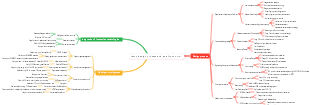
MindMap Gallery 30 components every product manager must know
In product prototype design, there are thousands of component types. As an experienced veteran, you must have a clear understanding of the iconic components. No, Edraw has compiled 30 components for you. What are their names, what they look like, and how to use them? I’ll tell you them all! ! ! !
Edited at 2024-01-17 17:12:30This is a mind map about bacteria, and its main contents include: overview, morphology, types, structure, reproduction, distribution, application, and expansion. The summary is comprehensive and meticulous, suitable as review materials.

This is a mind map about plant asexual reproduction, and its main contents include: concept, spore reproduction, vegetative reproduction, tissue culture, and buds. The summary is comprehensive and meticulous, suitable as review materials.
This is a mind map about the reproductive development of animals, and its main contents include: insects, frogs, birds, sexual reproduction, and asexual reproduction. The summary is comprehensive and meticulous, suitable as review materials.
This is a mind map about bacteria, and its main contents include: overview, morphology, types, structure, reproduction, distribution, application, and expansion. The summary is comprehensive and meticulous, suitable as review materials.
This is a mind map about plant asexual reproduction, and its main contents include: concept, spore reproduction, vegetative reproduction, tissue culture, and buds. The summary is comprehensive and meticulous, suitable as review materials.
This is a mind map about the reproductive development of animals, and its main contents include: insects, frogs, birds, sexual reproduction, and asexual reproduction. The summary is comprehensive and meticulous, suitable as review materials.
30 components every product manager must know
1. ICON
Icons, such as app icons and icons on pages, can all be called icons.
2. Shuttle selector
Also called a shuttle box, it usually has two columns, the left is the items to be selected, and the right is the selected items. Selecting from left to right means selected, moving from right to left means deselected; It is commonly used in B-end products. When multiple selections are required and there are many options, the shuttle selector can be used. When there are many options, more than 10, you can consider using a shuttle selection box. In this way, users can clearly know what content they have selected.
3. Logo
The logo can be understood as a small red dot, which is a small red dot in the upper right corner of the icon, text, or somewhere on the page. Often used to indicate new news or to achieve some kind of information prompt. The logo is not only in the form of a small red dot, but also has a number in a red circle to indicate the number of new messages. There are also direct text in small red circles to better convey the information.
4. Skeleton screen
The skeleton screen is a loading state, also called a loading placeholder. When loading, the rough structure is displayed on the page through gray blocks. The skeleton screen can effectively alleviate the user's waiting anxiety and express to the user the feeling of "this page has such data". At the same time, it is combined with the animation of glossy passing or gray block shrinking back and forth to express that the page is loading. The skeleton screen can provide better visual effects than ordinary loading animations, create a feeling of fast loading, and provide a better user experience.
5. Default page/empty status page
The default page/empty status page refers to the empty status effect displayed when there is no data in the page. Avoid displaying a blank page when there is no data, leaving users confused as to whether there is data or not. The default page includes network exceptions, loading failure, no permissions, no search results, etc.
The default page is not only a page with an empty state, but also an empty state in a certain module on the page, and a default state must also be added to a certain module. The absence of data greatly affects the user experience, so the default page is relied upon to comfort the user. Add appropriate copywriting, patterns, guidance, and animations to give users some positive communication. For example, if there is no following, we recommend bloggers that users can follow. When loading fails, you can add a "reload" button to let the user refresh again. The default page empty state is a critical value for empty data. It is often accidentally missed. Please pay attention to the empty state.
6. tab page
The tab page refers to the tab page, which can be understood as a menu and navigation bar. Aggregate different information through different tab pages and store it in one page area.
Tab pages are divided into top, bottom, and sidebars. The top tab is the most common and is used in many apps and websites because the top tab occupies less page space and can accommodate many tabs in a sliding form. In addition to text, the top tab also has icon tabs. There are left and right sidebar tabs, and the most common one is the left sidebar. If you want to highlight the content more, you can use the right sidebar. The hierarchical relationship of tab pages is generally bottom tab>top tab>sidebar tab. When there is too much content on the page, they can also be embedded in each other. For example, there is a secondary left sidebar tab in the top tab page.
7. Modal pop-ups and non-modal pop-ups
Modal pop-up window: a pop-up window that hinders user operations. Users must respond to the content of the pop-up window before proceeding to the next step. Modal pop-ups are required for operation confirmation and important information reminders. Non-modal pop-up window: a pop-up window that does not hinder user operations. For example, toast prompts and notification boards are non-modal (these concepts will be discussed below).
subtopic
8. Popover
Bubbles can be understood as a small pop-up window, just like bubbles. Bubbles are a form that combines different scenarios. Common ones include bubble confirmation boxes, bubble cards, bubble guides, etc., which are characterized by being light, small, and flexible. The characteristic of the bubble is that there will be a small arrow to indicate where the bubble comes from, and it can highlight the prompt of a specific location. Therefore, when guiding users, you can use bubble guidance generously. For some infrequently used functions or shortcut function entrances, you can hide them and pop them up in the form of "bubble cards" when displayed.
9. Popup
A pop-up layer refers to a pop-up window that appears on a translucent layer and can be operated in the pop-up layer. It is usually displayed after clicking on a certain area of the page.
10. Action Sheets
The action bar refers to the bottom list pop-up window that pops up from the bottom of the page, suspended on the translucent mask. There is no need to jump to the page, and more operations can be performed on the current page.
11. Activity Views (ActivityViews)
Active view refers to the pop-up window that appears from the bottom. The common style is icon title, which allows users to quickly access other functions.
12.Toast
Toast prompt, light prompt, is a very lightweight prompt. After appearing, it will disappear automatically after a few seconds. Appears at the top, middle, and bottom of the screen. Due to its short appearance time and small area, it will disappear automatically after a few seconds, so you cannot add too much text or put important information. Toast is non-modal.
13. Notice Bar
The form is generally a small horizontal bar displayed at the top of the page. Can be used for status prompts and message notifications. It is non-modal and can prompt the user but does not affect the user's operation.
The notification bar is heavier than a toast prompt because it is more obvious; it is lighter than a pop-up prompt or a bubble prompt because it does not affect the user's operation. The notice board is usually located at the top of the page, but may also be displayed at the bottom of the page. It can disappear voluntarily or stay permanently. You can also add multiple notification boards to one page.
14. Prompt dialog box (Snackbar)
The message notification suspended at the bottom of the page can disappear automatically, or it can be permanently clicked to disappear manually.
Snackbar's prompt strength is stronger than Toast, does not affect user operations, and is non-modal. In addition, operation buttons can be added when the snackbar appears to guide users to perform other operations.
15.HUD
HUD-Light prompt, similar to the Toast above.
The difference from toast is that when it appears as a prompt, it is displayed in the middle of the page. Toast only has text, while HUD has icon text.
HUD - Head-up Display. The full name is Head-up Display.
In the aerospace and automotive fields, HUD refers to a display device that projects parameter content onto helmets and windshields. Parameter content that can be displayed in the line of sight. For example, there is no need to look at the instrument panel when driving, and the vehicle speed can be seen within the field of view.
16. Transparent indicator layer
The transparent indicator layer refers to the indicator layer that displays interactive operations on the page. It is also a feedback component. Common examples include fast-forward prompts for watching videos or prompts for adjusting the volume.
17. Tooltips/text tips (Tooltips)
It often means that when the mouse is hovering over an icon, button, text or other element, a description or function description is displayed to assist the user in understanding a certain function.
18. Chips: Tags
Material Design divides Chips into 4 categories, namely auxiliary chips, filter chips, input chips, and suggestion chips. Auxiliary chips: Intelligent or automated operations that can span multiple apps, such as adding movie time to your calendar after purchasing a movie ticket. Filtering chips: used for filtering, can be used for single selection and multiple selection. Input chips: aggregation of information entered by the user. For example, after sending an email and entering the recipient, there is an "×" after it. Suggestion chips: Dynamically generated suggestions to help narrow down user intent.
19. Stepper
A stepper is a component that controls numerical values through increase and decrease buttons. It is often used for small-range integer numerical input, and the amount of each increment and decrement is constant.
20. Sliding selector
The sliding selector refers to selecting the corresponding value or interval by sliding on the horizontal axis. The feature is that the minimum and maximum values are displayed on the horizontal axis, and users can select the corresponding values by sliding. The interval sliding selector means that the minimum value and the maximum value can be selected, allowing the user to choose the interval range. It is often used for price selection.
21. Floating button/floating button/Fab
Floating action buttons are floating buttons. Commonly used for main function entrance, such as new creation.
22. Navigation bar, status bar
The status bar is the column at the top of the phone screen that displays the time, battery, and phone signal. The navigation bar refers to the column below the status bar. The navigation bar can be very simple with only a title, or it can also contain a search box, other operation buttons, or function entrances.
23. Indicator
When pictures or cards can be swiped left or right, indicators are often used to express the location. Depending on the indicator style, there are dot indicators, slider indicators, line indicators, and digital indicators.
24. Card
Cards are a way to display information. Each card carries different contents. It can not only effectively handle information collection, but also effectively allow users to focus on the content in the card. The efficient partitioning and information highlighting of cards have been used in many products.
25. Swimming lane
Swim lane refers to a way to view content by swiping horizontally or left. Sliding the content of multiple elements horizontally within a certain area expands the horizontal space of the page. Generally, it is manually slid to view, and there is no automatic sliding.
26. Banner
Banner refers to an obvious banner image that appears on the page, usually used as a recommendation space, advertising space, such as product recommendations, advertising space, etc. Depending on the style, it can also be divided into capsule banner, porcelain area banner, and white background banner.
27. Porcelain area
Different rectangular blocks are laid out in a grid to form a tile area. The characteristic is that the layout is very flexible, taking up less space than a banner, and can accommodate more traffic entrances in the same area.
28. King Kong District
The King Kong area refers to the area on the home page where the icon text is arranged in a palace grid. Arranging multiple functional entrances together plays a good role in diverting traffic, and the features are still very flexible.
Banner, King Kong Area, and Porcelain Area are called the three major operating sections, which play a role in attracting traffic to different business modules and activities.
29. Drawer navigation
Drawer refers to a description of the way components are displayed. It opens and closes like a drawer, hides excess content, and pops up when it appears, much like a pop-up layer. For infrequently used functions, hide the function entrance. When the user needs it, click the entrance and then display the function list. When it plays a navigation role, it is called a drawer navigation, also called an overflow menu, an expanded menu, or a hamburger navigation, which hides the sidebar.
30. Gongge Navigation
Palace grid refers to a layout method that directly arranges the icon text evenly, allowing users to directly see each independent module entrance and click on it themselves. When the palace layout is used for navigation, it can be called palace navigation. For example, the King Kong area is a palace navigation.
31. Index navigation
The index navigation bar refers to a control that organizes content into categories and navigates through initials or numbers.
32. Rudder navigation
Rudder navigation is a variation of bottom tabs and is commonly used on App tabbars. Put the core functions of the app and the functions you want users to operate in the middle, change the form, and guide users to click.
Usually in UGC communities, in order to guide users to publish content, the entrance is placed in the most obvious position and guides users to publish through the shortest path.
33. Serif, sans-serif
Serif fonts refer to fonts that have twists and turns in the corners of the strokes of the characters, such as Song font, which is a serif font. Sans-serif fonts are completely opposite to serif fonts. They are fonts with unified strokes and lines and no winding corners. For example, Microsoft Yahei is a sans-serif font.
34. Container transformation
Container transformation is a definition of animation, which comes from Material Design. In layman's terms, it refers to enlarging and expanding to a new page based on a small card. For example, click on the waterfall flow card on the homepage of Xiaohongshu to enter the dynamic effect of the details page, which is capacity transformation. Container transformation adopts a transitional method to guide the user's line of sight, reduce frustration during use, and improve fluency.
35. Semantic color
Directly use colors to express specific contextual meanings Such as red: warning Yellow: prompt green: success Gray: Not supported Blue: link color
36. The content is out of bounds
Content out-of-bounds refers to a design method that allows content to overflow the frame, which can highlight the atmosphere and make the picture more impactful.
37. Z axis: hierarchical relationship
This concept comes from Material Design, which is based on two-dimensional design and raised to three-dimensional. In order to show the depth in the page, the concept of Z-axis is introduced. To simply understand, it is a hierarchical relationship. Reflect the height of the page by using shadows, overlays, etc.
38. Hot zone
Hot spots refer to clickable areas on the page. Clicking on a hot spot will trigger an interactive event. For example, if you click on the avatar to enter the personal homepage, the avatar area is a hot spot.
The size range of the hot area will also affect the user experience. For example, for radio buttons, in order to allow users to quickly select, you can choose to expand the hot area range and use icons and text as hot areas.
39. Heat map
Heat map, also called heat map, refers to displaying the areas that users frequently click on the page in a special highlighted form. The brighter the area, the more users click. The heat map very intuitively displays the user's operations on the page, which is a good guide for us to analyze the rationality of the page and improve the page conversion rate.