MindMap Gallery Use DeepSeek to build a personal knowledge base
This is a mind map about using DeepSeek to build a personal knowledge base. The main contents include: instructions, knowledge base use, knowledge base construction, and preparation work.
Edited at 2025-02-11 11:27:52In order to help everyone use DeepSeek more efficiently, a collection of DeepSeek guide mind map was specially compiled! This mind map summarizes the main contents: Yitu related links, DS profile analysis, comparison of DeepSeek and ChatGPT technology routes, DeepSeek and Qwen model deployment guide, how to make more money with DeepSeek, how to play DeepSeek, DeepSeek scientific research Application, how to import text from DeepSeek into MindMaster, the official recommendation of DeepSeek Wait, allowing you to quickly grasp the essence of AI interaction. Whether it is content creation, plan planning, code generation, or learning improvement, DeepSeek can help you achieve twice the result with half the effort!
This is a mind map about DeepSeek's 30 feeding-level instructions. The main contents include: professional field enhancement instructions, interaction enhancement instructions, content production instructions, decision support instructions, information processing instructions, and basic instructions.
This is a mind map about a commercial solution for task speech recognition. The main content includes: text file content format:, providing text files according to the same file name as the voice file.
In order to help everyone use DeepSeek more efficiently, a collection of DeepSeek guide mind map was specially compiled! This mind map summarizes the main contents: Yitu related links, DS profile analysis, comparison of DeepSeek and ChatGPT technology routes, DeepSeek and Qwen model deployment guide, how to make more money with DeepSeek, how to play DeepSeek, DeepSeek scientific research Application, how to import text from DeepSeek into MindMaster, the official recommendation of DeepSeek Wait, allowing you to quickly grasp the essence of AI interaction. Whether it is content creation, plan planning, code generation, or learning improvement, DeepSeek can help you achieve twice the result with half the effort!
This is a mind map about DeepSeek's 30 feeding-level instructions. The main contents include: professional field enhancement instructions, interaction enhancement instructions, content production instructions, decision support instructions, information processing instructions, and basic instructions.
This is a mind map about a commercial solution for task speech recognition. The main content includes: text file content format:, providing text files according to the same file name as the voice file.
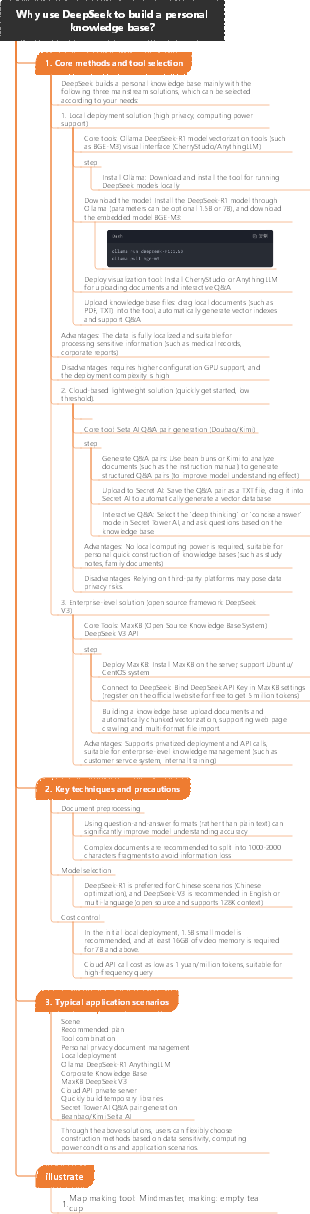
Use DeepSeek to build a personal knowledge base
Preparation
Content preparation
Prepare your own knowledge base content, such as manuals, etc.
Preparation
Content preparation
Prepare your own knowledge base content, such as manuals, etc.
Tool preparation
Download and install the ollama tool
Use ollama to download and install deepseek model, select 1.5b or 7b parameters
Download the embedded model bge-m3
Download and install the AI visualization tool cherryStudio
Create a knowledge base
Generate a Q&A
You can use bean buns to analyze the instructions and generate a Q&A
Upload knowledge base
Copy and paste the generated Q&A pair onto the TXT text, and then drag the TXT text into the Secret Tower AI
Verification Knowledge Base
After waiting for the vectorization to be completed, you can use the Seita AI to perform Q&A on the uploaded knowledge base.
Use knowledge base
Select a workspace
Choose your own workspace
Q&A mode
When asking, you can choose deep thinking or concise answering methods
Tool preparation
Download and install the ollama tool
step
Download and install the ollama tool
Visit the official website of ollama to download and install
Download and install the DeepSeek model
Use ollama to download and install the DeepSeek model, you can choose 1.5b or 7b parameters
Download the embedded model bge-m3
Download embedded model bge-m3 using ollama
Download and install the AI visualization tool cherryStudio
Visit the official website of cherry-ai to download and install
Upload knowledge base
Upload the knowledge base file to cherryStudio
Set up ollama
Set ollama in cherryStudio interface, load models DeepSeek and bge-m3
Enter the dialogue interface
In the cherryStudio interface, enter the dialogue interface, select the DeepSeek model and knowledge base, and ask questions
Things to note
DeepSeek is an inference model and is good at processing in the field of quantitative trading. It may not work well for other knowledge processing.
Use ollama to download and install deepseek model, select 1.5b or 7b parameters
step
Download and install Ollama
Ollama supports a variety of large models and is a tool needed to deploy DeepSeek.
Download the DeepSeek model
Enter Ollama official website, find Models, and select the corresponding DeepSeek model to download
Chatbox front-end construction
Through Chatbox, web pages or client operations can be implemented, making it convenient to use DeepSeek
Things to note
The larger the model, the higher the configuration of computer memory, graphics card, etc.
After deploying DeepSeek, some data that is inconvenient to be disclosed, such as experimental data, can be processed by deploying large models to the local level, so there is no need to worry about data leakage.
Download the embedded model bge-m3
Preparation tools
Download and install Ollama
Visit the official website of ollama to download and install
Download and install the DeepSeek model
Search for the DeepSeek model on the official website of ollama, select the appropriate version according to the computer configuration to download and install it
Download and install the AI visualization tool CherryStudio
Visit CherryStudio official website to download and install
Download the bge-m3 embedding model
Download the bge-m3 embedding model using the ollama tool
Download and install the AI visualization tool cherryStudio
Preparation
Download and install tools
Download and install the ollama tool
Download and install the CherryStudio client
Register and configure
Register DeepseekAPI and SiliconFlow
Configuring API Keys in CherryStudio
Knowledge Base Construction
Add knowledge base files
Add supported file formats, such as pdf, docx, pptx, xlsx, txt, md, mdx, etc.
Add the entire folder directory, and files in the supported format will be processed automatically
Add data from multiple sources such as URL links, site maps, plain text notes, etc.
Wait for vectorization to complete
When the display vectorization has been completed, the processing of the file is completed
Use knowledge base
Search the Knowledge Base
Enter the query content to search the knowledge base and obtain relevant results and matching scores
Improve search accuracy
Accurate keyword selection
Multi-keyword combination
Use boolean operators
Limited search range
Clear problem statement
Utilize categories and tags
Troubleshooting items
Verification and adjustment
Knowledge Base Construction
Content processing
Through bean buns, analyze the content of the knowledge base and generate Q&A.
Use DeepSeek to build a personal knowledge base
Preparation
Download and install necessary tools such as ollama
Create a knowledge base
Deploy a local knowledge base with DeepSeek
Upload the required information, such as the instruction manual, as the content of the knowledge base
Generate a Q&A
Generate Q&A with DeepSeek
Using DeepSeek's intelligent system to understand, analyze and generate information
Enter the question and DeepSeek will generate the corresponding answer
Copy and paste the generated Q&A pair onto the TXT text
Prepare the knowledge base content
Prepare your own knowledge base content, which can be in the form of instructions, etc.
Content processing
Analyze the knowledge base content through tools such as beanbao to generate Q&A and Q&A
Question and answer formats can help DeepSeek better learn knowledge bases and generate vector databases
Export Q&A
Copy and paste the generated Q&A pair onto the TXT text
Vectorization processing
Drag TXT text into tools such as Seita AI and other tools, and vectorized by the DeepSeek model
The time of vectorization depends on the content size and content complexity, as well as the parsing speed of the model
Use knowledge base
After vectorization is completed, you can use the Seita AI to perform Q&A on the uploaded knowledge base.
Knowledge Base Vectorization
Drag the TXT text into the Secret Tower AI and let the deepseek model vectorize the knowledge base
Register DeepSeekAPI
Go to the official website of DeepSeeKV3, register an account and obtain APIKey
Select Knowledge Base Management Tool
You can use free tools such as AnythingLLM to manage your knowledge base
Configure APIKey
Fill in the obtained DeepSeeKV3 APIKey into the corresponding settings
Add knowledge base files
Click the button to add file, select the supported file format and open it. The system will automatically perform word segmentation and index creation.
You can also add the entire folder directory, and files that support formats under this directory will be processed automatically.
Or add data from multiple sources such as URL links, site maps, plain text notes, etc.
Wait for vectorization to complete
When the display vectorization has been completed, the processing of the file is completed
Get started with the knowledge base
By entering the query content, you can search the knowledge base and obtain relevant results and matching scores
Improve search accuracy
Accurate keyword selection
Multi-keyword combination
Use boolean operators
Limited search range
Clear problem statement
Utilize categories and tags
Troubleshooting items
Verification and adjustment
Knowledge Base Use
Q&A function
Select your own workspace in Seta AI and ask questions
Build a personal knowledge base
step
Download and install the ollama tool: https://ollama.com
Use ollama to download and install the deepseek model: select 1.5b or 7b, or you can run deepseek directly under ollama, ollamarundeepseek-r1:1.5b
Download the embedded model bge-m3: ollamapullbge-m3
Download and install the AI visualization tool cherryStudio: https://cherry-ai.com/download
Upload knowledge base information: for example, "Mes Manual"
Set ollama in cherryStudio interface: load model deepseek and bge-m3
Enter the dialogue interface: select deepseek model, select mes knowledge base, and ask questions
Ask a question
Question method
Through DeepSeek's intelligent dialogue function: DeepSeek has virtual customer service function, which can effectively respond to multiple rounds of conversations and solve customer consultation problems
Question content
About any information in the knowledge base: DeepSeek can extract key information from large amounts of text data and generate summary, supporting intelligent decision support functions such as market trend forecasting and risk assessment.
You can choose deep thinking or concise answering methods
DeepSeek features
Smart Q&A
Ability to answer various questions asked by users, covering a wide range of knowledge areas
Text generation
You can generate high-quality articles, reports, emails and other content based on user needs
Data Analysis
Supports content extraction and analysis of uploaded files (such as text, tables, PDFs, etc.)
Multilingual support
Ability to process text in multiple languages to meet the needs of users around the world
How to use DeepSeek
Basic Operation
Enter the question you want to ask or the topic description you want to generate in the input box
Give detailed instructions, DeepSeek will generate corresponding text according to your instructions
You can continue to ask questions or request modification based on previous answers
Deep thinking (R1)
Carry out multi-angle hypothesis deduction and causal chain analysis, suitable for scenarios such as academic research, strategic analysis, and complex decision support.
For complex problems, they will be disassembled step by step to provide multi-perspective comparisons.
Search online
It can obtain the latest information on the entire network in real time, suitable for news tracking, market trends, and emergencies analysis.
Can answer dynamic updates, the latest policies of some places today's stock market, etc.
Build a personal knowledge base
Select Tool
Depending on your interests and needs, choose a DeepSeek tool to start learning
Read the document
Read the official documentation of the selected tool carefully to understand its functions, usage and precautions
Try examples
Try running and modifying the example to be familiar with the use of the tool
Advanced Learning
Understand the basics of AI knowledge such as machine learning and deep learning
Learn more about advanced features of selected tools
Practical application
Choose a project that you are interested in, such as developing a chatbot, creating a poem, etc.
Apply the learned DeepSeek to the project
Local deployment
If you consider deploying big models locally and training your knowledge base, it may be more difficult and requires more computing power.
DeepSeek Local Deployment
DeepSeek features
Support local deployment and build a personal knowledge base
You can deploy AI that is not as weak as a full-blooded version on your personal PC
Vectorized private files, such as the massive minutes of researchers, personal consumption data, medical data, etc.
DeepSeek deployment steps
Download and install the ollama tool
Install deepseek model using ollama download
Download the embedded model bge-m3
Download and install the AI visualization tool cherryStudio
Upload knowledge base files
Set ollama in cherryStudio interface, load models deepseek and bge-m3
In the cherryStudio interface, enter the dialogue interface, select the deepseek model, select the knowledge base, and ask questions
Advantages of DeepSeek
AI tools that improve production efficiency are willing to pay
Instead, lifestyles tend to be free traffic diversion
The game notebook is a computing power notebook, suitable for the local deployment of DeepSeek
illustrate
Map making tool: Mindmaster, making: empty tea cup