Wondershare EdrawMind
MindMap Gallery Excel 2010
Excel 2010
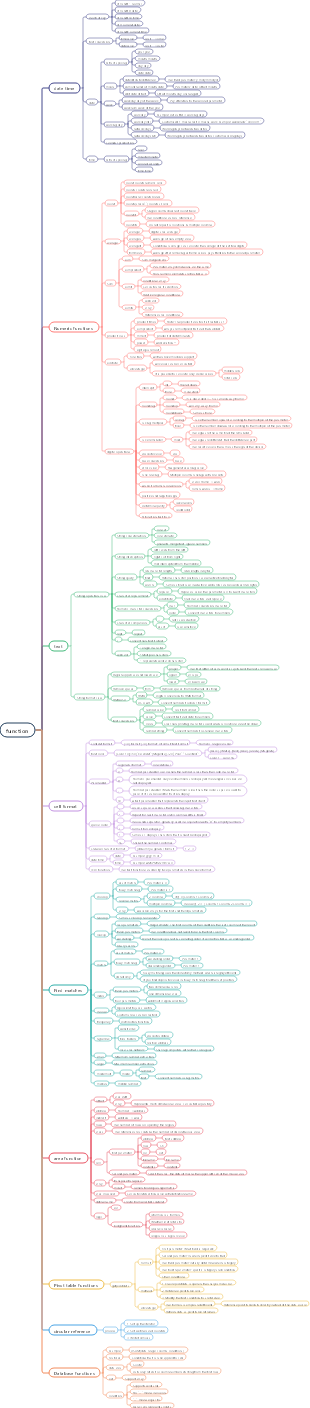
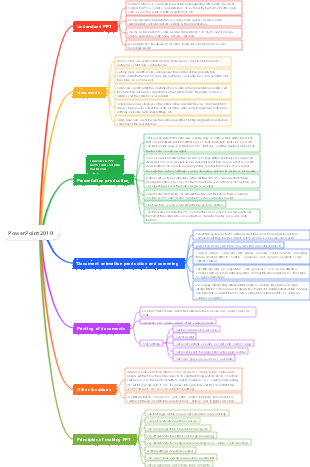
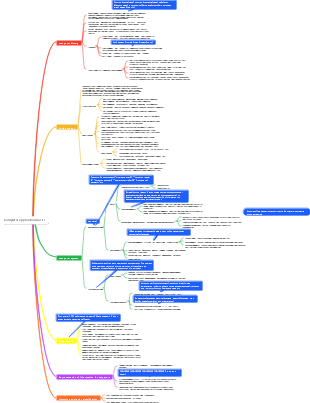
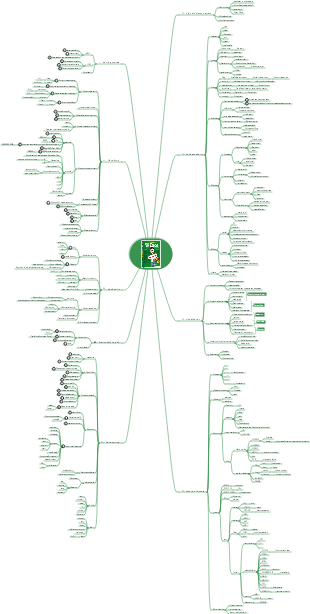
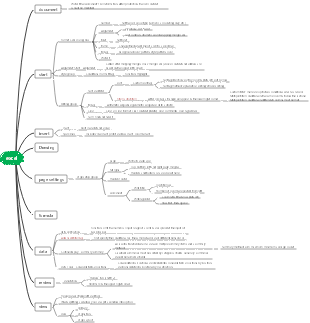
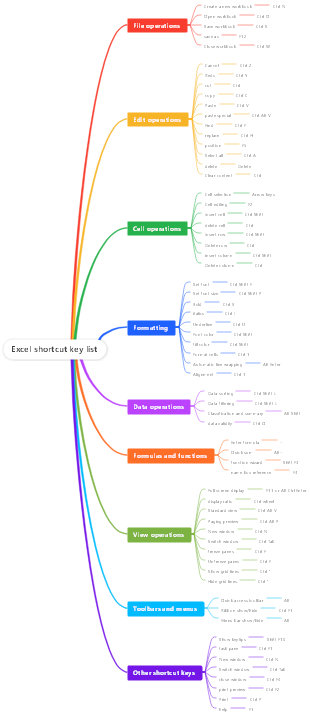
Self-study study notes, summarizing additions, spreadsheets, Graphs and charts, cell references, Excel functions, short answers to test points, etc.
Edited at 2024-02-08 19:39:30
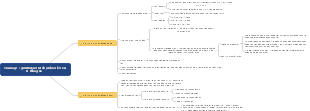
- Analisi controllo gestione portata progetto
Mappa mentale per l’analisi del controllo della gestione del portata di progetto. Tre sezioni principali: 1. WBS Scope Breakdown – scomposizione gerarchica del lavoro con dettaglio dello Scopo del progetto. 2. Scope Boundary / Exclusions – definizione chiara dei confini del progetto e di ciò che è escluso per evitare scope creep. Strumento ideale per project manager e team di controllo per mantenere allineamento e ridurre rischi.
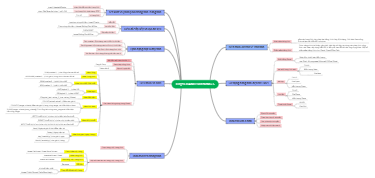
- Miglioramento continuo del sistema di gestione della qualità
Questo template, ideato con EdrawMind, è un modello completo per il miglioramento continuo del sistema di gestione della qualità, con una descrizione di circa 500 parole. È strutturato come un diagramma a lisca di pesce, strumento efficace per analizzare le cause principali dei problemi di qualità e definire le leve di controllo necessarie per risolverli. Il processo è organizzato in quattro fasi chiave: la prima è lo standard e la pianificazione, dove si definiscono gli obiettivi di qualità, i criteri di accettazione, i requisiti di prova e le porte di qualità (Quality Gate). La seconda fase analizza i processi e le porte di controllo, per garantire che ogni passaggio del lavoro segua i standard stabiliti. La terza fase riguarda l’esecuzione QA/QC, con la definizione di metodi di prova e ispezione, nonché regole per la gestione dei difetti e delle non conformità. L’ultima fase è il miglioramento e le azioni correttive e preventive (CAPA), insieme a una catena di audit per monitorare l’efficacia delle misure adottate. In basso, una tabella "Quality Gate" permette di tracciare ogni punto di controllo, con criteri specifici, metodi di prova, proprietario e stato di avanzamento. Grazie alla visualizzazione chiara e intuitiva di EdrawMind, questo strumento aiuta il team a identificare le cause root dei problemi di qualità, implementare azioni efficaci e mantenere un ciclo di miglioramento continuo, garantendo la qualità finale del prodotto o servizio.
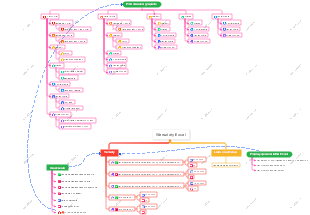
- Ottimizzazione del piano di gestione della comunicazione per progetti
Questo template, creato con EdrawMind, è un modello di piano di comunicazione ottimizzato, con una descrizione di circa 500 parole. È uno strumento chiave per evitare incomprensioni tra stakeholder, garantire la trasparenza e mantenere il team allineato agli obiettivi del progetto. Il modello è composto da tre elementi fondamentali e interconnessi: la matrice di comunicazione, la cadenza timeline e le regole di comunicazione/SLA. La matrice di comunicazione è una tabella dettagliata dove per ogni pubblico o stakeholder, si definisce il tipo di informazioni da condividere, lo scopo della comunicazione, il canale da utilizzare (email, riunioni, piattaforme di progetto), la frequenza, il proprietario responsabile, il formato e il percorso di escalazione in caso di problemi. La cadenza timeline è una linea temporale che definisce le scadenze delle comunicazioni chiave, garantendo che le informazioni siano condivise in momento opportuno e non si verifichino ritardi o omissioni. Le regole di comunicazione e gli accordi sul livello di servizio (SLA) definiscono le norme formali della comunicazione, come i tempi di risposta, il tono da adottare e le responsabilità di ciascun membro del team. Grazie alla struttura visuale di EdrawMind, questo template permette di pianificare la comunicazione in modo strategico, trasparente e efficiente, riducendo i rischi di cattiva informazione, migliorando la collaborazione e garantendo che tutti gli stakeholder siano informati e coinvolti nel progetto.
Excel 2010
- Analisi controllo gestione portata progetto
Mappa mentale per l’analisi del controllo della gestione del portata di progetto. Tre sezioni principali: 1. WBS Scope Breakdown – scomposizione gerarchica del lavoro con dettaglio dello Scopo del progetto. 2. Scope Boundary / Exclusions – definizione chiara dei confini del progetto e di ciò che è escluso per evitare scope creep. Strumento ideale per project manager e team di controllo per mantenere allineamento e ridurre rischi.
- Miglioramento continuo del sistema di gestione della qualità
Questo template, ideato con EdrawMind, è un modello completo per il miglioramento continuo del sistema di gestione della qualità, con una descrizione di circa 500 parole. È strutturato come un diagramma a lisca di pesce, strumento efficace per analizzare le cause principali dei problemi di qualità e definire le leve di controllo necessarie per risolverli. Il processo è organizzato in quattro fasi chiave: la prima è lo standard e la pianificazione, dove si definiscono gli obiettivi di qualità, i criteri di accettazione, i requisiti di prova e le porte di qualità (Quality Gate). La seconda fase analizza i processi e le porte di controllo, per garantire che ogni passaggio del lavoro segua i standard stabiliti. La terza fase riguarda l’esecuzione QA/QC, con la definizione di metodi di prova e ispezione, nonché regole per la gestione dei difetti e delle non conformità. L’ultima fase è il miglioramento e le azioni correttive e preventive (CAPA), insieme a una catena di audit per monitorare l’efficacia delle misure adottate. In basso, una tabella "Quality Gate" permette di tracciare ogni punto di controllo, con criteri specifici, metodi di prova, proprietario e stato di avanzamento. Grazie alla visualizzazione chiara e intuitiva di EdrawMind, questo strumento aiuta il team a identificare le cause root dei problemi di qualità, implementare azioni efficaci e mantenere un ciclo di miglioramento continuo, garantendo la qualità finale del prodotto o servizio.
- Ottimizzazione del piano di gestione della comunicazione per progetti
Questo template, creato con EdrawMind, è un modello di piano di comunicazione ottimizzato, con una descrizione di circa 500 parole. È uno strumento chiave per evitare incomprensioni tra stakeholder, garantire la trasparenza e mantenere il team allineato agli obiettivi del progetto. Il modello è composto da tre elementi fondamentali e interconnessi: la matrice di comunicazione, la cadenza timeline e le regole di comunicazione/SLA. La matrice di comunicazione è una tabella dettagliata dove per ogni pubblico o stakeholder, si definisce il tipo di informazioni da condividere, lo scopo della comunicazione, il canale da utilizzare (email, riunioni, piattaforme di progetto), la frequenza, il proprietario responsabile, il formato e il percorso di escalazione in caso di problemi. La cadenza timeline è una linea temporale che definisce le scadenze delle comunicazioni chiave, garantendo che le informazioni siano condivise in momento opportuno e non si verifichino ritardi o omissioni. Le regole di comunicazione e gli accordi sul livello di servizio (SLA) definiscono le norme formali della comunicazione, come i tempi di risposta, il tono da adottare e le responsabilità di ciascun membro del team. Grazie alla struttura visuale di EdrawMind, questo template permette di pianificare la comunicazione in modo strategico, trasparente e efficiente, riducendo i rischi di cattiva informazione, migliorando la collaborazione e garantendo che tutti gli stakeholder siano informati e coinvolti nel progetto.
- Recommended to you
- Outline