 Wondershare EdrawMind
MindMap Gallery EXECL shortcut key mind map
- 64
- 1
EXECL shortcut key mind map
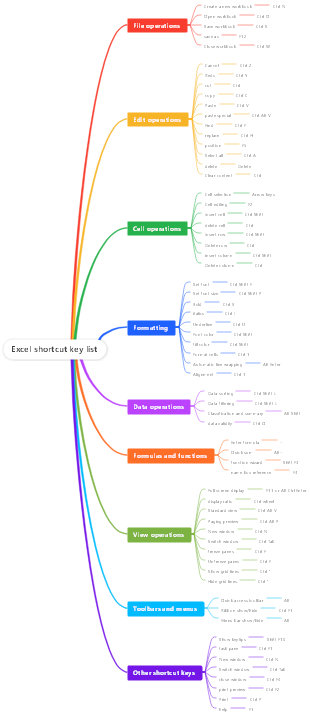
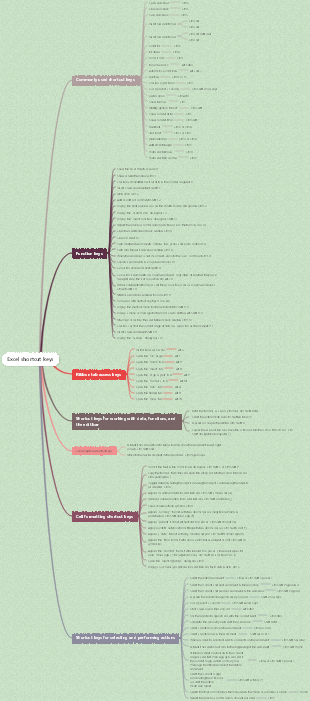
Mind map about EXECL shortcut keys, including ribbon access keys, using the ribbon through the keyboard, keyboard shortcuts for cell formatting, etc. Super detailed EXECL shortcut keys, hurry up and use them
Edited at 2023-11-08 17:26:18
- bacteria
This is a mind map about bacteria, and its main contents include: overview, morphology, types, structure, reproduction, distribution, application, and expansion. The summary is comprehensive and meticulous, suitable as review materials.
- Plant asexual reproduction
This is a mind map about plant asexual reproduction, and its main contents include: concept, spore reproduction, vegetative reproduction, tissue culture, and buds. The summary is comprehensive and meticulous, suitable as review materials.
- Reproductive development of animals
This is a mind map about the reproductive development of animals, and its main contents include: insects, frogs, birds, sexual reproduction, and asexual reproduction. The summary is comprehensive and meticulous, suitable as review materials.
EXECL shortcut key mind map
- bacteria
This is a mind map about bacteria, and its main contents include: overview, morphology, types, structure, reproduction, distribution, application, and expansion. The summary is comprehensive and meticulous, suitable as review materials.
- Plant asexual reproduction
This is a mind map about plant asexual reproduction, and its main contents include: concept, spore reproduction, vegetative reproduction, tissue culture, and buds. The summary is comprehensive and meticulous, suitable as review materials.
- Reproductive development of animals
This is a mind map about the reproductive development of animals, and its main contents include: insects, frogs, birds, sexual reproduction, and asexual reproduction. The summary is comprehensive and meticulous, suitable as review materials.
- Recommended to you
- Outline



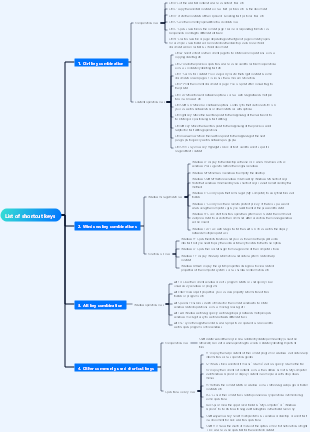

EXECL shortcut keys
一、 Commonly used shortcuts
Close workbook Ctrl W
Open workbook Ctrl O
Go to the "Home" tab. Alt H
Save the workbook. Ctrl S
Copy the selection. Ctrl C
Paste the selection. Ctrl V
Undo recent actions. Ctrl Z
Delete cell contents. Delete
Cut the selection. Ctrl
Go to the "Insert" tab. Alt N
Apply bold formatting. Ctrl B
Go to the "Page Layout" tab. Alt P
Go to the "Data" tab. Alt A
Go to the View tab. Alt W
Open the context menu. Shift F10 or Windows menu key
Choose a fill color. Alt H, H
Center aligns cell content. Alt H, A, C
Add a border. Alt H,B
Delete columns. Alt H, D, C
Compare the corresponding letters
Go to the "Formulas" tab. Alt M
Hide selected rows. Ctrl 9
Hide selected columns. Ctrl 0
二、 Ribbon access keys
Search Alt Q
Open the file menu Alt F
Open homepage Alt H
Open Insert Alt N
Open page layout Alt P
Open formula Alt M
Open data Alt A
Open review Alt R
Open view Alt W
三、 Using the Ribbon with the Keyboard
Select the active tab of the ribbon and activate the access keys Alt or F10 (To move to a different tab, use the access keys or arrow keys.)
Move focus to a command on the ribbon. Tab (backward) or Shift Tab (forward)
Move cells----use arrow keys (up, down, left, right)
Displays a tooltip for the currently focused ribbon element. Ctrl Shift F10
Opens the menu for the selected button. Alt Down Arrow
Expand or collapse the ribbon. Ctrl F1
Move from one set of controls to another. Ctrl arrow keys (head-tail-leftmost-rightmost)
(end) to enter End mode, move (arrow keys) to the next non-empty cell in the same column or row as the active cell, and then turn off End mode. If the cell is empty, moves to the last cell in the row or column. End, arrow keys
Move to the last cell on the worksheet, which is the bottom row of the rightmost column being used. Ctrl End
Extends the cell selection to the last used cell on the worksheet (lower right corner). Ctrl Shift End
When Scroll Lock is on, move to the cell in the upper left corner of the window. Home Scroll Lock (Lenovo keyboard has the PrTSc key between ctrl and alt on the right)
Move to the beginning of the worksheet. Ctrl Home
Move up/down one screen (page) in the worksheet. Page up/ Page down
Move one screen (page) left/right in the worksheet. Alt Page up/ Alt Page down
Move to the previous/next worksheet in the workbook. Ctrl Page Up/Ctrl Page Down
Wrap floating shapes such as text boxes or images. Press Ctrl Alt 5, then Tab repeatedly
Exit floating shape navigation and return to normal navigation. Esc
Scroll horizontally. Ctrl Shift, then scroll the mouse wheel up to left, scroll down to right
enlarge. Ctrl Alt Equal Sign ( = )
Zoom out. Ctrl Alt minus sign (-)
四、 Keyboard shortcuts for cell formatting
Opens the Format Cells dialog box. Ctrl 1
Format the font in the Format Cells dialog box. Ctrl Shift F or Ctrl Shift P
Edit the active cell and place the insertion point at the end of its contents. F2
Insert notes. Open and edit cell notes. Shift F2
Insert thread comment. Open and reply to thread comments. Ctrl Shift F2
Opens the Insert dialog box to insert blank cells. Ctrl Shift plus sign ( )
Opens the Delete dialog box to delete selected cells. Ctrl minus sign (-)
Enter the current time. Ctrl Shift Colon (:)
Enter the current date. Ctrl semicolon (;)
In a worksheet, toggle between showing cell values or formulas. Ctrl Accent (`)
Copy the formula from the cell above the active cell to the cell or formula bar. Ctrl apostrophe (')
Opens the Paste Special dialog box. Ctrl Alt V
Apply or remove strikethrough formatting. Ctrl 5
Toggles between hiding the object, showing the object, and showing the object's placeholder. Ctrl 6
Applies an outline border to selected cells. Ctrl Shift ampersand (&)
Removes outline borders from selected cells. Ctrl Shift Underline(_)
Show or hide outline symbols. Ctrl 8
Use the Fill Down command to copy the contents and formatting of the top-most cells in the selection to the cells below. Ctrl D
Apply regular number format. Ctrl Shift tilde (~)
Applies currency format with two decimal places (negative numbers in parentheses). Ctrl Shift dollar sign ($)
Applies percent format without decimal places. Ctrl Shift percent sign (%)
Apply scientific notation format with two decimal places. Ctrl Shift caret (^)
Apply date format with year, month, and day. Ctrl Shift number sign (#)
Apply time format with hours and minutes and AM or PM. Ctrl Shift @ symbol (@)
Apply number format with two decimal places, a thousands separator, and a minus sign (-) for negative values. Ctrl Shift Exclamation mark (!)
Opens the Insert Hyperlink dialog box. Ctrl K
Check spelling in the active worksheet or selected range. F7
Displays Quick Analysis options for selected cells that contain data. Ctrl Q
Displays the Create Table dialog box. Ctrl L or Ctrl T
Opens the Workbook Statistics dialog box. Ctrl Shift G
五、 Keyboard shortcuts for making selections and performing actions
Select the entire worksheet. Ctrl A or Ctrl Shift Spacebar
Select the current and next worksheet in the workbook. Ctrl Shift Page Down
Select the current and previous worksheet in the workbook. Ctrl Shift Page Up
Expands the selected range of cells by one cell. Shift arrow keys
Extends the selection of cells to the last non-empty cell in the column or row of the active cell, Or if the next cell is empty, expand to the next non-empty cell. Ctrl Shift Arrow keys
Turn on expand mode and use the arrow keys to expand the selection. Press again to close. F8
Add non-adjacent cells or ranges to a selected range of cells by using the arrow keys. Shift F8
Start a new row in the same cell. Alt Enter
Fills the selected range of cells with the current input. Ctrl Enter
Complete the cell entry and select the cell above. Shift Enter
Select an entire column in the worksheet. Ctrl spacebar
Select an entire row in the worksheet. Shift space bar
When an object is selected, selects all objects on the worksheet. Ctrl Shift Spacebar
Extend the selection of cells to the beginning of the worksheet. Ctrl Shift Home
If the worksheet contains data, the current range is selected. Pressing again selects the current range and its summary row. Press a third time to select the entire worksheet. Ctrl A or Ctrl Shift Spacebar
Selects the current area around the active cell. Ctrl Shift asterisk (*)
Selects the first command on the menu when the menu or submenu is visible. Home
Repeat the previous command or action (if possible). Ctrl Y
Undo the last operation. Ctrl Z
Expand a grouped row or column. While hovering over a collapsed item, hold down the Shift key and scroll down.
Collapse grouped rows or columns. While hovering over an expanded item, hold down the Shift key and scroll up.
六、 Keyboard shortcuts for working with data, functions, and formula bars
Turns on or off tooltips for checking formulas directly in the formula bar or in the cell being edited. Ctrl Alt P
Edit the active cell and place the insertion point at the end of its contents. Alternatively, if editing of the cell is turned off, move the insertion point into the formula bar. If you edit a formula, turn point mode off or on so that you can use the arrow keys to create references. F2
Expand or collapse the formula bar. Ctrl Shift U
Cancel input in a cell or formula bar. Esc
Complete your entries in the formula bar and select the cells below. Enter
While in the formula bar, move the cursor to the end of the text. Ctrl End
Selects all text in the formula bar from the cursor position to the end. Ctrl Shift End
Counts all worksheets in all open workbooks. F9
Calculation activity worksheet. Shift F9
Calculates all worksheets in all open workbooks, regardless of whether they have changed since the last calculation. Ctrl Alt F9
Checks dependent formulas and then calculates all cells in all open workbooks, This includes cells that are not marked for calculation. Ctrl Alt Shift F9
Displays a menu or message for the Error Checking button. Alt Shift F10
When the insertion point is to the right of a function name in a formula, the Function Parameters dialog box appears. Ctrl A
When the insertion point is to the right of a function name in a formula, parameter names and parentheses are inserted. Ctrl Shift A
Insert autosum formula Alt equal sign ( = )
Invoke Quick Fill to automatically recognize patterns in adjacent columns and fill the current column Ctrl E
If a cell reference or range is selected, cycles through all the various combinations of absolute and relative references in the formula. F4
Insert function. Shift F3
Copies the value of the cell above the active cell into the cell or formula bar. Ctrl Shift Straight double quotes (")
Creates an embedded chart of data in the current scope. Alt F1
Create a chart of the data in the current range in a separate Chart worksheet. F11
Define a name to use in references. Alt M, M, D
Paste the name from the Paste Name dialog box (if it is already defined in the workbook). F3
Move to the first field in the next record of the data form. Enter
Create, run, edit or delete macros. Alt F8
Open the Microsoft Visual Basic for Applications editor. Alt F11
Open the Power Query editor Alt F12
七、 Keyboard shortcuts for working with data, functions, and formula bars
Turns on or off tooltips for checking formulas directly in the formula bar or in the cell being edited. Ctrl Alt P
Edit the active cell and place the insertion point at the end of its contents. Alternatively, if editing of the cell is turned off, move the insertion point into the formula bar. If you edit a formula, turn point mode off or on so that you can use the arrow keys to create references. F2
Expand or collapse the formula bar. Ctrl Shift U
Cancel input in a cell or formula bar. Esc
Complete your entries in the formula bar and select the cells below. Enter
While in the formula bar, move the cursor to the end of the text. Ctrl End
Selects all text in the formula bar from the cursor position to the end. Ctrl Shift End
Counts all worksheets in all open workbooks. F9
Calculation activity worksheet. Shift F9
Calculates all worksheets in all open workbooks, regardless of whether they have changed since the last calculation. Ctrl Alt F9
Checks dependent formulas and then calculates all cells in all open workbooks, This includes cells that are not marked for calculation. Ctrl Alt Shift F9
Displays a menu or message for the Error Checking button. Alt Shift F10
When the insertion point is to the right of a function name in a formula, the Function Parameters dialog box appears. Ctrl A
When the insertion point is to the right of a function name in a formula, parameter names and parentheses are inserted. Ctrl Shift A
Insert autosum formula Alt equal sign ( = )
Invoke Quick Fill to automatically recognize patterns in adjacent columns and fill the current column Ctrl E
If a cell reference or range is selected, will cycle through all the various combinations of absolute and relative references in the formula. F4
Insert function. Shift F3
Copies the value of the cell above the active cell into the cell or formula bar. Ctrl Shift Straight double quotes (")
Creates an embedded chart of data in the current scope. Alt F1
Create a chart of the data in the current range in a separate Chart worksheet. F11
Define a name to use in references. Alt M, M, D
Paste the name from the Paste Name dialog box (if it is already defined in the workbook). F3
Move to the first field in the next record of the data form. Enter
Create, run, edit or delete macros. Alt F8
Open the Microsoft Visual Basic for Applications editor. Alt F11
Open the Power Query editor Alt F12
八、 Keyboard shortcut for refreshing external data
Stop the refresh operation. Esc
Refresh the data in the current worksheet. Ctrl F5
Refresh all data in the workbook. Ctrl Alt F5
九、 Power Pivot keyboard shortcuts
Opens the context menu for the selected cell, column, or row. Shift F10
Select the entire table. Ctrl A
Copy selected data. Ctrl C
Delete the table. Ctrl D
Mobile table. Ctrl M
Rename the table. Ctrl R
save document. Ctrl S
Resume the last operation. Ctrl Y
Undo the last operation. Ctrl Z
Select the current column. Ctrl spacebar
Select the current row. Shift space bar
Selects all cells from the current position to the last cell of the column. Shift Page Down
Selects all cells from the current position to the first cell of the column. Shift Page Up
Selects all cells from the current position to the last cell of the row. Shift End
Selects all cells from the current position to the first cell of the row. Shift Home
Move to previous table. Ctrl Page Up
Move to next table. Ctrl Page Down
Moves to the first cell in the upper left corner of the selected table. Ctrl Home
Moves to the last cell in the lower right corner of the selected table. Ctrl End
Moves to the first cell of the selected row. Ctrl left key
Move to the last cell of the selected row. Ctrl right key
Moves to the first cell of the selected column. Ctrl up key
Moves to the last cell of the selected column. Ctrl down arrow
Close a dialog box or cancel a process, such as a paste operation. Ctrl Esc
Opens the AutoFilter Menu dialog box. Alt Down Arrow
Opens the Go to dialog box. F5
Recalculates all formulas in the Power Pivot window. F9
十、 Function keys
F1 F1 (used alone: displays the Excel Help task pane.
Ctrl F1: Show or hide the ribbon.
Alt F1: Creates an embedded chart of data in the current range.
Alt Shift F1: Insert a new worksheet.
Ctrl Shift F1: Switch to full screen mode
F2 F (used alone) 2: Edit the active cell and place the insertion point at the end of its contents. Alternatively, if editing of the cell is turned off, move the insertion point into the formula bar. If you edit a formula, turn point mode off or on so that you can use the arrow keys to create references.
Shift F2: Add or edit cell notes.
Ctrl F2: Display the print preview area on the Print tab in Backstage view.
F3 F3 (used alone): Displays the Paste Name dialog box. Applies only if the name is defined in the workbook.
Shift F3: Displays the "Insert Function" dialog box.
F4 F4 (used alone): Repeats the previous command or action (if possible).
When a cell reference or range is selected in a formula, press F4 to cycle through all the various combinations of absolute and relative references.
Ctrl F4: Close the selected workbook window.
Alt F4: Close Excel.
F5 F5 (used alone): Displays the "Locate" dialog box.
Ctrl F5: Restore the window size of the selected workbook window.
F6 F6 (used alone): Switch between the worksheet, ribbon, task pane, and Zoom control. In a split worksheet, when switching between panes and ribbon areas, press F6 to include the split pane.
Shift F6: Switch between worksheets, zoom controls, task panes, and ribbons.
Ctrl F6: Switch between 2 Excel windows.
Ctrl Shift F6: Switch between all Excel windows.
F7 F7 (used alone): Opens the Spell Check dialog box, used to check spelling in the active worksheet or selected range.
Ctrl F7: If the workbook window is not maximized, pressing Ctrl F7 performs the Move command on the window. Use the arrow keys to move the window and press Enter when finished, or Esc to cancel.
F8 F8 (used alone): Turn extended mode on or off. In expand mode, "Expand Selected" appears in the status line, and pressing the arrow keys expands the selection.
Shift F8: You can use the arrow keys to add non-adjacent cells or ranges to a selected range of cells.
Ctrl F8: Execute the Size command when the workbook is not maximized.
Alt F8: Display the Macro dialog box to create, run, edit, or delete macros.
F9 F9 (used alone): Counts all worksheets in all open workbooks.
Shift F9: Calculate the active worksheet.
Ctrl Alt F9: Calculate all worksheets in all open workbooks, regardless of whether they have changed since the last calculation.
Ctrl Alt Shift F9: Rechecks dependent formulas and then calculates all cells in all open workbooks, including cells not marked for calculation.
Ctrl F9: Minimize the workbook window to an icon.
F10 F10 (used alone): Turn key prompts on or off. (The same thing can be done by pressing Alt.)
Shift F10: Displays the content menu of the selected item.
Alt Shift F10: Display the menu or message of the Error Check button.
Ctrl F10: Maximize or restore the selected workbook window.
F11 F11 (used alone): Creates a chart of the data in the current range in a separate Chart worksheet.
Shift F11: Insert a new worksheet.
Alt F11: Open the Microsoft Visual Basic For Applications editor, Macros can be created using Visual Basic for Applications (VBA).
F12 F12 (used alone): Displays the Save As dialog box.
十一、 Other useful shortcut keys
Alt Displays KeyTips (new shortcuts) on the ribbon.
Arrow keys Move up, down, left, or right one cell in the worksheet.
Press the Ctrl arrow keys to move to the edge of the current data range in the worksheet.
Press the Shift arrow key to expand the cell selection by one cell.
Press the Ctrl Shift arrow key to extend the selection of cells to the last non-empty cell in the column or row of the active cell. Or if the next cell is empty, extend the selection to the next non-empty cell.
Press the Down Arrow or Alt Down Arrow to open the selected drop-down list.
Backspace Delete one character to the left in the edit bar.
Delete removes cell contents (data and formulas) from selected cells, Without affecting cell formatting, thread comments, or notes.
End Press End to turn End mode on or off. In End mode, you can press the arrow keys to move to the next non-empty cell in the same column or row as the active cell. End mode will automatically turn off after pressing the arrow keys. Be sure to press End again before pressing the arrow keys next time. End is displayed in the status bar when mode is on.
Press Ctrl End to move to the last cell on the worksheet, which is the bottom row of the rightmost column being used. If the cursor is in the formula bar, press Ctrl End to move the cursor to the end of the text.
Press Ctrl Shift End to extend the cell selection to the last cell used on the worksheet (in the lower right corner). If the cursor is in the formula bar, Press Ctrl Shift End to select all text in the formula bar from the cursor position to the end, without affecting the height of the formula bar.
Enter completes cell entry from a cell or formula bar and (default) selects the cell below.
Open the selected menu (press F10 to activate the menu bar), or perform the action of the selected command.
Press Alt Enter to start a new row in the same cell.
Press Ctrl Enter to fill the selected range of cells with the current entries.
Press Shift Enter to complete cell entry and select the cell above.
Esc cancels input in a cell or formula bar.
Home moves to the beginning of a row in the worksheet.
When Scroll Lock is on, move to the cell in the upper left corner of the window.
Press Ctrl Home to move to the beginning of the worksheet.
Press Ctrl Shift Home to extend the selection of cells to the beginning of the worksheet.
Page down Move down one screen in the worksheet.
Press Alt Page Down to move one screen to the right in the worksheet.
Press Ctrl Page Down to move to the next worksheet in the workbook.
Press Ctrl Shift Page Down to select the current and next worksheet in the workbook.
Page up Move up one screen in the worksheet.
Press Alt Page Up to move one screen left in the worksheet.
Press Ctrl Page Up to move to the previous worksheet in the workbook.
Press Ctrl Shift Page Up to select the current and previous worksheet in the workbook.
Shift Hold down the Shift key while dragging a selected row, column, or selected cell to move the selected cell and drag to insert it in a new location.
Spacebar In a dialog box, performs the action of a selected button, or selects or clears a check box.
Press Ctrl+Spacebar to select an entire column in the worksheet.
Press Shift+Spacebar to select an entire row in the worksheet.
Press Ctrl Shift Spacebar to select the entire worksheet.
If the worksheet contains data, press Ctrl Shift Spacebar to select the current range. Press Ctrl Shift Spacebar again to select the current range and its summary row. Press Ctrl Shift Spacebar a third time to select the entire worksheet.
When an object is selected, press Ctrl Shift Spacebar to select all objects on the worksheet.
Press Alt+Spacebar to display the Excel window's Controls menu.
Tab key Moves one cell to the right in the worksheet.
Press Shift Tab to move to the previous cell in a worksheet or to the previous option in a dialog box.
Press Ctrl Tab to switch to the next tab in the dialog box, Or (if the dialog box is not open) switch between 2 Excel windows.
Press Ctrl Shift Tab to switch to the previous tab in the dialog box, Or (if the dialog box is not open) switch between all Excel windows.