MindMap Gallery List of shortcut keys
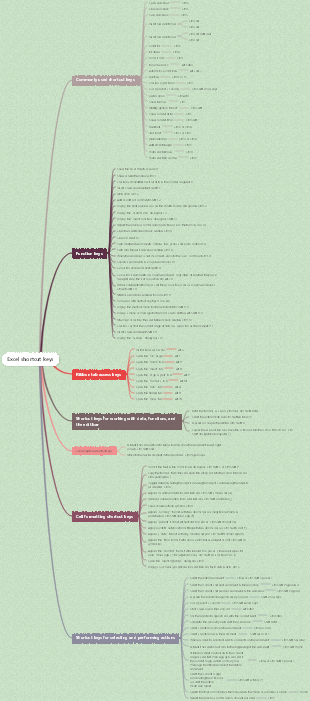
This is a mind map about a complete list of shortcut keys. The main content includes: 4. Other commonly used shortcut keys, 3. Alt key combination, 2. Windows key combination, 1. Ctrl key combination. Master the shortcut keys to make your operation faster than others!
Edited at 2024-10-27 15:45:56Diese Vorlage zeigt die Struktur und Funktion des Fortpflanzungssystems in Form einer Mind Map. Es führt die verschiedenen Komponenten der internen und externen Genitalien ein und sortiert das Wissen eindeutig aus, um Ihnen dabei zu helfen, mit den wichtigsten Wissenspunkten vertraut zu werden.
Dies ist eine Mind Map über die Interpretation und Zusammenfassung des Beziehungsfeldes E-Book, des Hauptinhalts: Überblick über die Essenzinterpretation und Übersicht über das Feld E-Book. "Relationship Field" bezieht sich auf das komplexe zwischenmenschliche Netzwerk, in dem ein Individuum andere durch spezifische Verhaltensweisen und Einstellungen beeinflusst.
Dies ist eine Mind Map über Buchhaltungsbücher und Buchhaltungsunterlagen.
Diese Vorlage zeigt die Struktur und Funktion des Fortpflanzungssystems in Form einer Mind Map. Es führt die verschiedenen Komponenten der internen und externen Genitalien ein und sortiert das Wissen eindeutig aus, um Ihnen dabei zu helfen, mit den wichtigsten Wissenspunkten vertraut zu werden.
Dies ist eine Mind Map über die Interpretation und Zusammenfassung des Beziehungsfeldes E-Book, des Hauptinhalts: Überblick über die Essenzinterpretation und Übersicht über das Feld E-Book. "Relationship Field" bezieht sich auf das komplexe zwischenmenschliche Netzwerk, in dem ein Individuum andere durch spezifische Verhaltensweisen und Einstellungen beeinflusst.
Dies ist eine Mind Map über Buchhaltungsbücher und Buchhaltungsunterlagen.
List of shortcut keys
1. Ctrl key combination
File operation class
Ctrl X: Cut the selected content, which can be text, files, etc.
Ctrl C: Copy the selected content, such as text, pictures, etc. in the document
Ctrl V: Paste the contents of the clipboard, including text, pictures, files, etc.
Ctrl S: Save the currently opened file to avoid data loss
Ctrl O: Open a new file on the current page. Files in corresponding formats can be opened according to different software.
Ctrl N: Create a new file or page, depending on the type of page currently open. For example, a new folder will be created on the desktop, and a blank Word document will be created in a Word document.
Content operation class
Ctrl A: Select all text on the current page to facilitate overall operations, such as copying, deleting, etc.
Ctrl Z: Undo the previous operation, which can be used to restore misoperations, such as accidentally deleting text, etc.
Ctrl F: Search for content. You can quickly locate the target content in some documents or web pages. F3 also has the same search function.
Ctrl P: Print the current document or page. You can print after connecting to the printer.
Ctrl Tab: Move forward between options, such as switching between multiple tabs in a browser, etc.
Ctrl Shift Tab: Move back between options. Contrary to the function of Ctrl Tab, you can switch between tabs or other interfaces with options.
Ctrl right key: Move the insertion point to the beginning of the next word to facilitate quick positioning in text editing
Ctrl left key: Move the insertion point to the beginning of the previous word, helpful for text editing operations
Ctrl Down Arrow: Move the insertion point to the beginning of the next paragraph to quickly switch between paragraphs
Ctrl SHIFT any arrow key: Highlight a block of text, used to select a specific range of text content
2. Windows key combinations
Window management class
Windows D: Display to the desktop with one click, which minimizes all task windows. Press again to restore the original windows.
Windows M: Minimize all windows to simplify the desktop
Windows Shift M: Restore windows minimized by Windows M shortcut keys. Note that windows minimized by non-shortcut keys cannot be restored by this method.
Windows E: Quickly open the file manager (My Computer) to easily find files and folders
Windows L: Quickly lock the screen to protect privacy. If there is a password when using the computer again, you need to enter the password to enter.
Windows R: Quick start function, open the system search, enter the command and press Enter to execute the command. After execution, the running window will be closed.
Windows Tab: Task switching is faster than Alt Tab. It can switch the display between multiple open tasks.
Function call class
Windows H: Open the dictation tool and you can transcribe the played audio into text, but you need to play the audio externally to listen to the transcription.
Windows U: Open the Tool Manager to manage some of the computer's tools.
Windows F1: Display Win help information and obtain system-related help content
Windows BREAK: Display the system properties dialog box to view related properties of the computer system, such as hardware information, etc.
3. Alt key combination
Window operation class
Alt F4: Close the current window or exit a program interface, and quickly close unnecessary windows or programs.
Alt Enter: View object properties, you can view property information of files, folders or programs, etc.
Alt Spacebar: Enables a shortcut menu for the current window to facilitate window-related operations, such as moving, resizing, etc.
Alt TAB: Window switching, quickly switching displays between multiple open windows, making it easy to switch between different tasks.
Alt ESC: Cycle through the order in which projects are opened. Can be used to switch open programs or file windows.
4. Other commonly used shortcut keys
File operation class
Shift Delete: Avoid the recycle bin and directly delete permanently (cannot be retrieved). Be careful when operating to avoid accidentally deleting important files.
Operation auxiliary class
F1: Display the help content of the current program or windows, and obtain help information such as operation guides.
F2: When a file is selected, it means "rename" and can quickly rename the file.
F4: Display the current list content, such as the address bar list in My Computer and Windows Explorer, or display content in some places with drop-down menus
F5: Refresh the current interface window, such as refreshing web pages or folder contents, etc.
ESC: Cancel the current task and stop unnecessary operations in time during some operations.
BackSpace: View the upper-level folder in "My Computer" or "Windows Explorer" to facilitate switching and finding files in the folder hierarchy.
Shift Any Arrow Key: Select multiple items in a window or desktop, or select text in a document for bulk selection operations
Shift F10: Show the shortcut menu of the option, similar to the function of right -click, which can be operated for the selected content