MindMap Gallery computer word processing
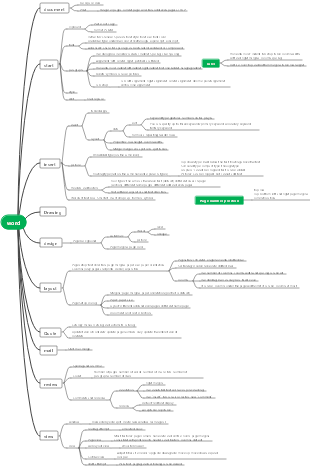
Word word processing computer common knowledge, including basic concepts of word processing, Word2010 basic operations, Word formatting, etc.
Edited at 2024-03-03 00:35:18This is a mind map about bacteria, and its main contents include: overview, morphology, types, structure, reproduction, distribution, application, and expansion. The summary is comprehensive and meticulous, suitable as review materials.

This is a mind map about plant asexual reproduction, and its main contents include: concept, spore reproduction, vegetative reproduction, tissue culture, and buds. The summary is comprehensive and meticulous, suitable as review materials.
This is a mind map about the reproductive development of animals, and its main contents include: insects, frogs, birds, sexual reproduction, and asexual reproduction. The summary is comprehensive and meticulous, suitable as review materials.
This is a mind map about bacteria, and its main contents include: overview, morphology, types, structure, reproduction, distribution, application, and expansion. The summary is comprehensive and meticulous, suitable as review materials.
This is a mind map about plant asexual reproduction, and its main contents include: concept, spore reproduction, vegetative reproduction, tissue culture, and buds. The summary is comprehensive and meticulous, suitable as review materials.
This is a mind map about the reproductive development of animals, and its main contents include: insects, frogs, birds, sexual reproduction, and asexual reproduction. The summary is comprehensive and meticulous, suitable as review materials.
word processing
Basic concepts of word processing
Word working interface: (1) Title bar (2) "File" tab (3) Quick access toolbar (4) Ribbon area (5) Document editing area (6) View switching button (7) Shrink Put slider (8) status bar
word view
Page view: What you see is what you get, the default view mode
Reading layout view
Web layout view: used to imitate a web browser to display documents
Outline view: used to display, modify, or create an outline of a document Widely used for quick browsing and setup of long documents
draft
Window composition
It consists of quick access toolbar, title bar, function tabs and ribbon, ruler document editing area navigation pane status bar, etc.
Word2010 basic operations
Create word document
(1) Select the New command in the file, select the Blank Document option in the open list box, and then click the Create button on the right
(2) Click the New button in the quick access toolbar
(3) Press ctrl+N key combination
save document
(1) Use the "Save" button on the Quick Access Toolbar
(2) "Save (Save As)" command in the "File" menu
(3) Press the ctrl S key combination to save, and press the F12 key to save as
(4) Set the automatic saving time interval
copy
Description: Transfer the object to the "Clipboard" and the object will no longer be retained in its original location.
Operation method: Click the "Copy" button in the "Start" tab of a single machine or use the key combination ctrl C
move
Description: Moving an object from one place in the document to another will no longer retain the object in its original location.
Operation method: Hold down the left button and drag the selected object to the target, then release the left mouse button.
Find and replace
Select the Find and Replace command in the Home tab Editing group, or use . Ctry F or ctry H key combination implementation
Cancel
ctrl Z key combination and the Undo button on the Quick Access Toolbar
recover
ctrl Y key combination and the Recover button on the Quick Access Toolbar
Word formatting
Character format
The system default font is "Song Ti" and the font size is "No. 5". The maximum font size is "Initial Number" The minimum size is "size eight". Maximum is 72 lbs, minimum is 5 lbs.
(1) Select the text for which the font needs to be set, and a floating box for setting the font will automatically appear. In the floating box, you can quickly set the font, font style, font size and color.
(2) Select the text that needs to be set as a font, and select the font, font style, font size and color in the Font group of the "Home" tab.
(3) "Home" tab "Font Group" opens the font dialog box settings
(4) Ctry D
Character spacing: refers to the distance between a group of characters. Character spacing affects the text density of a line or multiple paragraphs.
paragraph format
paragraph alignment
Align both ends, disperse alignment, center alignment, left alignment, right alignment, the default is justified
paragraph indent
(1) Click the "Reduce Indent" or "Increase Indent" command in the "Paragraph" group of the "Home" tab.
(2) Click the Paragraph Launcher button in the lower right corner of the "Paragraph" group on the "Home" tab to open the "Paragraph" dialog box. Make indents in the "Indents and Spacing" tab - click the OK button.
First line indent, hanging indent, left indent, right indent
Bullets and numbering
page settings
Margins: normal, narrow, medium, wide, mirror
Header and footer: Page numbers are the simplest headers and footers. It is part of the header and footer. To delete the page number, you need to enter the header and footer editing area/Delete
Column break
Borders and shading
Select the "Border" tab in the "Borders and Shading" dialog box, and select the border display position in the "Settings" area.
advanced settings
delimiter
section break
"Next Page" A new section starts on the next page
"Contiguous" new sections start on the same page
"Odd Page" starts on the next odd page
"Even page" starts on the next even page
Page Breaks
To cancel page breaks, you can switch to normal view, select manual page breaks, and press delete
Column break
Footnotes and endnotes
Footnotes and endnotes are used to provide explanations, comments, and related reference materials for text in Word documents.
Caption
is a line of text displayed below an object to describe the object
cross reference
For applications in other locations in word
"Insert" "Link" "Cross-reference"/"Citation" "Caption" "Cross-reference"
bookmark
"Insert" "Link" "Bookmark"
Bookmarks must start with letters or Chinese characters and can contain numbers and underscores, but not symbols.
word form
How to create a table
Insert table
The "Insert" table command in the table list of the "Table" group of the "Insert" tab brings up the "Insert Table" dialog box. Set the number of table rows and columns and click the "OK" button.
draw a table
"Draw Table" command in the table list of "Insert" tab, "Table Group", when the mouse pointer changes to 🖊️, proceed Line drawing.
quick form
The "Quick Table" command in the "Table" list of the "Table" group of the "Insert" tab pops up the "built-in" table Template, select the desired template.
How to select a table
How to edit a table
insert
merge
Split
delete
Alignment
Default is left aligned
table format
Borders and shading
Autoformat
Duplicate title row
When the table has multiple pages, select one or more rows to be used as table titles and click the "Layout" tab "Data" The "Duplicate Title Row" button in the group inserts the same table title for subsequent pages.
Other table operations
sort
"Table Tools - Layout" tab data group sort button to open the "Sort" dialog box. Set main key words and secondary keywords.
The sorting type can be set with options such as "Number", "Stroke", "Date" and "Pinyin".
calculate
Formula button in the Data group of the Layout tab
Table to text conversion
Convert table to text: Click the Convert to text button, set the text delimiter, and click OK
Convert text to table: Select the "Convert text to table" command in the dialog box Make the appropriate settings in the box and click OK
word text table
Insert word art
WordArt button in the Illustrations group of the Insert tab
By default, the inserted WordArt's wrapping mode is "Float above the text"
Insert picture
Insert text box
In the "Text" group of the "Insert" tab, click the "Text Box" drop-down list button and select "Draw Text Box" or "Draw Vertical Text Box"
smartartgraphics
smartart is mainly used to demonstrate processes, staggered structures, loops or relationships, etc.
Insert chart
Insert canvas
Insert formula
Formula button in the Symbols group of the Insert tab
If the built-in formula cannot meet your needs, you can click the "Formula" button in the "Symbol Group" of the "Insert" tab. Edit the new formula by selecting the Insert New Formula command in the list.
word mail merge
When printing a mail merge, non-consecutive pages are separated by commas, and when printing consecutive pages, they are linked by a minus sign. Both commas and minus signs must be half-width.
To implement the mail merge function, two files, the main document and the data source, must be noted.