 Wondershare EdrawMind
MindMap Gallery Physiology – blood circulation
- 31
Physiology – blood circulation
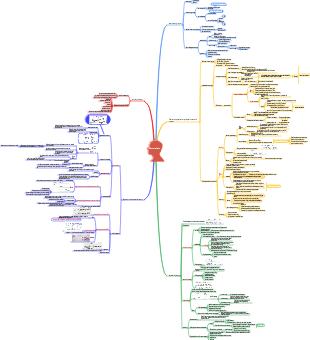
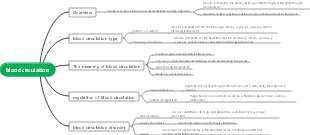
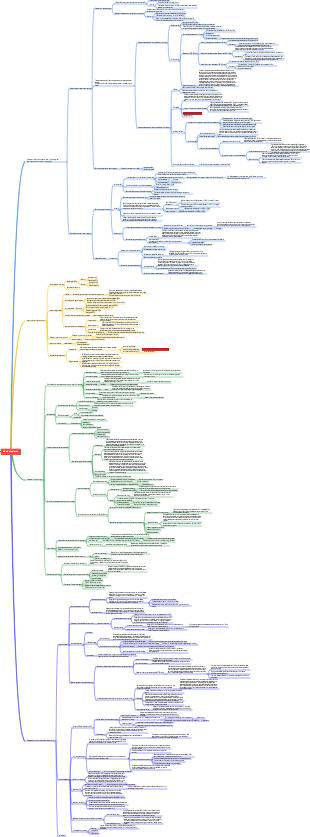
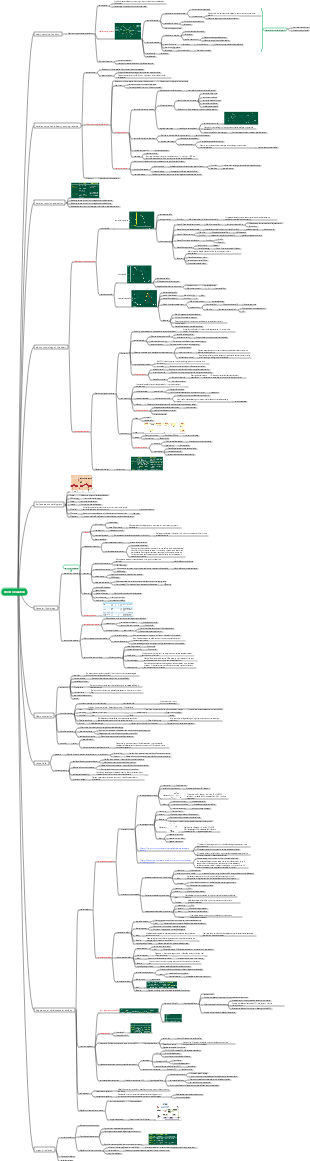
Physiology blood circulation, including the pumping function of the heart, the electrophysiology and physiological characteristics of the heart, vascular physiology, and the regulation of vascular physiological activities.
Edited at 2024-01-18 17:30:59
- bacteria
This is a mind map about bacteria, and its main contents include: overview, morphology, types, structure, reproduction, distribution, application, and expansion. The summary is comprehensive and meticulous, suitable as review materials.
- Plant asexual reproduction
This is a mind map about plant asexual reproduction, and its main contents include: concept, spore reproduction, vegetative reproduction, tissue culture, and buds. The summary is comprehensive and meticulous, suitable as review materials.
- Reproductive development of animals
This is a mind map about the reproductive development of animals, and its main contents include: insects, frogs, birds, sexual reproduction, and asexual reproduction. The summary is comprehensive and meticulous, suitable as review materials.
Physiology – blood circulation
- bacteria
This is a mind map about bacteria, and its main contents include: overview, morphology, types, structure, reproduction, distribution, application, and expansion. The summary is comprehensive and meticulous, suitable as review materials.
- Plant asexual reproduction
This is a mind map about plant asexual reproduction, and its main contents include: concept, spore reproduction, vegetative reproduction, tissue culture, and buds. The summary is comprehensive and meticulous, suitable as review materials.
- Reproductive development of animals
This is a mind map about the reproductive development of animals, and its main contents include: insects, frogs, birds, sexual reproduction, and asexual reproduction. The summary is comprehensive and meticulous, suitable as review materials.
- Recommended to you
- Outline
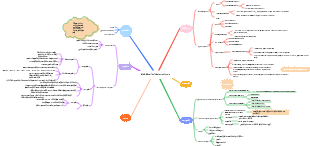
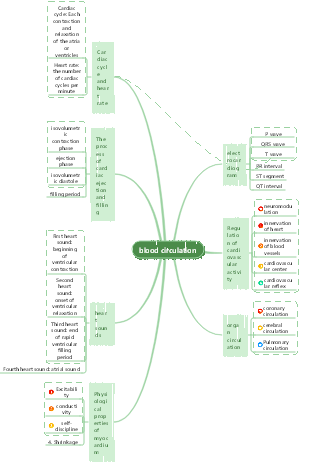
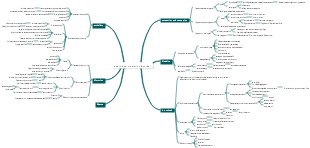
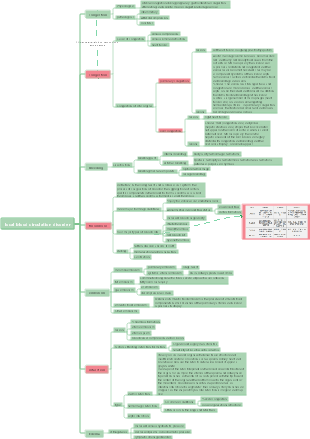
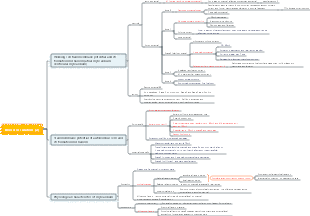
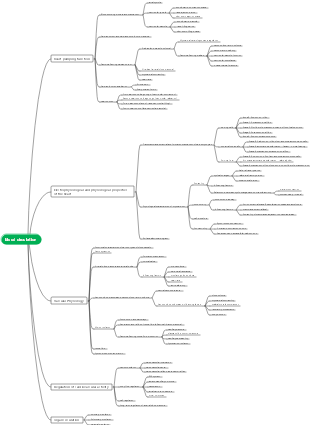
Chapter 4 Blood Circulation
Section 1 The pumping function of the heart
Heart pumping process and mechanism
cardiac cycle
heart pumping process
ventricular systole
Isovolumic contraction phase: intraventricular pressure rises sharply, atrioventricular valves close, and the first heart sound is produced
ejection phase
Rapid ejection period: the volume of blood ejected from the ventricle accounts for approximately two-thirds of the total ejection volume, and the intraventricular pressure reaches its peak
Slowed ejection phase: Both intraventricular pressure and aortic pressure gradually decrease from the peak value, and intraventricular pressure is slightly lower than aortic pressure.
ventricular diastole
Isovolumic diastole: intraventricular pressure drops sharply, the arterial valve closes, and a second heart sound is produced
ventricular filling phase
Rapid filling phase: "pumping" occurs, and the amount of blood entering the ventricle accounts for approximately two-thirds of the total ventricular filling volume.
slow down filling phase
atrial systole
The role of the atria in the heart's pumping of blood
The primary pump function of the atrium: its main function is to receive and store blood that continuously returns from the veins. Atrial fibrillation and reduced ventricular filling.
Changes in intraatrial pressure during the cardiac cycle: A wave is a sign of atrial contraction.
During diastole, the amount of blood returning to the ventricles accounts for approximately 75% of the total ventricular filling volume.
Glossary
stroke volume
Ejection fraction: more accurately reflects the heart's pumping function.
Output per minute
Normal value:4.5-6
Vigorous exercise: 25-30
heart index
Resting heart index can be used as an evaluation index to compare the heart function of individuals with different body shapes.
heart pumping reserve
stroke volume reserve
systolic reserve
Ventricular end-systolic volume: 55→15-20ml
diastolic reserve
Ventricular end-diastolic volume: 125→140ml
heart rate reserve
When accelerated to 160-180 beats/min, cardiac output increases 2-2.5 times
Greater than 180, diastolic period is too short, ventricular filling is insufficient, stroke volume and cardiac output are reduced
Factors affecting cardiac output
front load
Allometric regulation: regulation that causes changes in myocardial contractility by changing the initial length of the myocardium.
Factors affecting preload
venous return blood volume
ventricular filling time
venous return velocity
Ventricular diastolic function (calcium ions)
ventricular compliance
intrapericardial pressure
remaining health
Afterload: (aortic blood pressure)
Increased aortic blood pressure and decreased stroke volume
Changes in aortic blood pressure will subsequently cause heterometric regulation and increase stroke volume.
When the aortic pressure of a normal person is in the range of 80-170mmhg, the cardiac output generally remains unchanged.
myocardial contractility
Isometric adjustment: Regulates the contractility of the myocardium and the pumping function of the heart.
Main influencing factors: the number of activated cross-bridges and the ATPase activity of the myosin head
heart rate
40-180, heart rate increases, cardiac output increases
Greater or less than this range, cardiac output decreases
Increased heart rate and increased calcium ion concentration in myocardial cells
When the body temperature rises by one degree, the heart rate increases by 12-18
Normal value: 60-100 times per minute
Section 2 Electrophysiology and physiological characteristics of the heart
Myocardial physiological properties
Excitability
self-discipline
conductivity
Contractibility
Cardiomyocyte classification
According to functional and physiological characteristics
Working cells (no self-discipline)
Atrial and ventricular myocytes
Autonomic cells (non-contractile)
Sinoatrial node cells, Purkinje cells
According to the action potential phase 0 depolarization speed
fast response cells
fast response autonomous cells
Purkinje cells
fast response non-autonomous cells
Atrial myocardium, ventricular myocytes
slow responding cells
slow response autonomic cells
sinoatrial node
slow responding non-autonomous cells
Cardiomyocyte transmembrane potential and its formation mechanism
Working cells (ventricular myocytes)
Autonomous cells (4-phase automatic depolarization)
Purkinje cells (fast-response autonomous cells)
The action potential waveform and phase 0, 1, 2, and 3 ion basis are similar to those of ventricular myocardium.
Phase 4 Automatic Depolarizing Ion Basics
If (Na inflow, pacing current, main component) gradually increases and can be blocked by cesium
Ik (k outflow) gradually decreases
Sinoatrial node P cells (slow responding autonomic cells)
Phase 0 depolarization has small amplitude, slow rate, and long duration.
No obvious repolarization stage 1 or 2
The maximum repolarization potential and threshold potential are smaller than those of Purkinje cells
4-stage automatic depolarization fast
Electrophysiological properties of myocardium
Excitability
Factors affecting cardiomyocyte excitability
Resting potential or maximum repolarizing potential level
threshold potential level
Phase 0 depolarizing ion channel traits
Periodic changes in cardiomyocyte excitability: effective refractory period, relative refractory period, supernormal period
Pre-period contraction concept
automatic rhythmicity
The basis of self-discipline: automatic depolarization of action potential phase 4
A measure of self-discipline
Frequency (heart rate)
Regularity (heart rhythm)
Factors affecting self-discipline
The difference between the maximum repolarization potential and the threshold potential
4-stage automatic depolarization speed
How the sinoatrial node controls potential pacemakers
Be the first to occupy
Overdrive suppression (the greater the frequency difference between the two pacing points, the stronger the suppression)
conductivity
The level of conductivity is expressed by the conduction velocity of excitement
Conduction pathways and speed of cardiac excitation
sinoatrial node
→Left and right atria
→The dominant conduction pathway composed of small atrial muscle bundles
→Atrioventricular junction (AV node) (slowest) AV delay
→Atrioventricular bundle
left and right bundle branches
→Purkinje fiber (fastest)
ventricular muscle
Factors affecting conductivity
1. Cardiomyocyte structural factors (fixed factors, not important)
① Cell diameter size: The cell diameter is small, the cross-sectional area is large, the internal resistance is small, and the conduction speed is slow. The diameters of the atrial myocardium, ventricular myocardium, and Purkinje cells are larger than the sinoatrial node and atrioventricular bundle.
②The number and functional status of intercellular gap junctions: there are few gap junctions between cells, the conduction speed is slow, and the number of gap junctions at the sinoatrial node and atrioventricular junction is small; myocardial ischemia can close the gap junction channels, and the excitation conduction speed is significantly slowed down.
2. Physiological factors (main)
① Action potential phase 0 depolarization speed and amplitude (most important)
②Pre-excitation membrane potential level
③Excitability of the membrane adjacent to the unexcited area
Section 3 Vascular Physiology
Functional characteristics of various types of blood vessels (classified according to physiological functions)
1. Elastic reservoir vessels (main trunks of main and pulmonary arteries and their largest branches)
Elasticity and expandability; intermittent ejection of the ventricles → continuous blood flow within the vascular system, resulting in reduced blood pressure fluctuations during the cardiac cycle
2. Distribute blood vessels (medium arteries)
Transport blood to various organs and tissues
3. Precapillary resistance vessels (arterioles and arterioles)
Change blood flow resistance and blood flow of organs and tissues, and maintain arterial blood pressure
4. Precapillary sphincter (smooth muscle at the origin of true capillaries)
Controls capillary opening and closing
5. Exchange blood vessels
6. Postcapillary resistance vessels (venules)
Affects the ratio of resistance vessels before and after capillaries; affects tissue fluid production and reflux
7. Capacity vessels (venous system)
Multiple, thick, thin, large capacity, can accommodate 60%-70% of circulating blood volume; blood storage library
8. Short-circuit blood vessels (anastomotic branches between arterioles and venules)
Thermoregulation, open in cold weather
Hemodynamics
Factors related to blood viscosity
①Hematocrit
②Blood flow rate
③Vascular caliber
④Temperature
blood pressure
Definition: The pressure of blood flowing in a blood vessel on the side wall of the blood vessel, that is, the pressure per unit area
Conditions necessary for the formation of blood pressure
Prerequisite: average filling pressure of circulatory system
The average pressure in the circulatory system measured when blood stops flowing
The level depends on the relative relationship between blood volume and circulatory system volume. Normally it is about 7mmhg.
Power: ventricular contraction
kinetic energy
potential energy
Peripheral resistance: The resistance of arterioles and arterioles to blood flow
Conditions: Elastic reservoir function of aorta and great arteries
Converts the intermittent ejection of blood from the ventricles into a continuous flow of blood within the arteries
Maintain diastolic blood pressure
Buffers arterial blood pressure fluctuations
normal arterial blood pressure
systolic blood pressure
diastolic blood pressure
Pulse difference = systolic blood pressure - diastolic blood pressure
Mean arterial pressure = diastolic blood pressure one-third pulse pressure
Factors affecting arterial blood pressure
venous blood pressure
Central venous pressure: The blood pressure in the right atrium or large veins in the chest.
The level depends on the relationship between the heart's ejection capacity and the amount of blood returned to the heart by the veins.
Reduced ejection capacity of the heart (heart failure) → Congestion of the right atrium and vena cava → Increased central venous pressure
Increased venous blood return to the heart or too fast return rate (such as excessive fluid infusion or blood transfusion) → increased central venous pressure
venous blood return volume
Unit time is equal to cardiac output and depends on the difference between peripheral venous pressure and central venous pressure, as well as venous blood flow resistance
Influencing factors
①Mean systemic filling pressure
②Myocardial contractility
③The squeezing effect of skeletal muscles
④ Breathing exercise
⑤Change in body position (supine → upright, decrease)
All positive correlations except body position
Microcirculation: the basic function is material exchange
Composition (7)
Blood flow pathways and their functions
circuitous route
Nutritional pathway, the main place for material exchange; true capillaries in different parts of the same organ and tissue open in turn
direct access road
Part of the blood quickly returns to the heart to maintain circulating blood volume (skeletal muscle); often open, less exchange, quick return
Arteriovenous short circuit
Regulate body temperature; during infection or toxic shock, a large amount of blood will be opened to quickly return blood to the heart, but it will aggravate tissue hypoxia.
method of material exchange
Diffusion (most important)
Filtration and reabsorption
swallow
production of tissue fluid
Factors affecting tissue fluid production
Capillary effective hydrostatic pressure = capillary blood pressure - tissue fluid hydrostatic pressure
plasma colloid osmotic pressure
capillary wall permeability
lymphatic drainage
Section 4 Regulation of vascular physiological activities
neuromodulation
cardiovascular innervation
innervation of heart
cardiac sympathetic nerve
Sympathetic postganglionic fiber release → norepinephrine action → β1 receptor
→(cause)
Positive chronotropic effect (increased heart rate)
Positive inotropy (increased myocardial contractility)
Positive conduction effect (accelerated atrioventricular junction conduction)
The left sympathetic nerve mainly innervates the atrioventricular junction and ventricular myocardium, causing enhanced myocardial contractility.
The right sympathetic nerve mainly innervates the sinoatrial node, causing increased heart rate
cardiac vagus nerve
Vagal postganglionic fiber terminals release →ACh→M receptors
→(cause)
Negative chronotropic effect (slowing of heart rate)
Negative inotropy (reduced myocardial contractility)
Negative transconduction effect (slowing of atrioventricular conduction velocity)
The right vagus innervates the sinoatrial node, and the heart rate slows down
The left vagus dominates the atrioventricular junction, and the atrioventricular conduction velocity slows down
peptidergic nerve fibers innervating the heart
innervation of blood vessels
sympathetic vasoconstrictor nerve fibers
Most blood vessels in the body are innervated only by sympathetic vasoconstrictor nerve fibers
Postganglionic nerve fibers release norepinephrine →
α receptor → vascular smooth muscle contraction
β receptor → vasodilation of smooth muscle
Different blood vessels have different distribution densities
Skin is the densest, followed by skeletal muscles and internal organs, with fewer coronary arteries and cerebral blood vessels. In the same organ: arteries are higher than veins, arterioles are the densest, and prevascular sphincter is absent.
vasodilatory nerve fibers
Sympathetic vasodilatory postganglionic fibers→ACh→M receptors, distributed in skeletal muscle arterioles
Parasympathetic vasodilatory nerve fibers → ACh → M receptors, distributed in the meninges, salivary glands, gastrointestinal exocrine glands and external genitalia
vasodilator fibers of dorsal root of spinal cord
peptide vasodilator nerve fibers
cardiovascular center
Basic center: medulla oblongata
Vasoconstrictor area: ventrolateral cephalad of medulla oblongata
Vasodilator area: ventrolateral to the caudal end of the medulla oblongata
Afferent nerve relay station: nucleus of solitary tract
Cardiac inhibitory areas: dorsal nucleus of vagus nerve and nucleus ambiguus
cardiovascular reflex
Carotid sinus and aortic arch baroreflex
Decompression reflex: When arterial blood pressure suddenly rises, it reflexively causes heart rate to slow down, cardiac output to decrease, vasodilation, peripheral resistance to decrease, and blood pressure to drop.
Carotid and aortic body chemoreceptive reflexes
cardiovascular reflexes caused by cardiorespiratory receptors
Humoral regulation (long-term regulatory mechanism)
renin-angiotensin system
Renin: Acid protease synthesized and secreted by the granule cells of the juxtaglomerular apparatus (juxtaglomerular cells or juxtaglomerular cells).
Factors that stimulate renin secretion
Blood pressure decreases → afferent arteriolar stretch receptor ( ) → renin secretion increases
Decreased circulating blood volume → decreased tubular fluid Na content → macula densa ( ) → increased renin secretion
Sympathetic nerves ( ) → juxtamloglomerular cells → increased renin secretion
Angiotensin Ⅱ effect: increase blood pressure
Adrenaline and norepinephrine
Vasopressin or antidiuretic hormone (ADH)
effect
antidiuretic
Vasoconstrictor (high concentration)
ADH secretion regulation
Increased plasma crystalloid osmolality (most sensitive)
Decreased blood volume, decreased blood pressure
Increased secretion of ADH
Vasoactive substances produced by vascular endothelium
vasodilator
Endothelial relaxing factor EDRF (NO)
Prostacyclin (PGI2)
Endothelial Hyperpolarizing Factor (EDHF)
vasoconstrictor substances
Endothelin (the most powerful, but degrades quickly and is of little significance)
Kallikrein-kinin system
Vascular smooth muscle relaxes and capillary permeability increases
Atrial natriuretic peptide (ANP)
Natriuretic and diuretic
antivasoconstrictor substances
Dilate blood vessels, lower blood pressure, reduce stroke volume, slow down heart rate
Relieve arrhythmias and regulate cardiac function
inhibit cell proliferation
self-regulation
Metabolic autoregulation (regulation of microcirculation)
myogenic autoregulation
Keeps the blood flow in certain organs relatively stable when blood pressure changes (renal blood vessels are particularly obvious, but the skin generally does not)
Long-term regulation of arterial blood pressure
Neuromodulation (short-term conditioning), cardiovascular reflexes
Long-term regulation → Regulation of extracellular fluid volume through the kidneys
The amount of extracellular fluid increases → the circulating blood volume increases → the arterial blood pressure increases → the renal sodium excretion and drainage increase → excess body fluid is excreted from the body and blood pressure recovers
Section 5 Organ Circulation
Physiological characteristics of coronary circulation
High perfusion pressure and large blood flow
High oxygen uptake rate and large oxygen consumption
Coronary blood flow (CBF) changes cyclically due to myocardial contraction.
During ventricular contraction, CBF decreases
Affected by myocardial contraction, the left ventricle is more significantly affected
The amount of blood supply during diastole depends on
Aortic diastolic blood pressure
length of diastole
coronary blood flow regulation
Directly proportional to the level of myocardial metabolism (mainly), oxygen consumption increases, and coronary arteries relax (adenosine has a strong effect on arterioles)
neuromodulation
body fluid regulation
Adrenaline
Norepinephrine
thyroid hormone
Enhance myocardial metabolism to increase CBF
Typical negative feedback regulation, this reflex is most sensitive when the intrasinus pressure changes around the mean arterial pressure level (100mmhg). The optimal adjustment range is intrasinus pressure (60-180mmhg)
T-type calcium channel blocker: nickel ion
L-type calcium channel blockers: manganese ions, verapamil
room-room delayed meaning
Avoid overlapping of atrioventricular contractions
Ventricular contraction followed by atrial contraction → full filling
However, the atrioventricular node is a common site for conduction block, and atrioventricular conduction block is a very common arrhythmia in clinical practice.
Completely inactive excitability is 0, completely resting excitability is normal
The distance between the resting potential and the threshold potential increases, and the excitability decreases.