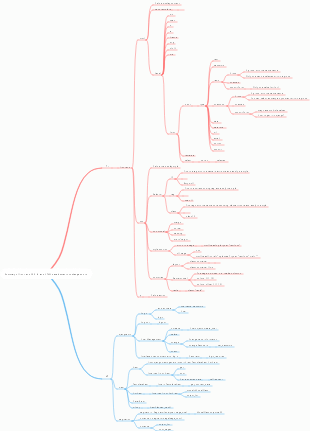
MindMap Gallery HTML basics
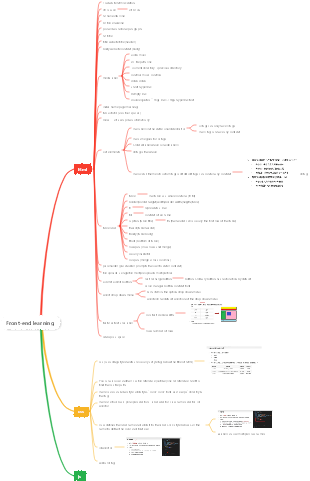
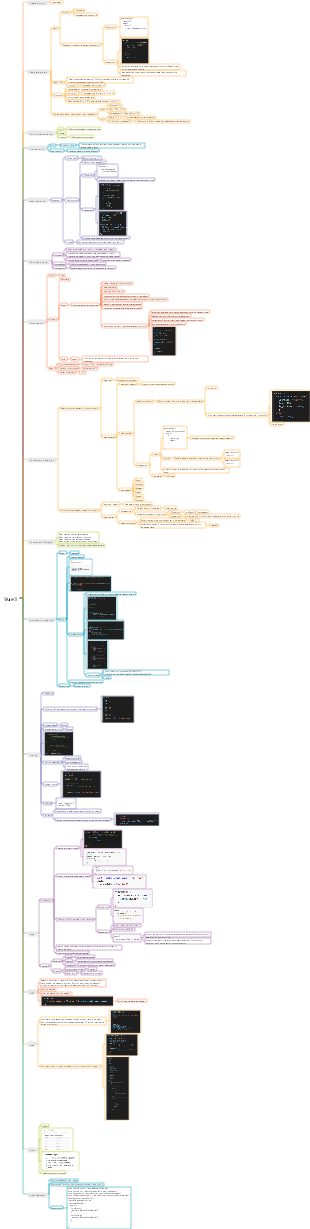
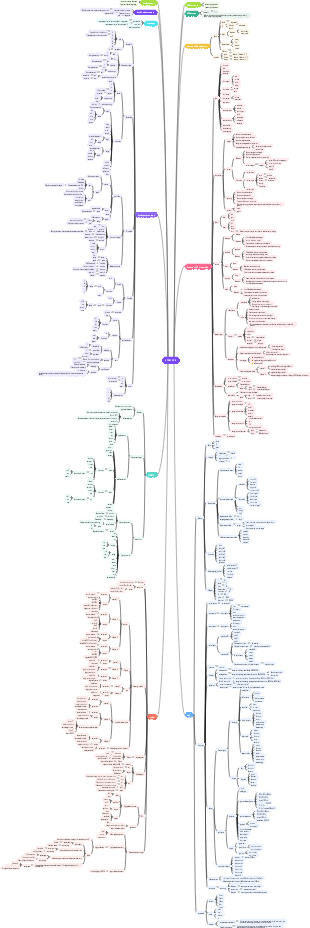
A mind map summary of the basic knowledge of HTML, including the structure of HTML page elements and content, the appearance and position of CSS web page elements and other page styles (such as color, size), the definition and surface interaction of behavioral JS web page models, etc.
Edited at 2022-12-09 10:01:22This is a mind map about bacteria, and its main contents include: overview, morphology, types, structure, reproduction, distribution, application, and expansion. The summary is comprehensive and meticulous, suitable as review materials.

This is a mind map about plant asexual reproduction, and its main contents include: concept, spore reproduction, vegetative reproduction, tissue culture, and buds. The summary is comprehensive and meticulous, suitable as review materials.
This is a mind map about the reproductive development of animals, and its main contents include: insects, frogs, birds, sexual reproduction, and asexual reproduction. The summary is comprehensive and meticulous, suitable as review materials.
This is a mind map about bacteria, and its main contents include: overview, morphology, types, structure, reproduction, distribution, application, and expansion. The summary is comprehensive and meticulous, suitable as review materials.
This is a mind map about plant asexual reproduction, and its main contents include: concept, spore reproduction, vegetative reproduction, tissue culture, and buds. The summary is comprehensive and meticulous, suitable as review materials.
This is a mind map about the reproductive development of animals, and its main contents include: insects, frogs, birds, sexual reproduction, and asexual reproduction. The summary is comprehensive and meticulous, suitable as review materials.
HTML
web standards
Structure HTML page elements and content
Express the appearance and position of CSS web page elements and other page styles (such as color, size)
Behavioral JS web page model definition and page interaction
HTML basics
HTML (Hyper Text Markup Language)
HTML page fixed structure
HTML tag: the entire web page
head tag: the head of the web page
Body tag: the body of the web page (where the theme HTML code is written)
title tag: the title of the web page
VScode
Create html body: ! tab/enter
View in browser:
Right click → open in default/other browser
alt B/shift alt B
Note: ctrl / (cannot be after the statement, a newline is required)
Tag composition
This is the paragraph (dual label)
(single label)
Label properties
`<img src=" " alt=" ">` (picture single tag)
Attribute name="attribute value"
tag relationship
Nested relationship/parallel relationship
label learning
Typography tags
Tag title
<h1>Title 1</h1>
h1-h6 (put in body)
The cursor flashes in multiple places at the same time in VS: Ctrl D
paragraph tags
<p>Paragraph</p>
Automatic line wrapping in VScode: Menu bar → View → Automatic line wrapping
Newline '<br>'
Horizontal dividing line '<hr>'
text formatting tag
basic effect
b: Bold
u: underline
i: tilt
s: strikethrough
importance statement
strong: bold
ins: underline
em: tilt
del: delete line
media label
Image tag (single tag
Code `<img src=” ” alt=” ”>`
Attribute: src (target image path; shortcut key: ./)
Attribute: alt (replace text; display when image loading fails)
Attribute: title (displays prompt text on mouse hover)
Attributes: width/height (just write a picture and it will not be deformed)
path
Absolute path: the absolute location under the directory, which can directly reach the target location
The drive letter starts with: D:\day01\images\1.jpg
Complete network address: https://www.itcast.cn/2018czgw/images/logo.gif (understand)
Relative path: the process of finding the target file starting from the current file
Same level directory (shortcut key: ./)
Subordinate directory (shortcut key: ./)
Parent directory (shortcut key: ../)
audio tag
Insert audio file: VScode shortcut key: ./m... (fuzzy search)
Code: `<audio src="./music.mp3" controls>text</audio>`
Attributes
src: audio path
controls: Display playback controls
autoplay: automatic play (not supported by some browsers)
loop: loop playback
video tag
Insert video file: VScode shortcut key: ./m... (fuzzy search)
Code: `<video src="./video.mp4" controls></video>`
Attributes
src: video path
controls: Display playback controls
autoplay: automatic playback (Google browser needs to cooperate with muted to achieve silent playback)
loop: loop playback
link tag
a tag/hyperlink/anchor link: after clicking, jump from one page to another
Code: `<a href=”./targetpage.html” target=”_blank”>Hyperlink</a>`
Attributes
href: Which web page to jump to after clicking (the path of the target web page)
target: the opening form of the target web page
target="_self" (default value, overwrites the original web page)
target="_blank" (new window, keep original web page)_
list tag
unordered list
ul: represents the entire unordered list, used to wrap the li tag
li: represents each item of the unordered list, used to contain the content of each row
The ul tag can only contain li tags; the li tag can contain any content
ordered list
ol: represents the entire ordered list, used to wrap the li tag
li: represents each item in the ordered list, used to contain the content of each row
The ol tag can only contain li tags; the li tag can contain any content
custom list
dl: represents the entire custom list, used to wrap dt/dd tags
dt: represents the custom list title
dd: indicates that the custom list is for each item of the theme
The dl tag can only contain dt/dd tags; the dt/dd tag can contain any content
table label
Table basic tags
table: table as a whole, used to wrap multiple tr
tr: each row of the table, used to wrap td
td: table cell, can be used to wrap content
Nesting relationship of tags: table > tr > td
Basic properties of the table (recommended CSS settings)
border="number": border width
width="number": table width
height="number": table height
Table title and header cell label
Represents the overall title and a column of subtitles in a table
caption: Table title (the title of the entire table, displayed at the top and center of the entire table by default)
th: table cell (indicates a column of subtitles, usually used in the first row of the table, the text is bold and centered)
Notice
The caption tag is written inside the table tag
The th tag is written inside the tr tag (used to replace the td tag)
table > caption tr > th
table structure tags
thead: table header
tbody: table body
tfoot: bottom of table
table > thead > tr > td
Merge cells (property value)
rowspan="number of merged cells": merge across rows/merge vertically
colspan="number of merged cells": merge across columns/merge horizontally
form tag
input tag
Basic introduction: input can display different effects through different type attribute values.
text: text box (single line text)
placeholder: placeholder, prompts the user to enter text content (common attributes)
Example: `<input type="text" placeholder="Please enter a nickname">`
password: password box
placeholder: placeholder, prompts the user to enter text content (common attributes)
Example: `<input type="password" placeholder="Please enter password">`
radio: radio button
name: Group; radio button boxes with the same name attribute value are a group, and only one of a group can be selected at the same time.
checked: checked by default
Example: `<input type="radio" name="marry" checked> single`
checkbox: checkbox
checked: checked by default
Example: `<input type="checkbox" name="like"> Charming`
file: file selection
multiple: multiple file selection
example:
submit: submit button
Submit data to the backend server after clicking
Use with form tag: Use form tag to wrap the form tag together
Example: `<input type="submit" value="Free registration">`
reset: reset button
Restore form default values after clicking
Use with form tag: Use form tag to wrap the form tag together
Example: `<input type="reset">`
bottom: normal button
No function by default, use JS to add functions
Use with form tag: Use form tag to wrap the form tag together
botton button label (dual label)
submit: submit button
Submit data to the backend server after clicking
reset: reset button
Restore form default values after clicking
bottom: normal button
No function by default, use JS to add functions
select drop-down menu label
Drop-down menu form control that provides multiple selections in a web page
select tag: the entire drop-down menu
option tag: each item in the drop-down menu
Example: `<select name="year"> <option value="">Please select a year</option> <option value="">1990</option></select>`
textarea: text area label (multiline text)
rows: specifies the number of visible rows in the text field
cols: specifies the visible width within the text field
The lower right corner can be dragged to change the size; during actual development, it is recommended to use CSS settings for style effects.
label label
Binding the relationship between content and form tags
Method one: `<input type="checkbox" id="one">``<label for="one">code</label>`
Method 2: `<label><input type="checkbox">Stay up late</label>`
Semantic tags
div/span: layout tags without semantics
When actually developing web pages, the two semantically meaningless layout tags div and span are frequently used.
div tag: only one is displayed in a row (occupies one row)
span tag: one line can display multiple
Semantic layout tags
header: web page header
nav: web navigation
footer: bottom of web page
aside: web page sidebar
section: web page section
article: web article
character entity
Space merging: If multiple spaces, line breaks, indents, etc. appear side by side in the HTML code, the browser will only parse one space in the end.
Common character entities
Space
< less than sign
> greater than sign
& ampersand&
" quotation marks
' Apostrophe (not supported by IE)
¢ Cent (money)
£ pound
¥ yuan
€ Euro
§ section
© Copyright