 Wondershare EdrawMind
MindMap Gallery VIM editor usage
- 105
VIM editor usage
It introduces the usage and shortcut keys of the vim editor in detail. It is full of useful information. Interested friends can refer to it!
Edited at 2023-11-27 15:02:34
- bacteria
This is a mind map about bacteria, and its main contents include: overview, morphology, types, structure, reproduction, distribution, application, and expansion. The summary is comprehensive and meticulous, suitable as review materials.
- Plant asexual reproduction
This is a mind map about plant asexual reproduction, and its main contents include: concept, spore reproduction, vegetative reproduction, tissue culture, and buds. The summary is comprehensive and meticulous, suitable as review materials.
- Reproductive development of animals
This is a mind map about the reproductive development of animals, and its main contents include: insects, frogs, birds, sexual reproduction, and asexual reproduction. The summary is comprehensive and meticulous, suitable as review materials.
VIM editor usage
- bacteria
This is a mind map about bacteria, and its main contents include: overview, morphology, types, structure, reproduction, distribution, application, and expansion. The summary is comprehensive and meticulous, suitable as review materials.
- Plant asexual reproduction
This is a mind map about plant asexual reproduction, and its main contents include: concept, spore reproduction, vegetative reproduction, tissue culture, and buds. The summary is comprehensive and meticulous, suitable as review materials.
- Reproductive development of animals
This is a mind map about the reproductive development of animals, and its main contents include: insects, frogs, birds, sexual reproduction, and asexual reproduction. The summary is comprehensive and meticulous, suitable as review materials.
- Recommended to you
- Outline



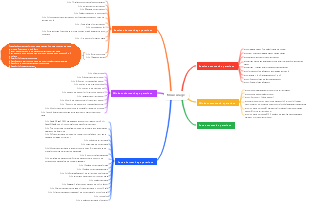

VIM usage
Normal-mode
roaming
h to the left
j down
k up
l to the right
w Jump to the beginning of the next word
W is similar to w, jumping at intervals of whitespace characters.
e Jump to the end of the next word
E is similar to e, jumping at intervals of whitespace.
b Jump to the beginning of the previous word
B is similar to b, jumping at intervals of whitespace symbols.
100h means move 100 characters to the left, and 100j moves 100 lines down.
0 Jump to the beginning of the line
^ Jump to the first non-empty character at the beginning of the line
$ jump to end of line
gg jumps to the beginning of the first line of the file
G Quickly go to the end of the last line of the file
% matches bracket movement, including (,{,[
*|# matches the word where the cursor is currently located and moves the cursor to the next word. * is the next one and # is the previous one.
ctrl f View the content of the next page
ctrl b View the content of the previous page
100G Jump to the beginning of the 100th line
`. Jump to the last modified point in the text
'. Jump to the last modified line of text
`` Jump to the latest two modified positions
. marks the last modified position of the text.
g; Jump back and forth within the entire changelist of the document
g, similar to g; in opposite direction
The changelist records where the document has been modified
ctrl o jump to the previous position
ctrl i jump to the next location
Used together, you can jump between codes
copy
yy copies the entire line where the cursor is located
100yy copies the line where the cursor is sitting and a total of 100 lines below.
yw copies the first word starting with the cursor
y$ copies the cursor to the end of the line
yG copies the line where the cursor is to the end of the text
yH Copies the text starting from the text to the line where the cursor is located
fa moves the cursor to the next a character in this line
Fa moves the cursor forward to character a
nfa moves the cursor to the next nth character a
nFa moves the cursor forward to the nth character a
ta moves the cursor to the character before the a character
nta moves the cursor to the character before the nth a character
Ta moves the cursor forward to the character after the a character.
nTa moves forward to one character after the nth a character appears
yfB copies the cursor to the content between the first capital B
y2fB copies the cursor to the content between the second capital B
cut
x cuts one character backward, or forward if it is the end of the line
3x cut three
xp exchanges two characters at the end of the non-line, if it is bs programming sb
delete
dd deletes the line under the cursor
200dd deletes the line where the cursor is and a total of 100 lines below.
dw delete a word
dnw delete n words
df" delete to the position where the first double quote appears
dnf" delete to the position where the nth double quote appears
d$ deletes the cursor to the end of the line
d^ deletes the cursor to the beginning of the line
dH deletes the text from the beginning of the text to the line where the cursor is located
dG deletes the line under the cursor to the end of the text
Paste
p Paste copied or cut content
3p Paste copied or cut content three times
P starts pasting before the cursor
3P Start pasting 3 times before the cursor
indentation
<< left indent
>> Right indent
Block indentation can be achieved under block selection
window commands
ctrl w s split window horizontally
ctrl w w switch windows
ctrl w q closes the current split screen, if it is the last split screen, exit VIM
ctrl w c close the current split screen
ctrl w v split window vertically
ctrl j|k can be used to switch between upper and lower windows
ctrl h|l can be used to switch horizontal windows
ctrl w H|L can be used to move the current split screen left or right
ctrl w J|K can move the current split screen up and down
File saving
ZZ Capital letter ZZ, save the current file
ZQ The capital letter ZQ, abandons changes to the file and exits
Undo and restore
u Undo the previous operation
ctrl r Undo undo operation
Remove characters and replace
x deletes the character where the cursor is currently located
r replaces the character where the cursor is currently located
R replaces all characters starting from the cursor, unless <ESC> exits
Case conversion
~ Change the case of the letter under the cursor
3~ Change the case of the 3 letters starting from the cursor position
g~~ Change the case of letters in the current line
gUU Change the letters of the current line to uppercase
guu changes the letters of the current line to lowercase
3gUU will change the three lines of letters under the cursor to uppercase letters.
gUw Change the word under the cursor to uppercase
guw changes the word under the cursor to lowercase
Folding function
zf5G folds the current cursor line to line 5. You can fold by line number or by text selection.
zo opens the fold at the cursor position
zO opens the fold at the cursor position, as well as all nested folds
zc closes the fold at the cursor position
zC closes the fold at the cursor position and all nested folds
zd Delete the fold at the cursor position
zD deletes the fold at the cursor position and all nested folds
za When the cursor is on the closed fold, open the fold, otherwise close the fold
zA is similar to za, opens and closes all folds including nested ones.
zv opens the fold at the current cursor position, only opening enough folds so that the line where the cursor is located is not folded
zr Nested folds are opened layer by layer
zR Open all folds
zm nested folds are closed layer by layer
zM Close all folds
It will operate a variable called foldlevel in VIM. zM and zR will set foldlevel to the highest level. Closing all folds will set foldlevel to 0.
zE deletes all folds
zF creates a fold on the line currently under the cursor. This way you can create a pair of fold symbols first and then write the content inside.
2,10fo folds the second row to the tenth row
[z Move the cursor to the start position of the currently opened fold
]z moves the cursor to the end position of the currently opened fold
zj moves the cursor to the starting position of the next fold
zk moves the cursor to the end of the previous fold
Macro recording and playback
To record a macro, press the q key in normal mode (macro recording is started with the q key), then press the letter w (the letter is optional), which means the macro is registered as w, and then press q again after completing the operation to complete the recording operation. .
Macro playback, in normal mode, press @w to perform all operations of macro recording. @@ is a repeat operation of the last macro. n@w, the w macro will be executed n times.
Code block comments
Press ESC to enter Normal mode, Ctrl V to enter Visual Block selection mode, select the line to be commented, then press Shift i or s to enter insert mode, type the comment symbol # at the beginning of the first line of block selection, then press ESC and wait a moment You can complete the comment of the code block. This method can be used to insert the same character at the specified position in each line.
To uncomment, press ESC to enter Normal mode, press CTRL V to enter Visual Block mode, select the comment at the beginning of the code block line, and then press d to complete the uncomment.
g ctrl g byte statistics, the last ctrl g is the key combination
ggvG= format code
"0p multiple pasted last copied," register
Command-mode
:%s/$/sth/ Append sth at the end of the line
:%s/^M//g replaces the dos newline character, ^M can be entered using Ctrl v Ctrl m
:g/^/s*$/d delete empty lines and lines with only spaces
:n1,n2 s/str1/str2/gic Replace the string str1 between line numbers n1 to n2 with str2. The g keyword means that if there are multiple occurrences in a line, replace them all. If there is no g, only the first one will be replaced. The i keyword means case-insensitive, that is, ignoring case, and the uppercase letter I means case-sensitive, which is also the default. The c keyword indicates confirmation before replacement. Each keyword can be used individually
:%s/#.*//g Delete characters after #
The format is [addr]s/source string/destination string/[option] "s" represents the substitution operation and is the abbreviation of "substitute" [addr] contains: "n,m": indicates from line n to line m "%": represents the entire file, equivalent to "1,$" ".,$": indicates from the current line to the end of the file [options] include: "g":globe means global replacement "c":confirm means interactive confirmation before replacement "p": indicates line-by-line display (you can press CTRL L to restore the screen) "i":ignore, not case sensitive When omitted, it means replacing the first matching string.
/hansen searches for the string hansen, n searches for the next match, N searches for the previous match, and 2n searches for the second match below.
:help set View help information for the set command
:set displays the setting parameters that are different from the system default values, which are the settings that you have modified.
:syntax on|off Turns the program's syntax highlighting on and off
:set bg=dark|light Set different background colors
File operations
:w writes the edited content to the file
:w! Forces writing to the file when it is in the read-only state. Actual writing depends on the document permissions.
:q Leave vim
:qa! Exit all files and save all files without modification.
:x Exit the file and save changes to the file
:e fn opens another file
:n jump to next file
:N Jump to the previous file
:bn jump to next file
:bp Jump to the previous file
:ls lists all open files
:b2 displays the second file
:q! Exits the modified file, discarding all changes
:wq Exit after saving
:w fn Save file as filename fn
:r fn Read the fn file and append it to the cursor of the currently edited file
:n1, n2 w fn Store the contents from n1 to n2 as fn file
:n1,n2 d Delete all contents of lines n1 to n2, d is the delete keyword
:! command displays leaving the editor and executing the command command
:r! command executes the command command and appends the execution result after the cursor
:sp fn1 split screen up and down to open another file
:vsp fn1 split screen left and right to open another file
:set nu turns on displaying line numbers
:set hlsearch Searched keywords are highlighted
:set autoindent turns on automatic indentation
:set cursorline turns on horizontal lines
:set backup Whether to automatically store files. When turned on, each time a file is opened for editing, the original file will be named fn~
:set ruler opens and closes the status bar description in the lower right corner.
:set ic is case-sensitive when searching for keywords
:set showmode turns on and off the state after mode switching. For example, when entering insert mode, --INSERT-- will be displayed in the lower left corner.
:set wrap sets line wrapping, that is, a line of text exceeds the screen and is displayed on the next line. This is also the default
:set spell Turn on text spelling detection
:set list displays invisible characters in the text, such as newlines
You can add no before the parameter to achieve reverse setting, such as: set nonu to turn off the display of line numbers.
:set backspace=(012) Enter edit mode. You can use backspace to delete any characters by pressing keys, but some distributions do not allow this. At this time, you can achieve this function by setting backspace. =2 means to delete any characters. When =0|1, you can only delete the entered characters, but not the characters that exist in the original text.
:set fdm=marker turns on the fold mark and automatically adds three consecutive curly braces as markers at the beginning and end of the fold. The fold information can still be recorded after the text is closed. You need to set this environment every time you open it. You can also put This is added to ~/.vimrc and loaded automatically every time the vim editor is opened. You can add comments and level numbers in the folded "#comments{{{1" after mark
:set fenc Query document encoding
:set enc=utf8 Convert to the specified encoding
:set fileformat=unix is used to switch newline characters, supports dos, unix, and mac. fileformat can be abbreviated as ff
:set sidescroll=0 When the cursor reaches the edge of the screen, automatically expand and display 1/2 of the screen text. Set to 1 to achieve smoother character-by-character expansion display. This setting requires setting nowrap
:set scrolloff=3 Set the number of scrolling lines
:set linebreak sets VIM to break lines at the appropriate position, that is, ^|!*-;:./? These symbols will break lines.
:set breakat-=_ Set to remove underscores from line breaks
:set showbreak=-> Display instructions at the break position
:set nolinebreak restore custom line breaks
Set the fold. You can move it within the fold with gj or g<Down>, and move it upward with gk or g<Up>.
:set ts=4 sets TAB to four spaces in length
:set expandtab replaces TAB with spaces. After setting, the tabs are replaced with ts number of spaces.
%retab! Reload TAB so that the original TAB will be replaced with ts number of spaces
Replace TAB with spaces,! Used to process TAB after non-blank characters, that is, all TAB, if not added! , then only the TAB at the beginning of the line will be processed
:set ts=4
:set noexpandtab
:%retab!
Replace spaces with TAB
tabe fn Use the VIM plug-in minibuffer to create a new tab page and edit the file fn in a new tab page.
gt switch to next tab
gT Switch to the previous tab
:tabr switch to the first tab page
:tabl switches to the last tab
:tabm [N] Move the current tab to after the Nth tab
:map ^M I#<ESC> Set the shortcut key Ctrl m to insert # (# represents a comment) at the beginning of the line where the cursor is, and then exit the editing state. map is a keyword, followed by key and value. The key corresponds to ^M. This key is entered by the shortcut key Ctrl v M, which represents the shortcut key Ctrl M. Value corresponds to I#<ESC>, which means executing these shortcut keys in sequence. I means to switch the cursor to the beginning of the line and enter the editing state, # means to enter #, and <ESC> means to exit the editing state.
:ab email hualong1009@foxmail.com ab is the keyword. After the command is executed, it will switch to the editing mode. After entering the email, the email will be automatically replaced with the email address hualong1009@foxmail.com. Suitable for frequent input of the same long string scenario
:sort r /regex/ regex is a regular expression to sort text in vim editor
:toHTML Convert the current page to HTML
:reg View the status of all registers. Registers are memory spaces used by Vim to store some text or operation details. Each space has an identifier so that it can be accessed subsequently
Insert-mode
ctrl [or ctrl c key combination realizes the ESC key function, that is, exits the editing state
ctrl d key combination left indent
ctrl t key combination right indent
Keyword and path completion
ctrl x -> ctrl n uses the content of the file currently being edited as key library completion
ctrl n can also be used for quick completion without prompts
ctrl x -> ctrl f uses the files in the current directory as keywords to complete the path file
ctrl x -> ctrl o uses the file name as syntax supplement and completes it with wim's built-in keywords
ctrl x i line completion
ctrl w deletes the word forward of the cursor position
ctrl u deletes the cursor position to the beginning of the line
Visual-mode
Use the arrow keys or h, j, k, l to roam and select the corresponding content. You can also use gg and G to go directly to the beginning or end of the file.
ctrl v block mode, block operation, the same as UE's block operation
o Jump the cursor to the other endpoint of the selected block
U Convert the content in the selected block to uppercase
O jumps the cursor to the other end of the block
aw selects a word
ab selects everything in {} brackets, including the brackets themselves
aB Select everything in {} brackets
ib selects the content in brackets, excluding brackets
iB selects everything in brackets
va When the cursor is in "",'',(),{},[], va means to select all the content in "" including double quotes.
vi When the cursor is in "",'',(),{},[], va means to select all the content in "" without double quotes.
> Block right shift
< block left shift
y copy block
d delete block
~ Switch the case of the content in the block
In this mode, select the area and directly enter:, VIM will automatically complete it as: '<,'> This is the replacement operation of the selection in visual mode, indicating the operation range, similar to specifying n1, n2
vim edit text
vim file edit a file
vim fn1 fn2 ... Edit multiple files at the same time. By default, only the first file is displayed, which is file1.
vim -on fn1 fn2 ... split screen up and down to edit multiple files at the same time
vim -On fn1 fn2 ... open multiple files in left and right split screen
vim -b ...open the document in binary
vim num opens the document and locates the num line
vimdiff a.txt b.txt compare text
vimdiff text comparison
zc collapse row
zo open fold
]c Jump to next difference
[c Jump to the previous difference
Ctrl w w switches windows left and right or up and down
dp copies the line where the cursor is to the corresponding line of another file
do Copy the line corresponding to the comparison file to the line at the cursor position