 Wondershare EdrawMind
MindMap Gallery Linux operation and maintenance
- 44
Linux operation and maintenance
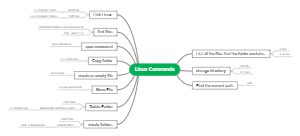
This is a mind map about learning Linux operation and maintenance from the old boy, including an introduction to the Linux command line, file and directory operation commands, file filtering and content editing and processing commands, etc.
Edited at 2024-01-16 11:24:10
- bacteria
This is a mind map about bacteria, and its main contents include: overview, morphology, types, structure, reproduction, distribution, application, and expansion. The summary is comprehensive and meticulous, suitable as review materials.
- Plant asexual reproduction
This is a mind map about plant asexual reproduction, and its main contents include: concept, spore reproduction, vegetative reproduction, tissue culture, and buds. The summary is comprehensive and meticulous, suitable as review materials.
- Reproductive development of animals
This is a mind map about the reproductive development of animals, and its main contents include: insects, frogs, birds, sexual reproduction, and asexual reproduction. The summary is comprehensive and meticulous, suitable as review materials.
Linux operation and maintenance
- bacteria
This is a mind map about bacteria, and its main contents include: overview, morphology, types, structure, reproduction, distribution, application, and expansion. The summary is comprehensive and meticulous, suitable as review materials.
- Plant asexual reproduction
This is a mind map about plant asexual reproduction, and its main contents include: concept, spore reproduction, vegetative reproduction, tissue culture, and buds. The summary is comprehensive and meticulous, suitable as review materials.
- Reproductive development of animals
This is a mind map about the reproductive development of animals, and its main contents include: insects, frogs, birds, sexual reproduction, and asexual reproduction. The summary is comprehensive and meticulous, suitable as review materials.
- Recommended to you
- Outline


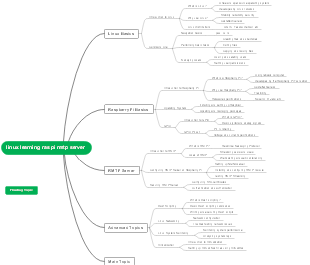

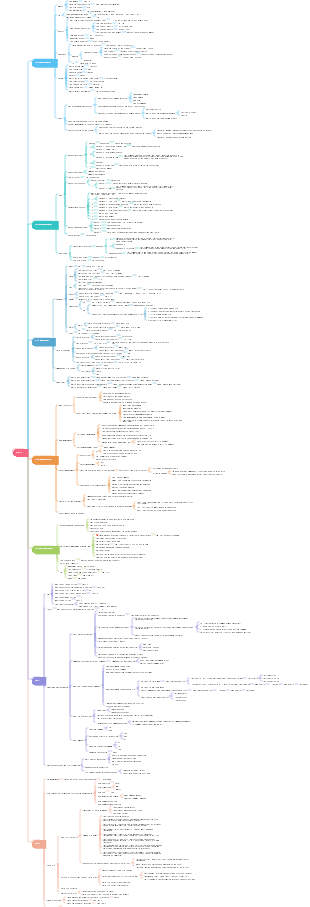
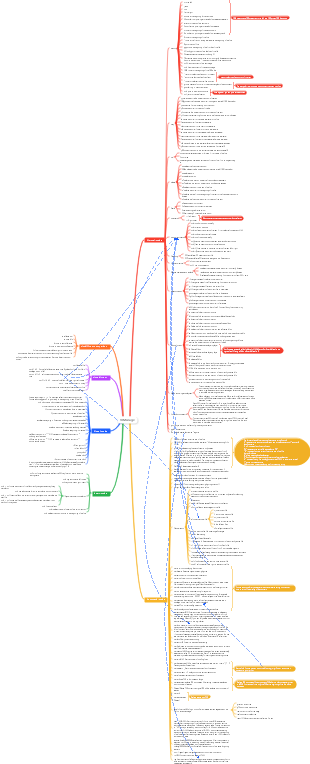
Learn Linux operation and maintenance from the old boy
Chapter 1 Introduction to Linux Command Line
Linux command line overview
Introduction to Linux Command Line Prompt
The # sign is the prompt at the end of the command line after logging in as the super user root, and the $ sign is the prompt at the end of the command line after logging in as an ordinary user.
Super users have all permissions to manage the system. Ordinary users have relatively limited permissions and can only perform operations such as viewing basic system information, and cannot change system configurations and management services.
The characters in front of the command line prompt @ represent the currently logged in user (can be queried by whoami), the characters after @ are the host name (can be queried by hostname), and the location of ~ is the path of the current user in the window.
The Linux command prompt is controlled by the PS1 environment variable. set | grep PS1 PS1='[\u@\h\W]\$'
Linux shutdown, restart, logout commands
Restart or shutdown command: shutdown
shutdown [OPTION]... TIME [MESSAGE]
Note that there must be at least one space between the shutdown command and the following options.
Normally, the shutdown command we execute is shutdown-h now or shutdown-r now.
Shutdown and restart commands: halt/poweroff/reboot
reboot [OPTION]... halt [OPTION]... poweroff [OPTION]...
Chapter 2 File and Directory Operation Commands
pwd: displays current location
pwd [options]
cd: change directory
cd [options] [directory]
When using the cd command, if you use the auto-complete function of the "Tab" key on the keyboard, you can improve the input speed and accuracy. The auto-complete function of the "Tab" key also applies to other commands.
To understand the concept of path, for example, a relative path is a path that does not start from "/" (slash), but starts from the current directory or a specified directory, such as: data/, mnt/oldboy; an absolute path is a path that starts from "/" "(slash) path starting from the root, such as: /data/, /mnt/oldboy.
When you need to switch to the directory where the current user was last located, please use "cd-" (note the space); when you need to switch to the current user's home directory, please use "cd~" (note the space); when you need to switch to When specifying the path to the directory above the current directory, please use "cd.." (note the space).
tree: Display the contents of the directory in a tree structure
tree [options] [directory]
mkdir: create directory
mkdir [options] [directory]
The mkdir command can create multiple directories at the same time, in the format mkdir dir1 dir2…
Create directories recursively with the -p parameter (mkdir -p oldboy/test)
Add the -v parameter to display the process of creating the directory. (mkdir -pv oldboy2/test)
You can use the -m parameter when creating a directory to set the default permissions for the directory. (mkdir -m 333 dir2)
Create multiple directories and multi-level subdirectories at the same time. (mkdir -pv oldboy/{dir1_1,dir1_2}/{dir2_1,dir2_2} )
touch: Create an empty file or change the timestamp attribute of the file
The touch command has two functions: one is to create a new empty file; the other is to change the timestamp attribute of an existing file.
touch [options] [file]
Create file (touch a.txt b.txt)
Change the timestamp attribute of a file
touch -a oldboy.txt #<==-a parameter changes the time of last access.
touch -m oldboy.txt #<==-m parameter changes the last modified time.
Specify time attributes to create/modify files
touch -d 20201001 oldboy.txt #<==Specify file modification after creating the file
touch -r a.txt oldboy.txt #<==Use the -r parameter to make the time attribute of oldboy.txt consistent with a.txt.
touch -t 201512312234.50 oldboy.txt #<==Use option -t to set the file to 201512312234.50 time format
ls: Display the contents and related attribute information of the directory
ls [options] [<file or directory>]
Use the -a parameter to display all files, especially hidden files
ls -a#<== Description: Adding the -a parameter will display the content starting with "." (dot). The first dot displayed here represents the current directory, which is the test directory itself, and the two dots represent the superior directory of the current directory, which here represents the root directory. The knowledge about one point and two points will be explained in detail in the ln command later.
ls -A #<==List all files, including hidden files, but excluding the "." and ".." directories.
Use the -l parameter to display detailed information.
ls -l #<==The time attribute column here displays the last modification time of the file by default. #<==Explanation: This -l parameter is the most commonly used parameter, which means to list the file type, permissions, number of connections, owner (group) and creation and modification time information in the directory in long format. The attribute meaning of each column here needs to be mastered, and these attribute information will be discussed in detail later.
Parameter --time-style=long-iso that displays the complete time attribute.
ls -l --time-style=long-iso #<==Display time in long-iso mode. The result of this command is great.
The optional parameter values of --time-style are as follows, such as full-iso, long-iso, iso, and locale. The default value is locale.
In production scenarios, we often encounter the problem of inconsistent display of files and directory times in the same directory, so we need to use ls-l--time-style=long-iso to adjust. If you feel that there are too many parameters and it is difficult to remember, then An alias management can be set up.
It is worth mentioning that when executing commands such as ls-l, the last modification time of the file is displayed by default (if it is a new file, it is the creation time).
ls--full-time is used to display the complete time, which is equivalent to ls-l--time-style=full-iso.
Execute the ls command with parameters that display the access time attribute of the content.
ls -l --time-style=long-iso --time=atime #<==Add the --time= atime parameter to display the access time.
Related commands include ls-l--time-style=long-iso--time=ctime, which is used to display the time when files change.
The knowledge about the file time column and mtime, atime, and ctime has been explained before when introducing the touch command.
Execute the ls command with the -F parameter (this is very similar to the -F of the tree command).
ls -F#<==Explanation: With -F added, we can clearly see that a slash / is added to the end of all directories. What use does such a function have for work? Of course it is useful. For example: if we want to filter out all directories, then we only need to filter out the ones with slashes.
Use the -d parameter to only display information about the directory itself.
ls -ld dir1 #<==Add the -d parameter to get what you want.
Use the -R parameter to recursively view directories.
ls -R dir1 #<== Similar but not as easy to use as tree.
Knowledge about ls command aliases and setting ls aliases.
alias lst='ls -l --time-style=long-iso' #<==Configure command alias.
Find recently updated files.
ls -lrt /etc/ #<==-t is sorted by time, -r is reverse order, that is, sorted by time in reverse order.
Back up the production scenario database and obtain a list of database names.
ls -F /usr/local/mysql/data|egrep "/"|awk -F "/" '{print $1}' >/root/dbfilename.list#<== Tip: In this database table backup script , used the combined command of ls -F plus egrep to filter out the database directory name.
Delete garbage occupying inode nodes in production scenarios.
ls|xargs rm -f #<==If there are too many files, they cannot be deleted directly by rm -fr *.
Extended knowledge of ls-F command
Add "*" to represent an executable ordinary file
Add "/" to indicate the directory
Add "=" to indicate sockets
Add "|" to indicate FIFOs
Add "@" to indicate a symbolic link
Interpretation of attributes of ls command output content
ls -lhi #<== The -l parameter has been explained in detail before. The function of the -h parameter is to display the size of the file in a human-readable way. You can easily know the size of the file like "4.0K" below. Size, -i parameter is used to display the inode value of the file.
cp: copy files or directories
cp [options] [source file] [destination file]
cp -a file1.txt file5.txt #<==Use the -a parameter to copy file1.txt to file5.txt. Properties copied using the -a parameter are unchanged.
When using the -a parameter to copy, the time attribute of the file does not change. The function of the -a parameter includes the function of the -p parameter to maintain the attributes of the file.
cp -i file1.txt file5.txt #<== Use the -i parameter to copy the file. You will be prompted whether to overwrite the file.
The CentOS system sets an alias for the cp command by default, that is, the -i parameter is added. However, when executing cp in a shell script, if there is no -i parameter, it will not ask whether to overwrite. This is because the environment variables when executing command line and shell scripts are different
cp -r dir1 dir2/ #<==If you use the -r parameter, copy the directory recursively and copy all subdirectories and folders under the directory.
cp /etc/ssh/sshd_config{,.ori}#<==The principle of this method is bash's expansion operation of curly braces. /etc/ssh/sshd_config{,.ori} expands into /etc/ssh/sshd_config / etc/ssh/sshd_config.ori and then pass it to the cp command.
mv: move or rename files
mv [options] [source file] [destination file]
mv file6.txt file7.txt #<==If file7.txt does not exist, rename file6.txt to file7.txt.
mv file5.txt file7.txt #<==If file7.txt exists, overwrite file5.txt with file7.txt.
\mv file4.txt file7.txt #<==Use \ to shield the system alias and you will not be asked whether to overwrite.
mv file7.txt dir1/ #<==dir1 is a directory and exists, then move file7.txt to dir1. If dir1 does not exist, rename it to an ordinary file in dir1.
mv -t dir1/ file1.txt file2.txt file3.txt file7.txt #<== Use the -t parameter to swap the source and target, -t followed by the directory, and finally the file to be moved.
rm: Delete a file or directory
rm [options] [<file or directory>]
rm -f file3.txt #<==-f parameter forces deletion without prompting.
rm -r dir1 #<==Use -r to delete recursively, but there will be a confirmation prompt. You can use -f to force it.
Practical experience on deletion
Use mv instead of rm. Don't delete it in a hurry, but move it to the recycle bin/tmp first.
Be sure to back up before deleting, preferably a cross-machine backup. You can restore it at any time if there is a problem.
If you must delete it, please use find instead of rm, including cleaning up files through system scheduled tasks.
If you must delete it through the rm command, please change the directory first and then delete it. If you can do without wildcards, don't use wildcards. It is forbidden to use "rm-rf file name" to delete files, because there will be no prompt when "rm-rf" accidentally deletes a directory, which is very dangerous. Use "rm-f filename" at most, and "rm filename" is recommended.
rmdir: delete empty directories
rmdir [options] [directory]
The rmdir command is used to delete empty directories. When the directory is not empty, the command does not work.
rmdir -p -v dir1/a/b/ #<== Recursive deletion still requires listing all directory structures.
ln: hard link and soft link
ln [options] [source file or directory] [destination file or directory]
hard link
In the Linux file system, it is normal and allowed for multiple file names to point to the same index node (inode). The file in this case is called a hard link.
Multiple files with the same inode node number are hard link files to each other.
Delete either the hard link file or the source file, but the file entity is not deleted.
The file entity will be deleted only if the source file and all corresponding hard link files of the source file are deleted.
When all hard link files and source files are deleted, the space of this file will be occupied when new data is stored, or the deleted data will also be recycled by the system when the disk fsck is checked.
A hard link file is another entrance to the file (equivalent to the front door and back door of the supermarket).
You can prevent important files from being accidentally deleted by setting hard link files to files.
Execute the command "ln source file hard link file" to complete the creation of the hard link.
Hard link files can be deleted using the rm command.
For static files (files that are not being called by a process), when the number of corresponding hard links is 0 (i_link), the file will be deleted. The viewing method of i_link is ls-lih, and the third column of the viewing result is the number of hard links.
Directory, hard links cannot be created
There is a hard link "." under each directory, and a hard link ".." corresponding to the upper-level directory.
Create a subdirectory in the parent directory, and increase the number of links in the parent directory by 1 (subdirectories have ".." to point to the parent directory). But when a file is created in the parent directory, the number of links in the parent directory will not increase.
soft link
Soft links are similar to Windows shortcuts (you can view their directions through the subsequent readlink command).
A soft link is similar to a text file, which stores the path of the source file and points to the source file entity.
Even if the source file is deleted, the soft link file still exists, but the content of the pointed source file path cannot be accessed.
When it fails, it will usually flash with white letters and a red background.
Execute the command "ln-s source file soft link file" to complete the creation of the soft link (the soft link file name cannot exist in advance).
Soft links and source files are different types of files, different files, and have different inode numbers.
To delete soft link files, use the rm command.
readlink: View the contents of symbolic link files
readlink [options] [file]
readlink /usr/bin/awk #<==You can view the true content of this soft link file.
readlink -f /usr/bin/awk #<==Using the -f parameter will display the last non-symbolic link file.
find: Find files in a directory
find [options] [path] [operation statement]
find . -atime -2 #<== "." represents the current directory. Use the option atime to find files accessed within two days. -2 represents within two days.
find search time description
-4 indicates that the file was changed within 4 days from now.
4 means the file was changed 4 days ago.
4 means 4 days from now.
find /var/log/ -mtime 5 -name '*.log' #<==Find files ending with ".log" 5 days ago in the /var/log/ directory.
find . ! -type d #<== "!" means negation, search for files that are not directories, pay attention to the position of the exclamation mark.
find /data/ -perm 755 #<==Find files according to file permissions, 755 is permissions
find . -size 1000c #<==Find files with a file size greater than 1000 bytes in the current directory.
find /data -path "/data/dir3" -prune -o -print #<==The parameter -path specifies the path style, and the -prune parameter is used to exclude the specified directory.
find /data \( -path /data/dir2 -o -path /data/dir3 \) -prune -o -print Use parentheses to combine multiple expressions, but parentheses have special meaning in the command line meaning, so "\" is used to escape here, which tells bash not to parse the following character "()", but to leave it to the find command for processing. Moreover, there is a space between the left bracket and path in "\(-path", and there is a space between dir3 and the right bracket in "dir3\)". This is a grammatical requirement.
find . -user nobody #<==Find files whose user is nobody.
find . -nouser#<==Find files that do not correspond to any user.
find . -group nobody #<==This function is similar to the previous example, here it refers to finding files with the user group nobody.
find . -nogroup#<==Find files that do not correspond to any user group.
find . -newer file1.txt ! -newer file2.txt#<==Find files whose change time is newer than file1.txt but older than file2.txt.
find . -maxdepth 1 -type d #<==-maxdepth 1 finds the first-level directory, similar to tree -L 1.
find . -maxdepth 1 -type d ! -name "." #<==Use the exclamation mark (!) to negate and do not output lines whose names are dots.
find . -maxdepth 1 -type d ! -name "." -o -name "oldboy"#<==-o means or, display all directories or files named oldboy except "." .
find . -maxdepth 1 -type d ! -name "." -a -name "ext"#<==-a means and, it searches for directories that are not dots and whose name is ext. The final result is only displayed Directory named ext.
find . -type f -exec ls -l {} \;#<==The find command matches all ordinary files in the current directory and uses the ls -l command in the -exec option to list them.
find . -type f -mtime 14 -exec rm {} \; #<==find command finds files in the directory that were changed more than 14 days ago, and uses the rm command in the -exec option to delete them.
find /var/log/ -name "*.log" -mtime 5 -ok rm {} \;#<==The find command finds all file names ending with ".log" and the change time in the /var/log/ directory files older than 5 days and delete them. So far, the function of -ok is the same as -exec, but -ok also has a function of giving a prompt before deleting. Press the y key to delete the file, and press the n key not to delete the file, which will be safer.
find . -type f|xargs ls -l #<== Pass the ordinary files found by the find command to the ls command through the pipe symbol and the xargs command for execution. Pay attention to the command format. The pipe symbol "|" is used here. xargs is a command and a filter for passing parameters to other commands. You can read the chapter about the xargs command first before reading this part.
find . -name "*.txt"|xargs -i mv {} dir2/ #<==Use the -i parameter of xargs so that {} represents the files found by find. Put these files as parameters after the mv command as The source file to be moved is moved to the dir2 directory. For more methods, please refer to Section 2.13.3 "Expand Knowledge: Several Methods of Moving Found Files to Specified Locations".
find dir2 -name "file*"|xargs -p rm -f#<== Note: Using the -p option of the xargs command will prompt you to confirm whether to execute the following commands.
xargs: Convert standard input into command line arguments
xargs [options] The xargs command is a filter that passes command line parameters to other commands. It can convert the data passed by the pipe or standard input into the command line parameters of the command that follows the xargs command.
xargs < test.txt#<== turns all numbers into one line. Note that xargs cannot directly connect to files and needs to be combined with the input redirection character "<".
xargs -n 3 < test.txt#<== Output up to 3 per line.
echo splitXsplitXsplitXsplitX|xargs -d X -n 2 #<==Use X as the delimiter and output up to 2 per line.
find . -name "*.log"|xargs -i mv {} dir1/ #<==Using the -i option of xargs allows {} to replace the file or directory found by the previous find command.
find . -name "file*"|xargs -I [] cp [] dir2 The -I option can specify other characters instead of {}, such as [].
find . -type f -name "*.txt" -print0|xargs -0 rm -f #<==xargs mistakenly thinks that their delimiter is a space. The solution is to separate the output with the character null and use the -0 option.
rename: rename the file
rename from to file
rename "_finished" "" * #<==Replace _finished of all files with empty.
rename .jpg .oldboy *.jpg #<==Replace .jpg in all files with .oldboy.
basename: displays the file name or directory name
basename [<file or directory>] [suffix]
basename /data/dir1/file1.txt #<==Remove the path part, that is, only the file name is displayed.
dirname: displays file or directory path
dirname [<file or directory>
dirname /data/dir1/file1.txt #<==Only displays the path where the file is located. /data/dir1
chattr: change the extended attributes of a file
chattr [options] [mode] [<file or directory>]
chattr a test #<== aAdd additional attributes.
chattr i file1.txt #<==Use the i parameter to lock the file.
lsattr: View file extension attributes
lsattr [options] [<file or directory>]
lsattr file1.txt #<==View the default extended attributes of the file.
lsattr -d dir2 #<==Use the -d option to view the extended attributes of the directory.
file: displays the type of file
file [options] [<file or directory>]
file oldboy oldboy: directory #<==oldboy is a directory.
md5sum: Calculate and verify the MD5 value of the file
md5sum [options] [file]
md5sum oldboy.txt #<==md5sum command can directly connect the file to get the MD5 value of the file.
chown: change the user and user group of a file or directory
chown [options] [user:group] [<file or directory>]
The ":" can be replaced with ".".
The user and group names to be authorized must actually exist in the Linux system.
chown oldboy file1.txt #<==Authorize oldboy user, oldboy user must be created in advance.
chown .oldboy file1.txt #<==Authorize the oldboy user group. Be careful not to miss the dot. The dot here can also be replaced by a colon.
chown root:root file1.txt #<==You can use ":" or ".".
chown -R oldboy.oldboy dir2/ #<==Use the -R parameter to authorize recursively.
chmod: change file or directory permissions
The chmod command is a command used to change file or directory permissions, but only the owner of the file and the super user root can execute this command.
chmod [options] [mode] [<file or directory>]
chmod a= file1.txt #<==Set all (a) permissions to empty (no characters after the equal sign).
chmod u x file1.txt #<==Set the owner execution permission of the user file.
chmod g w file1.txt #<==Set the writable permissions of the group file user group.
chmod o r file1.txt #<==Set other readable permissions for other users.
chmod ug r,o-r file1.txt #<==Multiple permission operations can be used together, separated by commas. ug r is the abbreviation of u r and g r.
chmod u=rwx,g=rx,o=x file1.txt #<== "=" revoke all original permissions, and then grant the given permissions.
chmod 000 file1.txt #<==This has the same effect as the previous example chmod a= file1.txt.
chmod 753 file1.txt #<==Everyone must be proficient in converting numerical permissions and letter permissions.
chmod -R 777 dir2/ #<==Recursively grant permissions to file directory 777.
chgrp: change file user group
chgrp [options] [usergroup] [<file or directory>]
chgrp oldboy install.log #<==The user group that modifies the install.log file is oldboy.
chgrp -R root dir1/ #<==Parameter -R recursive authorization.
umask: Display or set permission mask
umask [options] [mode]
Chapter 3 File Filtering and Content Editing Processing Commands
cat: merge files or view file contents
cat [options] [file]
cat >test.txt<<EOF EOF #<== You have to press Enter to end it. In addition, EOF must appear in pairs, but it can also be replaced with other paired tags. For example: oldboy character tag, by default, the ending EOF must be written in top case.
cat -n test.txt#<==Note: As can be seen from the above example, the -n option is to number the file content according to the line and print the output, including blank lines.
cat -b test.txt#<==Note: As can be seen from the above example, the -b option is similar to the -n option, but the -b option does not number empty lines.
cat -E test.txt#<== Note: As can be seen from the above example, the -E option displays the hidden end identifier $ symbol at the end of the file. Even if it is a blank line, there is an end identifier at the end, so everyone should pay attention to this.
cat -s test.txt#<==There were originally three blank lines here. Now, due to the -s option, it becomes one blank line.
cat >test3.txt
Cat and ">" redirections direct standard output to a file, which is a special way to edit files.
To end editing, you can use the shortcut key Ctrl d or Ctrl c to exit, but you must first execute Enter and position the cursor to a new uninputted line.
When typing in this way, you will find that if you make a mistake and just press the Backspace key, you will not be able to delete it. You need to hold down the "Ctrl Backspace key" to delete it.
This operation is a special editing method, mentioned as an extended knowledge point, and is rarely used in actual production environments.
cat web01_access_20130522.log web02_access_20130522.log > web_access_20130522.log Use cat to connect multiple files to merge Web cluster logs.
tac: Display file contents in reverse
tac [options] [file]
more: Display file content in pages
more [options] [file]
more /etc/services #<==Does not accept any parameters and displays the file content on the full screen.
more -5 /etc/services #<==At this time, the file content is not displayed on the full screen, only 5 lines of content are displayed.
more 888 /etc/services #<==At this time, the file content is displayed directly from line 888.
ls /etc/|more -10 #<==Everyone should know that there are many file directories under /etc. Direct ls view will display too much content, so you can use the more command to display it in pages.
less: Display file contents in pages
less [options] [file]
less /etc/services #<==Does not accept any parameters and displays the file content on the full screen.
less -N /etc/services #<==There is a line number in front of each line.
ls /etc/|less #<==View the contents of etc directory files in pages.
head: Display the file content header
head [options] [file]
head /etc/passwd #<==When the head command does not receive any parameters, the first 10 lines of the file will be displayed by default.
head -n 5 /etc/passwd #<==The first format specifies the first 5 lines to be displayed.
head -5 /etc/passwd #<==The second format also specifies the first 5 lines to be displayed, but this way of writing is more streamlined.
head -c 10 /etc/passwd #<==Read the first 10 bytes of the file. The previous writing method is in row units, while -c is in bytes. This feature is not commonly used.
head -n -21 /etc/passwd #<==The number here is a negative value, and this writing method is not commonly used.
tail: Display the tail of the file content
tail [options] [file]
tail /etc/passwd #<==The tail command does not take parameters and displays the last 10 lines by default.
tail -n 5 /etc/passwd #<==Display the last 5 lines of text
tail -5 /etc/passwd #<==The second way of writing the last 5 lines of the text is displayed. This way of writing is simpler.
tail -n 15 /etc/passwd #<==Display the file starting from line 15. Extended usage, but not commonly used.
tail -f /application/nginx/logs/access.log #<==tail -f monitors file changes in real time. A common scenario in production is to monitor log files.
tail -f oldboy #<==Use the -f parameter. When the file does not exist, an error will be reported and the command will exit.
tail -F oldboy #<==Use the -F parameter. When the file does not exist, an error will be returned, but it will still wait for the file to be generated and will not exit the command.
tailf: trace log files
tailf [options] [file]
The tailf command is almost equivalent to tail-f. The difference with tail-f is that if the file does not grow, it will not access the disk file and will not change the access time of the file.
tailf /application/nginx/logs/access.log #<== can easily check the changing log file.
cut: Extract a piece of text from the text and output it
cut [option] [file]
cut -b 3 oldboy.txt #<==Only output the 3rd byte.
cut -b 3-5,10 oldboy.txt #<==-b supports writing in the form of 3-5, and multiple positions are separated by commas.
cut -b -3 oldboy.txt #<==-3 means from the first byte to the third byte.
cut -b 3- oldboy.txt #<==3- means from the third byte to the end of the line.
cut -b -3,3- oldboy.txt #<==This way of writing will output the entire line, and there will be no two consecutive overlapping letters a.
cut -b 2-10 oldboy.txt#<==Note: Using the option -c will use characters as the unit and the output will be normal. The option -b will only calculate in bytes (8 binary bits), and the output will be garbled. When encountering multi-byte characters, you can use the -n option. -n is used to tell cut not to split multi-byte characters.
cut -d : -f 1 /etc/passwd #<==The option -d specifies ":" as the separator, and the option -f specifies the first area to be displayed.
split: split file
split [options] [input file] [output file name prefix]
split -l 10 inittab new_#<== splits every 10 lines, and the split file name starts with new_.
split -l 10 -a 3 inittab new2_#<==The parameter -a specifies the suffix length.
split -l 10 -d inittab num_#<== Parameter -d uses numeric suffix.
split -b 500K -d lvm lvm_#<==Split the file every 500KB.
paste: merge files
paste [options] [file]
paste test1 test2 #<==2 files are merged line by line.
paste -d: test1 test2 #<==Use ":" as the separator.
paste -s test1 #<==Use the -s option to convert the content of 1 column into 1 row.
paste -s test1 test2 #<==Each file occupies one line.
sort: text sorting
sort [options] [file]
sort oldboy.txt #<== does not receive any parameters, will convert the file content into ASCII code, and then compare. Because in ASCII code, the ordering of numbers is the same as our perception, the result is as follows.
sort -n oldboy.txt #<==Use the -n option to sort numbers directly from small to large.
sort -nr oldboy.txt #<== Similar to this function, we have already learned it in the ls command. The -r option means reversal. The sort command sorts by default in ascending order (from small to large). If you use the -r option, it changes to descending order (from large to small).
sort -u oldboy.txt #<==Use the -u option to remove duplicate lines from the file. You will learn a uniq command later, which can also remove duplicate lines.
sort -t " " -k2 oldboy1.txt #<== The -t option specifies a space as the separator, and the -k option followed by 2 means sorting according to the second column.
join: merge two files by the same fields
join [options] [file1] [file2]
join a.txt b.txt#<==Note: The requirement for using join to merge files is that the two files must be sorted by sort.
uniq: remove duplicate rows
uniq [options] [file or standard input]
uniq oldboy.txt #<==Remove duplicate lines without taking any parameters.
uniq -c oldboy.txt #<==Parameter -c displays the number of occurrences of the corresponding line.
sort -n oldboy.txt|uniq -c#<==uniq can only deduplicate adjacent duplicate lines, so you should use sort to process the file first and then deduplicate.
wc: counts the number of lines, words or bytes of the file
wc [options] [file]
wc /etc/inittab 26 149 884 /etc/inittab #<==If you don’t accept any parameters, what does the number displayed mean?
wc -l /etc/inittab #<==Number of lines.
wc -m /etc/inittab #<==Number of characters.
wc -w /etc/inittab #<==Number of words.
wc -L /etc/inittab #<==The length of the longest line.
iconv: the encoding format of the converted file
iconv [options] [original encoding] [new encoding] [input file]
iconv -f gb2312 -t utf-8 GB2312.txt #<== Use the -f parameter to specify the original encoding of the file as gb2312, and use the -t parameter to specify the encoding to be converted to utf-8.
dos2unix: Convert DOS format files to UNIX format
dos2unix [file]
diff: Compare the differences between two files
diff [options] [file1] [file2]
diff test1 test2 1,3d0 #<==Delete line 1 to line 3 of file 1, delete line 0 of file 2, that is, do not delete.
6a4,5 #<==Add the following 2 lines of text to line 6 of file 1, namely lines 4 and 5 of text 2.
The default display format of diff has the following three prompts. ·a-add ·c-change ·d-delete
diff -y test1 test2 #<==Use the -y parameter to output side by side.
diff -y -W 30 test1 test2 #<==If you think the above is too wide, you can use the -W parameter to specify the width.
diff /etc/rc3.d/ /etc/rc6.d/ #<==diff can not only compare the differences in file contents, but also compare the differences in files in the directory.
vimdiff: visual comparison tool
vimdiff [options] [file1] [file2]
Vimdiff calls vim to open files. It can open 2, 3 or 4 files at the same time, up to 4 files, and will use different colors to distinguish the differences between the files.
vimdiff test1 test2 #<==To exit the vimdiff interface, you need to execute the operation of exiting vim twice in succession (:q). The vim command will be explained in detail later. Because the vimdiff command calls the vim function, the exit operation is the same as vim.
rev: Reverse output file content
rev [file]
echo {1..10}|rev #<==The characters above are written backwards.
rev oldboy.txt #<==You can compare it with the tac command you learned earlier.
tr: replace or delete characters
tr [options] [char1] [char2]
The tr command replaces, reduces, or deletes characters from standard input and writes the results to standard output.
tr 'abc' 'xyz' < oldboy.txt #<==The tr command to connect files is special and requires the redirection symbol "<".
tr '[a-z]' '[A-Z]' <oldboy.txt #<==Convert lowercase to uppercase.
tr '[0-9]' '[a-j]' < oldboy.txt #<==Replace the number 0 with a, replace 1 with b...one-to-one correspondence.
tr -d 'oldboy'<oldboy.txt #<==Use parameter -d to delete characters.
tr -d ' \t' < oldboy.txt #<== Use the -d parameter to remove all newline characters and tab characters. All lines become one line and the letters are connected together.
echo 'oooolllddbbboyyyyy' |tr -s oldboy #<==Use the -s parameter to compress consecutive characters into one.
tr '0-9' '*' < oldboy.txt #<==Replace all numbers with *.
tr -c '0-9' '*' < oldboy.txt #<==Use parameter -c, except for numbers, other characters including newlines will be replaced with *.
od: Display files in different bases
od [options] [file]
tee: multiple targeting
tee [options] [file]
ls|tee ls.txt #<==ls command takes over the channel and tee command, outputs the result of ls on the screen, and writes the result to ls.txt.
ls|tee -a ls.txt #<==Use parameter -a to append content to the file without clearing the existing content in the file.
vi/vim: plain text editor
vim [options] [file]
Three modes of vim
Normal mode
edit mode
Editing input operations cannot be performed in normal mode. You can only enter edit mode by pressing letters such as "i, I, o, O, a, A, r, R, s, S" (of which "I" is the most commonly used). Perform editing operations such as entering text. An important feature to check whether the file is in edit mode is that there must be an insertion mark "--INSERT--" or "--INSERT--" in the lower left corner of the window.
command mode
In normal mode, when you enter ":" or "/" or "?", the cursor will automatically locate that line. In this mode, you can perform save, exit, search, replace, display line numbers and other related operations.
Summary of how to open files in vim
vim file: Open/create a new file, place the cursor at the beginning of line 1, and file is any file name.
vim file n: Open the file, place the cursor at the beginning of the nth line, n is a natural number.
vim file: Open the file and place the cursor at the beginning of the last line.
vim file /pattern: Place the cursor at the first string that matches pattern, and pattern is any string.
Chapter 12 Commonly used built-in commands in Linux systems
Examples of commonly used Linux built-in commands
helpView built-in command help
help [options] [built-in command]
help #<==Use the help command to view all built-in commands of Linux.
help help #<== "help built-in command" format allows you to view help for built-in commands, and help itself is also a built-in command.
help cd #<==View the help documentation for the cd command.
help -d cd #<==Output a brief description of the built-in command.
help -m cd #<==Display in man help format.
help -s cd #<==Only output the syntax of the command.
Placeholder":"
if [ $i -eq 1 ] #<==Conditional expression. then : #<==If the if judgment statement is used in the Shell script, then certain operations will usually be performed after the judgment is successful, but sometimes it is not known what operations to perform or certain operations do not need to be performed. However, due to the fixed syntax format of the if statement, I have to write a command to occupy the space, because if this line has no content, a syntax error will be reported. At this time, the ":" placeholder will be used, but don't worry, this command It will not have any impact on your shell script, it is a bit like the pass field in other programming languages. else echo "Hello World" fi
"." and source
"." and source are often used to load or execute Shell scripts, but they are different from the conventional method of executing Shell scripts. Let’s take a look at the comparison below.
·The first method, bash script-name or sh script-name, is a method often used when the script file itself does not have executable permissions (that is, the x bit of the file permission attribute is -). In addition, the interpreter is not specified at the beginning of the script file. It is also needed when needed.
·The second method is source script-name or .script-name. This method usually uses source or "." (dot) to read or load the specified Shell script file (such as san.sh), and then, in sequence Execute all statements in the specified Shell script file san.sh. These statements will be run in the current parent Shell script father.sh process (several other modes will start a new process to execute the child script). Therefore, using source or "." can pass the variable value or return value of a function in the san.sh itself script to the current parent Shell script father.sh for use.
Conditional test "[" and test
·The syntax format of test conditional test is: test<test expression> ·The syntax format of [] conditional test is: [<test expression>]
There must be spaces at both ends of the brackets. [] is equivalent to test, that is, all judgment options of test can be used directly in [], but it is recommended to use [].
test -f file && echo true || echo false #<== It is true if the file file exists and is an ordinary file. Because the file file does not exist, false is output.
[ -f /tmp/oldboy.txt ] && echo 1 || echo 0 #<== True if the /tmp/oldboy.txt file exists and is an ordinary file, because the file does not exist, 0 is output.
Command aliases alias and unalias
alias [command alias]=[command statement] unalias [command alias]
alias #<==Without any parameters, all command aliases are displayed.
alias rm='echo "Do not use rm."' #<==Define an alias name rm for the echo "Do not use rm." command statement, and the command statement in single quotes must be executable.
alias rm #<==Query the command statement pointed to by rm.
alias eth0='cat /etc/sysconfig/network-scripts/ifcfg-eth0' #<==Define the eth0 alias.
·Add some protection parameters to dangerous commands to prevent human errors, such as the alias of rm. ·Convert many complex strings or commands into a simple string or command, such as the alias of eth0.
unalias eth0 #<==Delete alias using unalias
Background task related commands bg/fg/jobs
The bg command is used to transfer the foreground execution tasks to the background, or run the background suspended tasks; the fg command is the opposite of the bg command, it transfers the background tasks to the foreground for execution; the jobs command can be used to view the background task list.
bg [task sequence number] fg [task sequence number] jobs
break out of the loop
#!/bin/bash for((i=0; i<=5; i )) do if [ $i -eq 3 ] ;then break; #<==Jump out of the entire loop and continue executing the program outside the loop. fi echo $i done echo "ok"
continue into the next loop
#!/bin/bash for((i=0; i<=5; i )) do if [ $i -eq 3 ] ;then continue; #<==End this loop and continue the next loop. fi echo $i done echo "ok"
eval executes parameters as commands
echo `hostname -I` #<==If you want to execute commands within quotes, you need to use backticks, also called backticks.
echo '`hostname -I`' #<==The backticks are surrounded by single quotes. The function of single quotes is that what you see is what you get, so the result is `hostname -I`. `hostname -I`
eval echo '`hostname -I`' #<==Add an eval command at the beginning of the command, the single quotes are invalid! Because the eval command can parse or execute variables or commands within single quotes first.
exit exits the Shell command line
exit #<==To exit the Shell command line, you can use the exit command, the Ctrl D shortcut key, or the logout command.
#!/bin/bash for((i=0; i<=5; i )) do if [ $i -eq 3 ] ;then exit #<==Once the exit command is executed, the entire script will exit, and the remaining script content will not be executed again. fi echo $i done echo "ok"
export View or set global variables
export [options]
export -p #<==Print all environment variables using the p option.
export MYENV=7 #<==Only variables set using the export command are global variables.
history View command history
history [options]
history #<==Displays all history records of the command.
history 10 #<== The history command followed by the number n indicates that the most recent n command records will be displayed.
history -d 991 #<== "history -d history command sequence number" can clear the history command of the specified sequence number.
history -c #<==Use the -c option to clear the history of all commands.
read interactive assignment variable
The read command reads a line from standard input and assigns the value of each field of the input line to a Shell variable.
read [option] [variable name]
read #<==Execute the command read, and the command line is waiting for input. oldboy #<==Input the string oldboy.
echo $REPLY #<==readThe input obtained is stored in the variable REPLY by default.
read one #<==read is followed by a variable name, and the input data will be assigned to this variable.
read one two #<==read can be followed by multiple variable names. n1 n2 #<== By default, spaces are used as separators. The first paragraph n1 is assigned to the first variable one, and the second paragraph n2 is assigned to the second variable two.
read one two m1 m2 m3 #<==If the input data exceeds the number of variables, then all values will be assigned to the last variable, m1 will be assigned to variable one, and "m2 m3" will be assigned to variable two together.
read -p "Please enter your age:" age #<==There must be at least one space in front of the age variable! Use the -p parameter to define prompt statements displayed on the command line, which is more user-friendly.
read -t 3 -p "Please enter your age:" age #<==Use the -t parameter to specify the number of seconds to wait. After this time, the command will automatically terminate.
The option -s prevents the data entered in the read command from being displayed on the screen, such as passwords.
read -n 3 -p "You can only enter 3 characters. If you don't believe me, try it:" num
type determines the command type
type [option] [command]
type ls #<== without any parameters, displays the main information of ls.
type -a ls #<==Display all relevant information.
ulimit modifies system resource usage limits
The ulimit command is used to check the usage of system resources. It can also modify the quota allocated to system resources by processes or users.
ulimit [options]
ulimit -a displays all current system resource usage limits.
ulimit -n 1024 #<==The default maximum number of open files (also called file descriptors) in the new system is 1024. This value is too small for the server in the production environment, so this value is usually adjusted during server optimization. big.
ulimit -n 65535 #<==The adjustment amount is 65535, but the adjustment through the command only takes effect for the current window, so the configuration file needs to be modified.
echo '* - nofile 65535' >> /etc/security/limits.conf #<==Modify the configuration file and take effect permanently.
unset clears variables
unset OLDBOY oldgirl #<==unset command can clear the value of the variable.
Chapter 11 Linux System Management Commands
lsof: View files opened by a process
lsof [options]
lsof /var/log/messages shows the processes using the file.
lsof -c rsyslog #<==Use the -c option to display files opened by the specified process.
lsof -p 1277 #<==Use the -p option to display files opened by the specified process number.
lsof -i #<==View all processes.
lsof -i tcp #<==Displays process information of all tcp network connections.
lsof -i :22 #<==Display the process with port 22. This command is very commonly used.
lsof -i tcp:22 #<==Display processes that meet both TCP and port 22.
lsof -u oldboy #<==Use the -u option to display files used by the oldboy user.
lsof -U #<==Use the -U option to display all socket files.
uptime: displays the running time and load of the system
uptime
free: View system memory information
free [option]
free #<==Without parameters, the default display is the number of bytes, which is difficult to understand.
free -m #<==Use the -m option to display memory usage in MB.
free -h #<==Use the -h option to automatically convert into KB, MB, and GB units based on the actual size to display memory usage.
free -h -s 10 #<==Use the -s option to refresh memory usage regularly, in seconds.
iftop: dynamically display network interface traffic information
wget -O /etc/yum.repos.d/epel.repo http://mirrors.aliyun.com/repo/epel-6.repo yum -y install iftop
iftop [options]
iftop interface: eth0 #<==The first network card of the monitoring system is used by default. You can use the -i option to specify the monitoring network card.
iftop -nNBP ·-n: Do not perform DNS resolution and display the IP numeric address. ·-N: Display the port number in numeric form. ·-P: Display port number. ·-B: The default is to display the traffic in bit units, which needs to be calculated to conform to our understanding, but using the -B option will directly display the traffic in bytes.
vmstat: virtual memory statistics
vmstat [options] [interval [number of times]]
1) In the vmstat command and subsequent options, there must be at least one space between each element. 2) delay represents the interval between two outputs. 3) count represents the number of statistics according to the time interval specified by delay.
vmstat #<==If the "interval" and "number of times" parameters are omitted, the report will only be displayed once and then exit.
vmstat 5 #<== means that the output information is updated every 5 seconds, the output is looped, and the Ctrl C key combination is pressed to stop the output.
vmstat 5 6 #<== means that the output information is updated every 5 seconds, and the output stops after counting 6 times.
vmstat -a 2 5 displays active and inactive memory.
vmstat -s View memory usage details.
vmstat -d View disk reads/writes.
vmstat -p /dev/sda1 View the read and write statistics of the /dev/sda1 disk.
mpstat: CPU information statistics
mpstat [options] [time interval [number of times]]
1) In the mpstat command and subsequent options, there must be at least one space between each element. 2) delay represents the time interval between two outputs. 3) count represents the number of statistics according to the time interval specified by delay.
mpstat #<==If the "time interval" and "number of times" parameters are omitted, the report will only be displayed once and then exit.
mpstat 5 6 #<== means that the output information is updated every 5 seconds, and the output stops after counting 6 times.
mpstat -P 0 #<==Display the information of the first CPU.
iostat: I/O information statistics
iostat [options] [interval [number of times]]
1) In the iostat command and subsequent options, there must be at least one space between each element. 2) interval represents the interval between two outputs. 3) count represents the number of statistics according to the time interval specified by delay.
iostat #<==If the "time interval" and "number of times" parameters are omitted, the report will only be displayed once and then exit.
iostat 2 3 #<==Refresh the display every 2 seconds and display it 3 times in total.
iostat -d #<==Option -d only displays disk statistics.
iostat -d -k #<==Option -k displays data in kB.
iostat -d -m #<==Option -m displays data in MB.
iostat -d -x -k #<==Option -x displays extended information.
iostat -c #<==The -c option is used to only display system CPU statistics.
iotop: Dynamically display disk I/O statistics
iotop [options]
iotop
sar: collect system information
sar [options] [interval [number of times]]
1) In the sar command and subsequent options, there must be at least one space between each element. 2) interval represents the interval between two outputs. 3) count represents the number of statistics according to the time interval specified by interval.
sar -u 2 3 #<==Use the -u option to display the load status of all CPUs in the system during the sampling time, followed by 2 3 indicating statistics once every 2 seconds and 3 times.
sar -q 2 3 #<==Use the -q option to display the size of the run queue.
sar -r 2 3 #<==Use the -r option to display the usage of system memory during the sampling time.
sar -b 2 3 #<==Use the -b option to display the buffer usage during the sampling time.
sar -n DEV 2 3 #<==Use -n DEV to display network interface information.
sar -n EDEV 2 3 #<==Use -n EDEV to display network error statistics.
sar -n SOCK 2 3 #<==Use -n SOCK to display socket information.
sar -d 2 3 #<==Use the -d option to display the usage status of all hard disk devices in the system during the sampling time.
chkconfig: Manage boot service
chkconfig [options]
chkconfig --list #<==Use the --list option directly to view the status of all services.
chkconfig --list sshd #<==Specify the system service name to display the startup status of this service.
chkconfig sshd off #<==Use off to turn off the sshd service and start it automatically at level 2, 3, 4, and 5.
chkconfig sshd on #<==Use on to enable the sshd service to start automatically at level 2, 3, 4, and 5.
chkconfig --level 3 sshd off #<==Use --level to specify to turn off the sshd service and start it automatically at level 3.
chkconfig --level 3 sshd on #<==Use --level to specify that the sshd service will start automatically at level 3.
ntsysv: Manage boot service
ntsysv [options]
ntsysv
setup: system management tool
The setup command is a text interface-based system management tool that integrates user authentication management, firewall management, network management and system service management.
setup
ethtool: Query network card parameters
ethtool [network card device]
ethtool eth0 #<==Connect the specified network card to display the parameters of the network card.
mii-tool: Manage the status of network interfaces
mii-tool [options] [network interface]
mii-tool eth0 #<==Do not accept any options and display simplified information.
mii-tool -v eth0 #<==Use the -v option to display detailed information.
dmidecode: Query system hardware information
dmidecode [options]
dmidecode -s system-product-name #<==The author's server model is Dell 2950. PowerEdge 2950
dmidecode -s system-serial-number #<==View the serial number keyword system-serial-number.
dmidecode -t memory #<==-Use the -t option followed by the keyword memory to only view memory information. More keywords can be viewed through the dmidecode -t command.
lspci: show all PCI devices
lspci [options]
lspci -s 02:04.0 #<==02:04.0 From Example 1, we can know the number of the network card device.
lspci -s 02:04.0 -v #<==View detailed information.
ipcs: Displays the status of inter-process communication facilities
ipcs [options]
ipcrm: clear ipc related information
ipcrm [options]
ipcrm -s 0 #<==Remove the signal set with a specified semid of 0.
rpm: RPM package manager
rpm [options]
rpm -qpi lrzsz-0.12.20-27.1.el6.x86_64.rpm #<==Displays the rpm package version, creation date and other information.
rpm -qpl lrzsz-0.12.20-27.1.el6.x86_64.rpm #<==View the files in the rpm package.
rpm -qpR lrzsz-0.12.20-27.1.el6.x86_64.rpm #<==View the files that are required to install this rpm package.
rpm -ivh lrzsz-0.12.20-27.1.el6.x86_64.rpm #<==Install the rpm package and use the -h parameter to display the progress bar. #<==rpm also supports online installation, directly connect to a URL address
rpm -qa lrzsz #<==The -p parameter is not used here because lrzsz is the software name and does not end with ".rpm".
rpm -e lrzsz #<== Use the -e parameter to uninstall the software package. This parameter is more dangerous. Generally, try not to uninstall the software package if it is not necessary, because it is very likely that some necessary files for the system will be deleted by mistake. Finally causing system damage.
rpm -qf $(which ifconfig) #<== Sometimes you will find that the system does not have certain files or commands, but you do not know which software package the file or command belongs to. In this case, you can use the -f parameter to query (in Query on the system that has this file). For example, in this example, the ifconfig command belongs to the net-tools software package.
yum: automated RPM package management tool
yum [options] [command] [package]
yum install httpd
yum list httpd #<==Check the httpd installation list.
yum search httpd #<==Search for packages containing the httpd string.
yum grouplist #<==View installed and uninstalled package groups.
yum groupinstall "SNMP Support" -y #<==Install package group, search from yum grouplist.
Chapter 10 Linux Network Management Commands
ifconfig: configure or display network interface information
ifconfig [network interface] [options]
interface is the name of the network interface. The network interface names under Linux are similar to eth0, eth1, and lo, etc., which respectively represent the first network card, the second network card, and the loopback interface. This is an optional option. If you do not add this option, all network card information in the system will be displayed. If you add this option, the specified network card information will be displayed.
Using the ifconfig command to configure network card information will only take effect temporarily. Restarting the network or server configuration will invalidate it.
The ifconfig command must be executed as the root user when configuring network card information.
ifconfig #<==Displays all network card information in the system.
Ifconfig eth0 #<== command is connected to the network card name to specify the information of the network card to be displayed.
ifconfig -a #<==Use the -a option to view all network card information.
ifconfig eth1 up #<==Add up after the network card name to start the network card.
ifconfig eth1 down #<==Add down after the network card name to shut down the network card.
ifconfig eth0 192.168.120.56 #<==Connect the IP address directly to the network card that needs to be configured.
ifconfig eth0:0 10.0.0.8 netmask 255.255.255.0 up#<== Syntax format: Alias IP address Subnet mask Activate network card
ifconfig eth0:1 10.0.0.9/24 up #<==Add a second IP alias, 10.0.0.9/24 has the same effect as 10.0.0.9 netmask 255.255.255.0, 24 is the subnet mask 255.255.255.0 Another form of expression.
ifconfig eth0 hw ether 00:AA:BB:CC:DD:EE#<==Keywords to modify the MAC address hw (set MAC address) ether (network device type).
ifup: Activate network interface
ifup [network interface]
ifup eth0 #<==Activate network interface eth0. Because eth0 has already started running, the prompt is as follows. RTNETLINK answers: File exists
ifup eth1 #<==Activate the network interface eth1. Under normal circumstances, there is no output.
fup eth2 #<==Activate the network interface eth2 and report an error. The configuration file of eth2 cannot be found.
ifdown: disable network interface
ifdown [network interface]
ifdown eth1 #<==Close the eth1 network card.
route: display or manage routing tables
route [options]
route #<==By default, the route command will perform DNS resolution on the IP address to generate a host name.
route -n #<==Use the -n option not to perform DNS resolution, which will speed up the display.
route del default #<==Delete gateway method 1.
route add default gw 10.0.0.2 #<==Add gateway method 1, you need to specify the gateway address 10.0.0.2 or other correct address.
route del default gw 10.0.0.2 #<==Delete gateway method 2.
route add default gw 10.0.0.2 dev eth0#<== Add gateway method 2, use dev to specify the network device, suitable for hosts with multiple network devices.
arp: manages the arp cache of the system
arp [options]
arp #<==Display all entries in the arp cache.
arp -n #<==Use the -n option to display all entries in the arp cache numerically.
arp -n 10.0.0.1 #<==Specify to query the arp information of 10.0.0.1.
arp -s 10.0.0.100 00:0c:29:c0:5a:ef #<==Bind IP address and MAC address.
arp -d 10.0.0.100 #<==Delete static ARP binding.
ip: network configuration tool
ip [options] [network object] [operation command]
ip link show dev eth1 #<==Display eth1 network card properties.
ip -s link show dev eth1 #<==Display detailed attributes.
ip -s -s link show dev eth1 #<==Use two -s to display more detailed attributes.
ip link set eth1 up #<==Activate the eth1 network card.
ip link set eth1 down #<==Turn off the eth1 network card.
ip link set eth1 address 0:0c:29:13:10:11 #<==Modify the MAC address.
ip a #<==The effect is the same as ip address. The displayed results include activated and inactive network cards.
ip a add 172.16.1.12/24 dev eth1 #<==Use the add option to add an IP address 172.16.1.12, subnet mask 255.255.255.0, abbreviated as 172.16.1.12/24, and use the dev option to specify the network device as eth1.
ip a add 172.16.1.13/24 dev eth1 #<==You can add multiple IP addresses, which are called auxiliary IPs. The alias created by the previous ifconfig command is IP. Nowadays, commonly used high-availability software such as heartbeat and keepalive all use auxiliary IP.
ip a del 172.16.1.12/24 dev eth1 #<==Delete the main IP, delete the IP address configured by the ip command, and directly change the add option in the previous add command to del.
·Deleting the main IP address of the network card will also delete all IP addresses of the network card. ·Deleting the auxiliary IP address of the network card will not affect other IP addresses of the network card.
ip a add 10.0.0.20/32 dev eth1 label eth1:1 #<== Use the label option to create an alias IP.
ip route|column -t #<==Use the column command to format, option -t, by default, the number of columns in the input row is determined based on space separation to create a table.
ip route add 10.1.0.0/24 via 10.0.0.253 dev eth0 #<==Add static route.
ip route del 10.1.0.0/24 #<==Delete static route.
ip neighbor #<==Use the neighbor command to view the arp cache.
ip neighbor add 192.168.1.100 lladdr 00:0c:29:c0:5a:ef dev eth0 #<==Add static ARP.
ip neighbor del 192.168.1.100 dev eth0 #<==Delete static ARP.
netstat: View network status
netstat [options]
netstat -an #<== Commonly used combinations -a and -n display all connection information.
netstat -lntup The function of the above command statement is to display all TCP and UDP listening connection information. ·-l: Display all network connections in LISTEN status. ·-n: Display the IP address without DNS resolution into host name and domain name. ·-t: Display all TCP connections. ·-u: Display all UDP connections. ·-p: Display process number and process name.
netstat -rn #<==Use the -r option to display routing table information. The -n option does not perform DNS resolution to speed up command execution.
ss: View network status
The ss command is a tool similar to and will replace netstat. It can be used to view network status information, including TCP, UDP connections, ports, etc. Its advantage is that it can display more and more detailed information about the network connection status, and it is faster and more efficient than netstat.
If the system does not have the ss command, you need to install it. The ss command belongs to the iproute package, so the installation command is yum-y install iproute.
ss [options] [filter]
ss -an #<==Display all socket connections.
ss -an|column -t #<==The above output will be a bit messy when written in the document. Let's format it with column.
ss -lntup|column -t #<==Display all listening TCP and UDP connections.
ss -s #<== Count the current number of established, closed, orphaned and waiting TCP sockets.
ping: Test network connectivity between hosts
ping [options] [target host]
ping www.oldboyedu.com #<==The ping command is directly connected to the domain name or IP, and the ping result will always be displayed.
ping -c 3 -i 3 -s 1024 -t 255 www.oldboyedu.com ·-c 3: Send ICMP packets 3 times. ·-i 3: The time interval between each packet sending is 3s. ·-s 1024: Set the sent packet size to 1024 bytes. ·-t 255: Set the ttl value of the sent data packet to 255.
traceroute: Track data transmission routing status
traceroute [options] [hostname or IP] [packet size]
arping: send arp request
arping [options]
arping -f 10.0.0.1 #<== Use the -f option to exit when the first response is received to detect whether the destination host is alive.
arping -f 10.0.0.3 #<==A host that is not running will not respond, and the command waits until Ctrl C terminates.
telnet: remote login to the host
telnet [options] [hostname or IP] [port]
telnet 10.0.0.12 22 #<==Replace 10.0.0.12 here with the reader’s own IP, and 22 is the default port number of the SSH service.
nc: multifunctional network tool
nc is a simple, reliable, and powerful network tool that can establish TCP connections, send UDP packets, listen to any TCP and UDP ports, perform port scanning, and process IPv4 and IPv6 packets. If the system does not have the nc command, you can install it manually. The installation command is yum-y install nc.
nc [options]
nc -l 12345 >oldboy.nc #<==Listen to port 12345 and write data to oldboy.nc. #<==After executing the above command, the current window hangs. #<==Open a new window to execute the command.
nc 10.0.0.12 12345 <oldboy.log #<==Use the nc command to transfer the oldboy.log file to the 12345 port of the 10.0.0.12 host.
nc -z 10.0.0.12 20-30 #<==Scan ports 20 to 30 of the 10.0.0.12 host.
nc -z 10.0.0.12 22 #<==A single address or address range can be followed by the host.
nc -z -v 10.0.0.12 20-30 #<==Use the -v option to display the scanning process in detail.
ssh: securely log in to a host remotely
ssh [options] [user@][hostname or IP address] [command executed remotely]
ssh 10.0.0.29 #<==This is the abbreviation command for remote login to the server, which is equivalent to ssh -p 22 root@10.0.0.29 #<==The following four lines will only be prompted when connecting to the remote server for the first time, and will not be prompted when connecting again.
ssh -p 22 oldboy@10.0.0.29 #<== Use the oldboy user to log in to the remote server. This user must be an existing user on the remote server. -p specifies port 22.
ssh 10.0.0.29 "free -m" #<== Just put the command to be executed remotely to the end. Use quotation marks to make it more standardized. Here is the memory information of the server where you are viewing it.
ssh -v root@10.0.0.19 #<==Use the -v option to enter debugging mode.
wget: command line download tool
·Support breakpoint download function. ·Support FTP and HTTP download methods. ·Support proxy server. ·Very stable, it has strong adaptability in situations with very narrow bandwidth or unstable network. If the download fails due to network reasons, wget will continue to try until the entire file is downloaded. If the server interrupts the download process, it will connect to the server again and continue downloading from where it stopped. This is useful for downloading large files from servers with limited connection times.
wget [options] [download address]
wget http://www.oldboyedu.com/favicon.ico #<==wget just connect to the download address.
wget -O /etc/yum.repos.d/epel.repo http://mirrors.aliyun.com/repo/epel-6.repo #<==This is a command to update the epel source, will epel-6. Download the repo and put it in the /etc/yum.repos.d/ directory and rename it epel.repo.
wget --limit-rate=3k http://www.oldboyedu.com/favicon.ico #<==Use the --limit-rate parameter to set the maximum download speed to 3K/s.
wget -c Use the -c parameter to resume the upload from a breakpoint.
wget -b http://www.oldboyedu.com/favicon.ico Use wget-b to download files in the background.
wget --user-agent="Mozilla/5.0 (Windows; U; Windows NT 6.1; en-US) AppleWebKit/534.16 (KHTML, like Gecko) Chrome/10.0.648.204 Safari/534.16" http://www.oldboyedu. com/favicon.ico #<==Use the --user-agent parameter to specify the client type.
wget -q -T 3 --tries=1 --spider www.baidu.com #<== Use silent access, timeout in 3 seconds, retry once, simulate crawler access.
mailq: displays the mail transfer queue
mailq [options]
mailq #<==View the mail queue.
mail: send and receive mail
mail [options]
mail -s "Hello from oldboyedu" zhangyao@oldboyedu.com #<==The recipient is requested to change it to his or her own email address. hello,this is the content of mail. #<==Manually enter two lines of mail content. welcome to www.oldboyedu.com. EOT #<== Enter Ctrl D in a new blank line to end the input and send the email.
echo -e "hello,this is the content of mail. welcome to www.oldboyedu.com."|mail -s "Hello from oldboyedu" zhangyao@oldboyedu.com Command description: echo is followed by the email body.
#<==Send a single attachment. [root@oldboy ~]# echo "test"|mail -s "test" -a favicon.jpg zhangyao@oldboyedu.com
#<==Send multiple attachments. [root@oldboy ~]# echo "test"|mail -s "test" -a favicon.jpg -a web.sh zhangyao@oldboyedu.com
nslookup: domain name query tool
nslookup [options] [domain name/IP] [DNS server]
·Interactive mode: Users can query the domain name server for information about various hosts and domain names, or output a list of hosts in the domain name. ·Non-interactive mode: Only obtain specific names or required information for a host or domain name.
nslookup - 223.5.5.5 #<==You can directly specify the server address for domain name resolution on the command line, but pay attention to the writing and do not miss the "-".
nslookup www.oldboyedu.com 223.5.5.5 #<==Non-interactive query www.oldboyedu.com domain name.
dig: domain name query tool
dig [option]
dig www.oldboyedu.com
dig @223.5.5.5 www.oldboyedu.com #<==Use @ to specify the DNS server for query.
dig -x 101.200.195.98 #<==Use the -x option for domain name reverse resolution.
dig -t MX oldboyedu.com #<==Use the -t option to select the type of query.
dig @223.5.5.5 www.oldboyedu.com trace #<==Displays the complete process of domain name resolution into IP.
dig nocmd nocomment nostat www.oldboyedu.com #<== Simplify some description information.
dig short www.oldboyedu.com
host: domain name query tool
host [options]
host www.oldboyedu.com #<==host command can be directly connected to the domain name.
host -a www.oldboyedu.com #<==Use the -a option to query detailed information.
host -a www.oldboyedu.com 223.5.5.5 #<== Directly connect to the specified DNS server IP.
host -t MX oldboyedu.com #<==Use the -t option to select the query type.
nmap: Network probing tool and security/port scanner
nmap [scan type] [general options] {scan target}
nmap 10.0.0.12 #<==nmap connects directly to the target host and scans the first 1~1000 ports by default.
nmap -p 1024-65535 10.0.0.12 #<==-p option specifies the scan range.
nmap 10.0.0.0/24 #<==Scan the LAN using the network segment format.
nmap -sn 10.0.0.0/24 #<==Use the -sn option not to scan the port.
nmap -sn 10.0.0.1-10 #<== This address range can be used for scanning.
nmap -O -sV 10.0.0.12 #<==-sV displays the service version number. #<==-O displays the system version, but the nmap command compares the detected TCP/IP fingerprint with its own fingerprint database. If the system is not in the fingerprint database, it will not be recognized.
tcpdump: monitor network traffic
tcpdump [options] [expression]
tcpdump #<==By default, starting tcpdump directly will monitor all packets flowing on the first network interface.
tcpdump -q #<==By default, the tcpdump command outputs more information. In order to display streamlined information, you can use the -q option.
tcpdump -c 5 #<==Use the -c option to specify the number of packets to monitor, so there is no need to use Ctrl C.
tcpdump -i eth0 #<==Use the -i option to specify the network card to monitor
tcpdump -n host 10.0.0.1 #<==Use the -n option to not perform DNS resolution and speed up the display. The keyword for monitoring the specified host is host, followed by the host name or IP address. The function of this command is to monitor all data packets received and sent by the host 10.0.0.1.
tcpdump -n src host 10.0.0.1 #<==Only listen to data packets sent from 10.0.0.1, that is, the source address is 10.0.0.1, and the keyword is src (source, source address).
tcpdump -n dst host 10.0.0.1 #<==Only listen to the data packets received by 10.0.0.1, that is, the target address is 10.0.0.1, and the keyword is dst (destination, destination).
tcpdump -nn port 22 #<==Using the -n option does not perform DNS resolution, but it will convert some protocols and ports, such as port 22 to ssh. Readers can compare the output results of Example 10-4. Therefore this example uses the -nn option. The keyword for monitoring the specified port is port, followed by the port number.
tcpdump -n arp #<==Listen to ARP packets, so the expression can be written directly into arp.
tcpdump -n icmp #<==Listen to icmp data packets (if you want to view the monitoring data below, you can use other machines to ping this machine)
tcpdump -n ip host 10.0.0.12 and ! 10.0.0.1 #<==Get the ip packets that host 10.0.0.12 communicates with all hosts (except host 10.0.0.1).
Chapter 9 Linux Process Management Commands
ps: View process
ps [options]
ps -ef #<== UNIX format parameters, use the -e parameter to display all processes, use the -f parameter to additionally display the UID, PPID, C and STIME fields.
ps -ef|grep ssh #<==Use grep to find the keyword ssh.
ps aux #<== BSD format parameters, use the a option and x option to display all processes, and use the u option to display the user information of the process.
ps -u root #<==UNIX format parameter, use parameter -u to display process information related to the specified user.
ps -l #<== UNIX format parameter, use the parameter -l to display the status of the process in a detailed format.
ps -eH #<==UNIX format parameters, use the -e parameter to display all processes, and use the -H parameter to display the process tree.
ps axf #<==BSD format parameters, use the a and x parameters to display all processes, and use the f parameter to display the process tree.
ps -o pid,ppid,pgrp,session,tpgid,comm #<==-o is followed by the fields to be displayed, which can be compared with the first line of the command result.
pstree: Display process status tree
pstree [options] [process ID/user]
pstree #<==If the PID number of the process is not specified, or the user name is not specified, the init process will be used as the root process and all process information of the system will be displayed.
pstree mysql #<==mysql is the user name of the system.
pstree -c -p mysql #<==Use the -c option to display all processes, including child processes and parent processes, and use the -p option to display the process number of the process.
pstree -u #<==Use the -u option to display the user name corresponding to the process.
pgrep: Find processes matching conditions
pgrep [options] [matching criteria]
pgrep crond #<==The pgrep command can be seen as a combination of the ps command and the grep command. The pgrep command specifies filtering the crond field and obtains the process number of the crond process.
pgrep -u root #<==Use the -u option to display all process numbers of the specified root user.
kill: terminate the process
kill [options] [process number]
kill -l #<==Parameter -l displays all signals of the system.
kill -l SIGKILL #<== You can use the -l parameter to interchange signal names and digital signals.
kill -s 15 2203 #<==This format uses the -s parameter to explicitly specify to send a signal with a value of 15, and the effect is the same as kill 2203.
kill -9 2203 #<==Signal 9 will forcibly terminate the process, which will bring some side effects, such as data loss, or the terminal cannot be restored to normal state, so it should be avoided as much as possible unless the process cannot be terminated using other signals.
killall: terminate the process by process name
killall [options] [process name]
killall crond #<==Using killall to terminate the process can be executed several times. crond: no process killed #<==When you see this result, it proves that the process is dead, provided the name is correct.
killall -w crond #<==Use the -w parameter and you will see that the command operation ends after waiting for a few seconds.
killall -u oldboy nginx #<==This method can terminate all nginx processes belonging to the oldboy user
pkill: terminate the process by process name
pkill [options] [process name]
pkill crond #<== Terminate the scheduled task process.
pkill -t tty1 #<==Use the -t option to kill the process of the specified terminal.
pkill -u oldboy #<==Use the -u option to kill all processes of the specified user. It is best to specify the process name to kill at the same time to avoid accidentally killing the service.
top: Real-time display of the resource usage of each process in the system
top [options]
top #<==Using the top command usually does not take any parameters. If you need other more powerful functions, you need to cooperate with interactive commands.
top -a #<==Use parameter -a to sort processes according to memory usage.
top -b #<==Use parameter -b to see that the command execution results are continuously refreshed downwards.
top -c #<==Use the parameter -c to display the entire command path of the process instead of just the command name.
top-d 3#<==Use parameter -d to specify the update period as 3 seconds, which means that the command results are refreshed every 3 seconds.
top -n 2 #<==Use the parameter -n to specify the number of updates to 2 times, which means that the command result will be refreshed twice before exiting. The -n parameter can be used in conjunction with the -d parameter.
top -p 15456 #<==Use the -p option followed by the specified process number to display only the information of this process.
nice: adjust the priority of the program when it is running
nice [option] [command statement]
When the nice #<== command does not receive any content, it displays that the current system default program running priority is 0.
nice nice #<== Among them, the first nice command adjusts the priority of the second nice command with the default value of 10, that is, adding 10 to the system's default program running priority of 0 to get a new program Run priority 10, and then run the second nice command with priority 10. Finally, the second nice command shows that the current program running priority is 10.
nice -n -10 vim test2 & #<==Use nice to adjust to -10.
renice: adjust the priority of running processes
renice [options]
renice -n 5 -p 2711 #<==Use the -p parameter of renice to specify the process with a value of 2711, and adjust its NI value to 5.
nohup: The user exits the system process and continues working
nohup [options]
nohup ping www.oldboyedu.com nohup: ignoring input and appending output to `nohup.out'#<==The current terminal has been hung. If you force close the current terminal (such as closing the label or SSH client tool), the ping command will still run in the background.
nohup ping www.oldboyedu.com & #<==At work, we usually run the nohup command with the ampersand to let the program run directly in the background.
strace: trace system calls of a process
strace [options]
strace -tt -f /application/nginx/sbin/nginx #<== The -f parameter tracks the target process and all child processes created by the target process. The -tt parameter adds time information before each line in the output, accurate to microseconds, and finally the command statement to be detected. /application/nginx/sbin/nginx is the command to start the Nginx service.
strace -tt -f -e trace=file /application/nginx/sbin/nginx #<==-e trace=file is used to only trace system calls related to file operations.
strace -tt -f -e trace=file -p 1909 #<==Use the -p parameter to only trace the worker process, and the result will be more streamlined.
strace -c /application/nginx/sbin/nginx #<==Use the -c parameter to do a statistical analysis of all system calls of the process.
strace -c -o tongji.log /application/nginx/sbin/nginx #<==Use the -o option to output the results of strace to a file.
strace -T /application/nginx/sbin/nginx #<==Use option -T to print out the time spent on each system call. The time spent on each call is in the rightmost angle bracket of the call line.
ltrace: Track process calls to library functions
ltrace [options]
ltrace /application/nginx/sbin/nginx #<==ltrace is directly followed by the command statement to be detected.
ltrace -p 3892 #<==Use -p to specify the process number.
runlevel: output the current runlevel
runlevel [options]
runlevel N 3
·0: shutdown ·1: Single user mode ·2: Multi-user mode without network ·3: Multi-user mode ·4: Not used ·5: Graphical interface multi-user mode ·6: Restart
init: Initialize the Linux process
init [options]
init 0 #<==Shut down
init 6 #<==Restart.
service: management system service
service [service name] [execution command]
Optional values for command include start, stop, status, restart, etc.
service --status-all #<==Display all service status.
service crond #<==Help information will be displayed when the command statement is not finished. crond is the name of the scheduled task service.
service crond stop #<==Stop the service.
service crond start #<==Start the service.
service crond restart #<==Restart the service.
service crond status #<==View service status.
This command was replaced by systemctl in CentOS 7.
Chapter 8 Linux disk and file system management commands
fdisk: disk partitioning tool
fdisk [options] [device name]
fdisk -l #<==View the partition information of all disks in the current system.
fdisk /dev/sdb #<==Without parameters, partitioning can be done by directly connecting the device name.
partprobe: Update the kernel’s hard disk partition table information
partprobe [options]
partprobe /dev/sdb #<==It is best to add a specific disk, otherwise an error may be reported. Many people execute this directly and end up reporting an error, so they have to restart the system.
tune2fs: adjust ext2/ext3/ext4 file system parameters
tune2fs [options]
tune2fs -l /dev/sda1|grep -i Mount#<== Check the number of mounts of the sda1 device, that is, the /boot partition.
tune2fs -C 30 /dev/sda1 #<==The parameter -C sets the number of times the file system has been mounted.
tune2fs -c 40 /dev/sda1 #<==The parameter -c sets the number of mounts for forced self-test.
tune2fs -c -1 /dev/sda1 #<==Turn off automatic checking and other functions.
tune2fs -l /dev/sda1|grep -i check #<==View the check period.
tune2fs -i 10 /dev/sda1 #<==The parameter -i setting is checked every 10 days.
tune2fs -i 0 /dev/sda1 #<==Restore to normal state.
parted: disk partitioning tool
parted [options] [device name]
parted -l #<==Display information about all disk partitions.
mkfs: Create a Linux file system
mkfs [options] [device name]
mkfs -t ext4 -v /dev/sdb #<==Use the -v parameter to display detailed information.
mkfs.ext4 /dev/sdb #<==This way of writing is simpler and the effect is the same.
dumpe2fs: Export ext2/ext3/ext4 file system information
dumpe2fs [options] [device name]
resize2fs: resize ext2/ext3/ext4 file system
resize2fs [options] [device name]
fsck: Check and repair Linux file systems
fsck [options] [filesystem]
The file system must be unmounted before it can be checked, otherwise errors may occur. There is no need to use this command to check the disk at ordinary times. It only needs to be executed when a disk error is displayed when the system is turned on.
1) In addition to following the boot prompts to repair, you can also use the system disk to enter rescue mode or single-user mode to repair system faults. 2) Never execute fsck to check the disk when the computer is booted and working normally, because this may cause the normal disk to fail. 3) When the last column number in /etc/fstab is 1 or 2, fsck will be read to perform self-test on these system disks when the system is powered on. 4) Do not execute disk repair commands such as fsck on an already mounted file system, as this may cause failure.
dd: Convert or copy files
dd [options]
dd if=/dev/sda1 of=dev_sda1.img #<==Use if to read data from /dev/sda1, and use of to specify the output to dev_sda1.img in the current directory.
dd if=/dev/zero of=test.data bs=1M count=2 #<==Read data from /dev/zero and write it to test.data. The size of the generated file test.data is bs*count=1M *2=2M.
dd if=test.txt conv=ucase of=test.txt_u#<==Use the conv parameter to set ucase to convert lowercase to uppercase.
mount: mount file system
mount [options] [device] [directory]
The mounted directory must exist in advance and is preferably empty. If the directory is not empty, the previous directory contents will be covered after mounting the device, but the contents in the original directory will not be damaged. Therefore, if the corresponding device is uninstalled , then the previous directory contents can be accessed again.
mount #<== Enter the mount command directly and press Enter to view the system's mounting information.
mount -l #<==The parameter -l can also view mount information.
mount /dev/cdrom /mnt #<==-t iso9660 is not specified here, but the mount command will automatically recognize it. mount: block device /dev/sr0 is write-protected, mounting read-only#<== Prompts that the device is write-protected and mounted read-only.
mount -o remount,rw / #<==remount attempts to remount "/" as rw (readable and writable).
umount: Unmount the file system
umount [options] [directory|device]
umount uninstallation can connect to the mount point directory or device files.
umount /mnt #<== can be uninstalled by connecting to the mount point, and umount /dev/cdrom can also be uninstalled.
umount /mnt/ #<== Because it is currently in the mnt directory, it cannot be uninstalled. Here, perform method one to exit the current directory and uninstall.
umount -lf /mnt/ #<==Method 2: Use the -lf parameter to force uninstall.
df: Report file system disk space usage
df [options] [<file or directory>]
If the file parameter after the command is not specified, the usage of all disk partitions will be displayed. If a file is given, the usage of the disk partition where the file is located will be displayed.
df #<==If you do not specify the file parameters after the command, the usage of all disk partitions will be displayed.
mkswap: Create swap partition
mkswap [options] [device file]
mkswap /dev/sdb #<==By default, the entire disk cannot be used as a swap partition.
mkswap -f /dev/sdb #<==Use the -f parameter to force the entire disk to be used as a swap partition.
swapon: Activate swap partition
swapon [option]
swapon /dev/sdb #<==Activate swap partition.
swapon -s #<==Use the -s option to see that there are two swap partitions.
swapoff: turn off the swap partition
swapoff [option]
When closing the swap partition, make sure that the swap partition is not in use. Otherwise, the system will prompt the error message "device is busy".
swapoff /dev/sdb #<==Close the /dev/sdb swap partition.
swapoff -a #<==Close all swap partitions.
sync: Flush the file system buffer
sync [options]
sync #<== Execute the sync command multiple times without any output.
Chapter 7 Linux user management and user information query commands
useradd: create user
useradd [options] [username] useradd -D [options]
When useradd ett creates a user, it also creates a user group with the same user name. In this example, we added a system user named ett. When viewing the /home/ directory, we will find that the system automatically created an ett directory, which is the user's starting directory after logging in, that is, the home directory.
useradd -g sa -u 901 oldgirl #<==The created user oldgirl belongs to the sa group and the uid is 901.
useradd -M -s /sbin/nologin tingting #<==-M does not create a home directory, -s specifies the shell after the user logs in, here is /sbin/nologin, which means login is prohibited. This example is often used when deploying services such as Nginx and MySQL in production scenarios.
useradd -u 806 -s /bin/sh -c SysUser -G root,sa -e "2017/07/12" -f 2 -d /tmp/inca inca #<==Add user inca and set user comment information For "SysUser", the UID is specified as 806, It belongs to the user group root and sa members, its shell type is /bin/sh, the home directory is set to /tmp/inca, the user expiration time is 2017/07/12, and the user rights will be suspended two days after expiration.
useradd -D -s /bin/sh #<==Modify the default login shell.
useradd -D -e "2018/07/12" #<==Modify the user's default validity period.
The function of useradd-D can be completely replaced by editing and modifying vim/etc/default/useradd.
usermod: modify user information
usermod [options] [username]
usermod -u 888 -s /sbin/nologin -c TmpUser -G root,sa,tech -e "2018/07/12" -f 30 -d /home/inca inca #<==inca’s user comment information is modified to "TmpUser", the UID is changed to 999, the ownership is changed to the user group root, sa, and tech members, its Shell type is /sbin/nologin, the home directory is set to /home/inca, the user expiration time is 2018/07/12, expired Suspension after 30 days.
userdel: delete user
userdel [options] [username]
userdel zuma #<==Delete zuma user.
userdel -r oldgirl #<== Delete the oldgirl user with the -r parameter.
groupadd: Create a new user group
groupadd [options] [user group]
groupadd -g 123 test1 #<==Add the test1 user group with GID 123.
groupdel: delete user group
groupdel [user group]
groupdel root #<==Deleting the root user group failed because the root user still exists.
groupdel cannot delete the main user group to which the user belongs.
passwd: change user password
passwd [options] [username]
·The root user can change the password of any user, and ordinary users can only change their own password. ·When the root user changes the password, if it does not comply with the system password rules, a warning message will be given, but the password setting will still take effect. When ordinary users change their passwords, if a weak password is used, a warning message will be given and the change will be invalid.
passwd -S oldgirl Only root can do that. #<==Prompt that this parameter can only be executed under root.
echo "123456"|passwd --stdin oldgirl #<==--the stdin parameter can obtain the password from standard input.
passwd -n 7 -x 60 -w 10 -i 30 oldgirl #<==oldgirl The user cannot change the password within 7 days, and must change the password after 60 days. The user is notified 10 days before expiration, and the user is prohibited from logging in after 30 days.
chage: Modify the user password validity period
chage [options] [username]
chage -m 7 -M 60 -W 10 -I 30 oldboy #<==oldboy users cannot change their passwords within 7 days, and must change their passwords after 60 days. Oldboy users will be notified 10 days before expiration, and users will be prohibited from logging in after 30 days. .
chage -m7 -M60 -W10 -I30 oldboy #<==The second way of writing.
chpasswd: batch update user passwords
chpasswd [options]
chpasswd #<==Enter chpasswd on the command line and press Enter. root:123456 #<==Format Username: Password, the user must exist. oldboy:123456 #<==One per line #<==Enter Ctrl D on a new blank line to end the input.
su: switch users
su [options] [username]
1) To switch from an ordinary user to a root user, you can use su- or su-root, but the root password must be entered to complete the switch. 2) To switch the root user to an ordinary user, you can use the writing method "su-ordinary username". There is no need to enter any password to complete the switch. In the CentOS 5. /sbin and other following commands), then you need to use the full path to execute or adjust the content of the PATH variable for ordinary users. CentOS 6 and CentOS 7 do not have this problem. 3) If you only want to execute commands under a certain user without directly switching to that user, you can use su-username-c "command".
visudo: edit sudoers file
visudo [options]
visudo -c #<==Use the -c option for syntax checking.
sudo: execute command as another user
sudo [options]
Display user and user group information
id [options] [username]
id #<== does not accept user parameters, the default is the current logged in user.
id oldboy #<==Specifies to display the information of oldboy user.
id -g #<==Display user group GID.
id -u #<==Display user ID.
id -un #<==Display user name (-n parameter means not to display numbers, but to display name).
w: Display logged in user information
w [options] [user]
w #<== can generally be used without any parameters.
w -h #<==Use the -h parameter to not display the first two lines of header information.
who: displays logged in user information
who [option]
who #<== generally can be used without any parameters.
who -b #<==Display startup time.
who -d #<==Display logged out users.
who -l #<==Display the login process.
who -H #<==Display title.
ho -H -a #<==Use the -H parameter to display the title, and use the -a parameter to display all information.
users: displays logged in users
users #<==If the same user logs in multiple times, the user name will be displayed several times.
whoami: displays the currently logged in user name
The whoami command is used to display the currently logged in user name. This command can be regarded as the abbreviation of the English phrase who am i.
last: Display user login list
last [option]
last #<== will display many lines.
last -10 #<==Specifies the number of lines to display, and can also be used with the less command through pipes.
last oldboy #<==Displays the login status of the oldboy user, but the oldboy user has not logged in, so the display is empty.
lastb: displays user login failure records
lastb [options]
lastb #<==You need to pay more attention to the results of this command execution. If you find unknown login failure information, you must consider whether the system has been violently cracked to log in.
lastlog: displays the recent login records of all users
Chapter 6 File Backup and Compression Commands
tar: package backup
tar [options] [file or directory]
tar zcvf www.tar.gz ./html/ #<==Option v will display the packaging process. You need to remember the commonly used packaging command combination zcvf. If you do not want to display the packaging process, you can omit the v option, that is, the option combination is zcf.
tar ztvf www.tar.gz #<==Use option t to view the contents of the compressed package without decompression, and option v to display the file attributes.
tar tf www.tar.gz #<==If the z option is not specified, the tar command will also automatically determine the type of compressed package and automatically call the gzip command.
tar zxvf www.tar.gz -C /tmp/ #<==Option C specifies the decompression path. If C is not added, decompression will be to the current directory.
tar xf www.tar.gz -C /tmp/ #<==If you don’t want to see too much output, you can remove the v option and the function will not be affected. At the same time, the z option can also be omitted. As long as the decompression operation is involved, the tar command can automatically identify the compression type of the compressed package, but the z option must be added when compressing.
tar zcvf www.tar.gz ./html/ --exclude=html/oldboy/test #<==Do not add / at the end of the test directory, otherwise it will not succeed.
tar zcvf www.tar.gz ./html/ --exclude=html/oldboy/test --exclude=html/oldboy #<== Method to exclude more than 2 directories: use multiple --exclude in parallel.
tar zcvfX paichu.tar.gz list.txt ./html/ #<==Use parameter X to connect the list of files to be excluded.
When using tar's general option zcf to package a file, if the file is a link file such as /etc/rc.local, then tar will only package the link file itself, not the real file pointed to by the link file, so additional use - The h option packages the entity file corresponding to the soft link file
If the directory to be packaged is a relative path, only the relative path can be followed after --exclude. ·If the directory to be packaged is an absolute path, --exclude can be followed by either an absolute path or a relative path. ·For convenience, the path followed by --exclude and the packaging path should be in the same form, either relative paths or absolute paths.
tar zcvf etc.tar.gz 'find etc/ -type f' #<== Use find to find all ordinary files, and nest a find command statement enclosed in backticks in the tar command statement.
gzip: compress or decompress files
gzip [options] [file]
gzip *.html #<==Use the gzip command to compress all files ending with ".html" in the current directory.
gzip -l *.gz #<== Use the -l parameter to display the compression information of the file without decompression. Because the source files are all empty files, the compression rate is 0.0%.
gzip -dv *.gz #<==Use the -d parameter to decompress the file, and use the -v parameter to display the decompression process.
gzip -c services >services.gz #<== Use the -c option with the output redirection symbol to direct output to services.gz.
zcat services.gz|head #<==zcat command can directly connect the compressed file to read the compressed package.
zcat services.gz >services #<== can also be directly decompressed and redirected to the file.
zip: Pack and compress files
zip [options] [file or directory]
zip services.zip ./services #<==Format: zip compressed package name compressed file.
zip tmp.zip ./tmp/ #<==This only compresses the file in the directory, and the files in the directory are not compressed.
zip -r tmp.zip ./tmp/ #<==Use the -r option to compress recursively.
zip -r tmp1.zip ./tmp/ -x tmp/services.zip #<==-x option specifies uncompressed files.
unzip: Unzip zip file
unzip [options] [compressed file]
unzip -l tmp.zip #<==Use the -l option to view the file list in the compressed package.
unzip tmp.zip #<==Extract the file directly under the root. Because the source file still exists, the following prompt will appear. #<==Whether to replace files, y yes nno AReplace all files NDo not replace all files rRename
unzip -v tmp.zip #<==Display some information when decompressing.
unzip -o tmp.zip #<==Does not prompt whether to overwrite when decompressing.
unzip -d /tmp tmp.zip #<==You can use the -d option to connect the directory to specify the decompression directory.
scp: remote file copy
scp [options] [user@host1:file1] [user@host2:file2]
scp /etc/services 10.0.0.9:/tmp#<==scp Transferred file name Target host IP address: The directory you want to transfer to.
scp -p /etc/services 10.0.0.9:/tmp #<== Use the -p option to keep file attributes transferred.
scp -rp /tmp 10.0.0.9:/tmp #<==You need to use the -r option to copy the directory
scp 10.0.0.9:/etc/services . #<== Just reverse the order of the pushed commands and download the /etc/services file from the 10.0.0.9 host to the current directory.
scp -rp 10.0.0.9:/tmp . #<==Pull the tmp directory of the 10.0.0.9 host to the current directory.
rsync: file synchronization tool
1) Local mode: rsync [options] [source file] [destination file]
2) Via remote shell access mode: Pull: rsync [options] user@host:source file [destination file] Push: rsync [options] [source file] user@host:destination file
3) rsync daemon mode Pull: rsync [options] user@host::source file [destination file] rsync [options] rsync://user@host:port/source file [destination file] Push: rsync [options] [source file] user@host::destination file rsync [options] [source file] rsync://user@host:port/destination file
rsync -av /data1/ /data2 #<==If there is a slash at the end of the source directory, the contents of the directory will be copied instead of the directory itself.
rsync -av /data1 /data2 #<==If the source directory does not have a slash, the directory itself and the contents under the directory will be copied.
rsync -av /etc/hosts /tmp #<==The source file /etc/hosts and the target directory /tmp are both on the same host.
rsync -av --delete /null/ /tmp/ #<== option --delete makes the contents of the tmp directory consistent with the empty directory. Different files and directories will be deleted, that is, what is in null will be in tmp. If there is any content that is not in null but is in tmp, it must be deleted. Because the null directory is empty, this command will delete all the contents in the /tmp directory.
rsync -av 10.0.0.9:/tmp/ /tmp #<== Pull.
rsync -av /tmp/ 10.0.0.9:/tmp/ #<==Push.
rsync -av -e 'ssh -p 22' /tmp 10.0.0.9:/tmp/ #<== In the previous case, the data synchronized using rsync is transmitted in clear text. In scenarios where data security is required, -e can be used The option uses the SSH tunnel to encrypt and transmit data. -p is the option of the SSH command and specifies the port number for SSH transmission as 22. The result of this command is to push the data in the local /tmp directory to 10.0.0.9 through the SSH encrypted tunnel. The host's /tmp directory. In the same way, execute "rsync -av -e 'ssh -p 22' 10.0.0.9:/tmp/ /tmp" to pull data from the /tmp directory of the 10.0.0.9 host to the local /tmp directory through the SSH encrypted tunnel. .
Chapter 5 Linux information display and search file commands
uname: display system information
uname [option]
uname -a #<==Display all relevant information about the system.
uname -m#<==64-bit hardware architecture.
uname -n#<==The host name is oldboy.
uname -r#<==Kernel release version number.
uname -s #<==Kernel name.
uname -v#<==kernel version number.
uname -p#<==The processor type is 64-bit CPU.
uname -o#<==Operating system name.
uname -i#<==hardware platform.
hostname: displays or sets the hostname of the system
hostname [options]
hostname #<==If no parameters are taken, the host name will be displayed.
The hostname A #<==hostname command can be used to temporarily modify the hostname by adding a hostname.
vi /etc/sysconfig/network #<==Only by modifying the configuration file can the modified host name remain valid after the system is restarted.
It should be noted that in the CentOS7 system, the host name configuration file is changed to /etc/hostname. Modifying /etc/sysconfig/network will not take effect. You need to modify /etc/hostname.
hostname -s #<==Display short format hostname.
hostname -a #<==Display the alias of the host.
hostname -i #<==When the network is not very good, the results will be very slow.
hostname -I #<== It is recommended to use -I to obtain the IP address of the system. The number of IP addresses will be displayed as many network cards (with IP addresses) as there are.
dmesg: System startup abnormality diagnosis
dmesg [options]
dmesg|less #<==View the buffer contents in paging through the less command, which is used to view information such as hardware faults.
stat: displays file or file system status
stat [options] [file or directory]
du: Statistics disk space usage
du [options] [file or directory]
du -a #<==Displays the size of all files in the current directory (including hidden files and all files in subdirectories).
du -s #<==Display the total size of the current directory.
du -h #<==-h parameters will be converted into easy-to-read and understandable results such as K, M, and G.
du -sh #<==-sh is a commonly used command combination and a recommended method.
du -sh /usr/local/ #<==Display the total size of the specified directory.
du -h --max-depth=1 /usr/local/ #<==Only displays the size of the first level directory.
du -h --max-depth=2 /usr/local/ #<==Only displays the size of the first and second-level directories.
du -h --max-depth=2 /usr/local/ --exclude=/usr/local/share #<==Do not display the size of the /usr/local/share directory.
date: display and set system time
date [options] [date format]
date %y #<==Display year (short format).
date %Y #<==Display year (long format).
date %m #<==Display month.
date %d #<==Display the day.
date %H #<==Display the hour.
date %M #<==Display minutes.
date %S #<==Display seconds.
date %F #<==Display special format date (year-month-day).
date %T #<==Display special format time (hour: minute: second).
date %F -d "-1day" #<==Show yesterday (concise writing).
date %F -d "yesterday" #<==Show yesterday (English writing).
date %F -d "-2day" #<==Display the day before yesterday.
date %F -d "1day" #<==Display tomorrow.
date %F -d "tomorrow" #<==Display tomorrow (English writing).
date %F -d "2day" #<==Display 2 days later.
date %F -d "1month" #<==Displays 1 month later.
date %F -d "1year" #<==Displays 1 year later.
date -s 20170706 #<== is set to 20170706, and the specific time is empty, which is 00:00:00.
date -s 00:00:03 #<==Set the specific time and the date will not be changed.
date -s "00:00:03 20170706" #<==This can set the entire time.
echo: displays a line of text
echo [options] [text]
echo Hello world! #<==echo directly receives the text you want to output.
echo "hello world" >>hello.txt #<== Use the append redirection symbol ">>" to write text to the file.
echo -n "oldboy";echo "oldboy" #<==Use the -n option to output the output in one line without line breaks.
watch: monitor command execution
watch [options] [command]
watch -n 1 -d netstat -ant #<==netstat will be explained in detail later, -n specifies the execution of commands every second, and -d highlights.
watch cat oldboy.log<#==Monitor changes in the oldboy.log file in the current directory.
watch -t cat oldboy.log -t parameter does not display the title
which: displays the full path of the command
which [option] [command name]
which date #<==View the full path of the date command.
which which #<==If an alias is set for the specified command, using the which function will also display the alias.
which cd #<== Bash built-in command cannot use which.
which -a mysql #<==All paths containing mysql commands are displayed.
whereis: displays the full path of the command and its related files
whereis [options] [filename]
whereissvn
whereis -b svn #<==Find only executable files.
whereis -m svn #<==Only search the man help file.
whereis -s svn #<==Find only source code files.
locate: quickly locate file paths
locate [options] [filename]
locate pwd #<== is directly followed by the file name you want to find. As long as it contains the pwd string, it can be found.
locate -c pwd #<==Only display the number of matching lines.
locate /etc/sh #<==Output as long as part of it matches.
locate /etc/sh* #<== You can also use wildcards.
locate -c /etc/*sh*
updatedb: update mlocate database
updatedb [options]
updatedb -vU /root/ #<==-v displays the update process, -U specifies the update path.
Chapter 4 The Three Musketeers of Text Processing
grep: text filtering tool
The grep command is one of the most important commands in the Linux system. Its function is to filter matching lines and data from text files or pipe data streams.
grep -v "oldboy" test1.txt #<== Filter lines that do not contain the oldboy string. Pay attention to the filtered string and use double quotes as much as possible.
grep -n "oldboy" test2.txt #<== Output the lines containing the oldboy string and display the line number.
grep -n "." test2.txt #<== displays the line numbers of all lines (similar to cat -n test2.txt). The "." here means matching any single character, that is, matching all content, so, display line numbers of all lines.
grep -i "alex" test2.txt #<==Use the -i parameter to filter alex case-insensitively.
grep -Ei "oldboy|alex" test2.txt #<== It is not case sensitive and filters out strings containing oldboy and alex.
grep -Ei --color=auto "oldboy|alex" test2.txt #<==Add the --color parameter. #<== Matched strings will be displayed in red color.
grep -c "oldboy" test2.txt counts the number of matching strings
sed: character stream editor
sed [options] [sed built-in command characters] [input file]
sed '2a 106,dandan,CSO' persons.txt #<==The sed built-in command a append function is used here.
sed '2i 106,dandan,CSO' persons.txt #<==The sed built-in command i insertion function is used here.
sed '2a 106,dandan,CSO 107,bingbing,CCO' person.txt appends multiple lines of text after the specified line in the file.
sed '2d' person.txt #<==The sed built-in command d is used here to implement the deletion function, specifying the deletion of the text in line 2
sed '2,5d' person.txt #<== "2,5" is a combination of numeric addresses, separated by commas. Its function is to delete the second to fifth lines of the file (delete multiple lines) of text, including Rows 2 and 5, so only row 1 remains.
sed 's#zhangyao#dandan#g' person.txt #<==The sed built-in command s is used here to implement the replacement function, and the global replacement flag g is used to replace all strings matching zhangyao in the file. You need to pay attention to the grammatical format. Place the text "zhangyao" that needs to be replaced between the first and second "#", and place the replaced text "dandan" between the second and third "#" between. The result is that "zhangyao" in the second line is replaced with "dandan".
sed '2p' person.txt #<== The sed built-in command p is used here to implement the query function, and the content of line 2 is specified in combination with the numerical address. However, we will find that the result is not only the output of line 2, but also the rest of the file. The content is also displayed because the sed command has a default output function.
sed -n '2p' person.txt #<== In order to solve the problem of the above command displaying redundant content, use the option -n to cancel the default output and only output the text of the matching line, so you only need to remember to use the command p with the required option - n.
sed -n '2,3p' person.txt #<==Of course, you can use the address range "2,3" to view the contents of lines 2 to 3.
Getting started with awk basics
awk [parameter] 'condition {action}' file...
awk 'NR==5' oldboy.txt #<==Compared with the above content, it is indeed line 5.
awk 'NR==2,NR==6' oldboy.txt
awk '{print NR,$0}' oldboy.txt adds a line number before each line of the file.
awk 'NR==2,NR==6 {print NR,$0}' oldboy.txt #<==Display lines 2 to 6 of the oldboy.txt file and print the line number.
awk -F ":" '{print $1,$3,$NF}' oldboy.txt displays the first, third and last columns of the oldboy.txt file.
awk '{gsub("/sbin/nologin","/bin/bash",$0);print $0}' oldboy.txt Replace /sbin/nologin in the file with /bin/bash (awk function function practice).