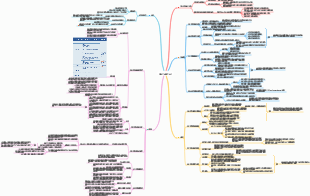
MindMap Gallery Create database and tables
Secondary vocational computer major, Access database application technology, secondary vocational students, review materials, computer major, friends in need hurry up and collect it!
Edited at 2024-02-17 13:24:54This article discusses the Easter eggs and homages in Zootopia 2 that you may have discovered. The main content includes: character and archetype Easter eggs, cinematic universe crossover Easter eggs, animal ecology and behavior references, symbol and metaphor Easter eggs, social satire and brand allusions, and emotional storylines and sequel foreshadowing.
[Zootopia Character Relationship Chart] The idealistic rabbit police officer Judy and the cynical fox conman Nick form a charmingly contrasting duo, rising from street hustlers to become Zootopia police officers!
This is a mind map about Deep Analysis of Character Relationships in Zootopia 2, Main content: 1、 Multi-layer network of relationships: interweaving of main lines, branch lines, and hidden interactions, 2、 Motivation for Character Behavior: Active Promoter and Hidden Intendant, 3、 Key points of interaction: logic of conflict, collaboration, and covert support, 4、 Fun Easter eggs: metaphorical details hidden in interactions.
This article discusses the Easter eggs and homages in Zootopia 2 that you may have discovered. The main content includes: character and archetype Easter eggs, cinematic universe crossover Easter eggs, animal ecology and behavior references, symbol and metaphor Easter eggs, social satire and brand allusions, and emotional storylines and sequel foreshadowing.
[Zootopia Character Relationship Chart] The idealistic rabbit police officer Judy and the cynical fox conman Nick form a charmingly contrasting duo, rising from street hustlers to become Zootopia police officers!
This is a mind map about Deep Analysis of Character Relationships in Zootopia 2, Main content: 1、 Multi-layer network of relationships: interweaving of main lines, branch lines, and hidden interactions, 2、 Motivation for Character Behavior: Active Promoter and Hidden Intendant, 3、 Key points of interaction: logic of conflict, collaboration, and covert support, 4、 Fun Easter eggs: metaphorical details hidden in interactions.
Create database and tables
Create database
Create database
Access 2013 provides two methods of creating a new blank desktop database and creating an Access application. To create a new blank desktop database, you first create a database on the local computer, and then create the tables and other objects of the database.
1 Create a new blank desktop database; open Access 2013, automatically enter the "New" window, click the "Blank Desktop Database" icon to open the dialog box, enter the file name of the database, select the save location, and click the "Create" button. Enter the default datasheet view. You can also open the database file, select the "New" command in "File", select the "Blank Desktop Database" option in the "New" window, enter the file name of the database, save the location, click the "Create" button, and create a new database. Blank desktop database file.
2 Use templates to create databases: Access 2013 provides a series of commonly used database templates, such as project, problem, sales channel, marketing project, faculty and other templates. The database created using templates directly contains database objects such as tables, forms, queries and reports. , it can be used directly after modification.
Database opening and closing
Open database file
Normally, the user selects an Access database file and double-clicks it to open the database file.
After opening Access 2013, you can find the recently used database file in "Recently Used Documents" and directly select the required file to open the database.
Click the "Open" button in the Quick Access Toolbar to open the "Open" list, or select the "Open" command in "File" to open the "Open" list.
Open the database file and click the drop-down button to the right of the "Open" button. You can see three ways to open the database file.
Open in read-only mode: The database file opened by this method can only be browsed, not edited or modified.
Open in exclusive mode: When in a network state, the database file opened by this method cannot be opened by other users on the network.
Open in exclusive read-only mode: The database file opened by this method cannot be edited or modified, nor can it be opened by other users on the network.
Open database objects: In Access 2013, when you open a database file, the navigation pane on the left side of the window saves each database object. All database objects can be opened, browsed and modified through the navigation pane.
Close database
Simply click the "Close" button in the upper corner of the database file window.
Click the Close button on File.
Create a table in the database
Table design and creation method: A table is composed of two parts: structure and table content.
Method to create a table: When opening a new blank desktop database, Access will automatically create an empty table with the default name of "Table 1" and select the "File" Save command. If you need to create a new table, the user can click " Create a "Table" button to add a new table named "Table#". The "#" is the next unused number automatically listed in sequence.
How the table is viewed: Common table operations are performed in design view and datasheet view.
Design view: Design view is the view used for editing the table structure. In the design view, you can enter, edit, and modify the field names, data types, and descriptions of the table, and you can set various properties of the fields, etc. You can also set table properties.
Datasheet view: Datasheet view is the view used to browse and edit records. In datasheet view, you can not only insert, edit, modify and delete records, but also find, replace data, sort and filter the table, etc.
type of data
Short text: can store up to 256 characters.
Long text: Access 2013 provides two properties: "Append only" and "Format text". Long text can store up to 1GB of characters in Access.
Number: Numeric data type is used to store data that needs to be calculated, including byte type, integer type, long integer type, single precision type, double precision type, synchronous copy ID and decimal, etc.
Date/Time: Used to store date and time.
Currency: The currency data type is used to represent currency values. Rounding is prohibited during calculation and occupies 8 bytes of width.
Automatic numbering: The automatic numbering data type is used to automatically insert a unique sequence number (incrementing by 1 each time) or random numbering into each record when adding a record.
Yes/Negative: Used to store data that can only be one of two values, such as yes/no, true/false, etc.
OLE Object: OLE is the abbreviation of object embedding and linking.
Hyperlink: Hyperlink data is used to store hyperlink addresses, which can store email and other addresses.
Attachments: The attachment data type allows users to attach images and other files to records, just like attachments to emails.
Calculated fields: Calculated fields are used to store calculation results and are not data types.
Lookup and relationships: Users can create lookup fields through the "Lookup Wizard" dialog box under Lookup and Relationships, and can look up values in other tables or queries.
Primary keys and how to set them
Primary Key: A primary key is a field or a combination of fields that uniquely identifies a record in a table. A table can only have one primary key. Primary keys do not allow NULL values and must always have a unique value.
Edit and modify tables
Field property settings in the table
"Field Size" attribute: The "Field Size" attribute is used to set the size of the space occupied by stored data. This property can only be set for two types of fields: "Short Text" and "Number".
"Format" property; the "Format" property is used to set how the data is displayed. For fields of different data types, the format choices are different. The "format" attribute only affects the way data is displayed and has no effect on the data in the table.
"Input Mask" attribute: The "Mask Input" attribute is used to set the input format of data.
"Title" attribute: The title is another name for the field. The title and field name can be the same or different.
"Default value" attribute: used to specify the default value for new records. After you set a default value, when you enter a record, the default value is automatically entered into the corresponding field of the new record.
Validation Rules and Validation Text properties: The Validation Rules property is used to set expression rules that must be followed when entering data. Use the "validation rule" attribute to limit the value range of the field, ensure the rationality of the input data, and prevent illegal data input. The "validation text" attribute is used in conjunction with the "validation rule". When the entered data violates the "validation rules", the system will use the set "validation text" to give a prompt message.
Editing changes to fields in the table
Add a new field: In the design view, if the new field you want to add appears behind the existing one, just enter the new field name directly in the blank row of the "Field Name" column.
In the datasheet view, if the new field to be added is to appear at the end of the existing fields, directly click the "Click to Add" button in the last column of the title column to add the new field and change the data type. design.
Delete fields: In Design view, you can delete unnecessary fields in the table. Click in the row where the field that needs to be deleted is located, click "Table Tools/Design">"Tools">"Delete Row" button, or select the "Delete Row" command in the right-click shortcut menu, in the opened dialog box Click the "Yes" button to delete the corresponding field.
In the datasheet view, select the field that needs to be deleted, click the "Table Tools/Fields">"Add and Delete">"Delete" button, or select the "Delete Field" command in the right-click shortcut menu.
Modify field: If you need to modify the field name, you can double-click the field name to modify it directly, or delete the field name and re-enter a new field name.
Move fields: If you need to change the display order of fields, you can select the fields you want to change and drag them to the desired location.
Operate records in the table
Addition, modification and deletion of records.
Input of general data types; for short text, long text. Number, date/time, currency, yes/no and other types of fields can be entered directly into the table. There is no need to enter fields of type "Auto Number", it will be completed automatically when adding records. When adding a record, if a field is set with a "default value", the field in the new record will be automatically populated with the "default value".
OLE object data type input: Fields with OLE object data type selected cannot be input directly in the datasheet view. Data can be input by inserting objects.
Record find and replace
Sorting of records
Concept; sorting refers to rearranging records in a table according to the values of one field or multiple fields. If the values of the sorted field are arranged from small to large, it is called "ascending order"; if the values of the sorted field are arranged from large to small, it is called "descending order". There are different sorting rules for different field types.
Record filtering
Concept; filtering refers to an operation that displays only those records that meet certain conditions and hides records that do not meet the conditions.
Four filtering methods; shared filter, filter by selection, filter by form and advanced filter/sort.
Datasheet view format and row and column operations
Design datasheet view format
Adjust table row height and column width
Hide columns/unhide columns
Freeze/unfreeze columns
Design and edit table relationships
Concepts related to table relationships
The concept of table relationship; a table relationship is a relationship established between fields of two tables. Through table relationships, data between database tables can be linked to form "useful" data that can be used in objects such as queries, forms, and reports.
There are three types of table relationships; one-to-one relationship, one-to-many relationship, and many-to-many relationship.
Referential integrity; setting referential integrity performance ensures the validity of the relationship between records in related tables and ensures that related data will not be accidentally deleted or changed. Therefore, referential integrity checks should generally be implemented when establishing table relationships.
Establishment and maintenance of table relationships
The establishment and maintenance of table relationships are carried out in the "Relationship" window. Click the "Database Tools" > "Relationship" > "Relationship" button to open the "Relationship" window.