 Wondershare EdrawMind
MindMap Gallery linux
- 58
linux
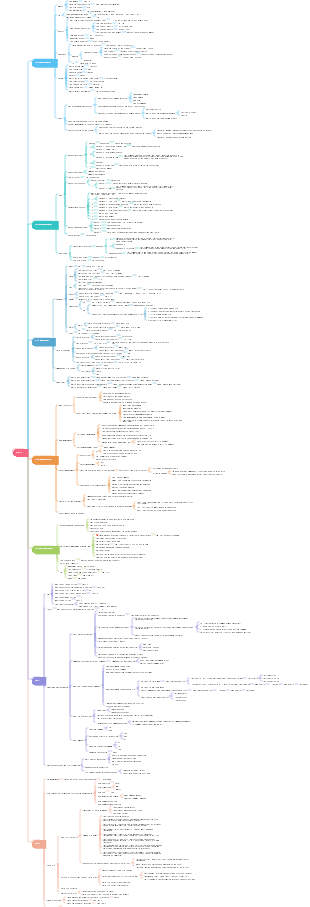
CentOS configuration and application covers common commands, viewing version information, configuring the network, editing tools, installation services, Linux distributions, Iinux network tools, etc.
Edited at 2024-10-28 21:47:40
- Fortpflanzungssystem
Diese Vorlage zeigt die Struktur und Funktion des Fortpflanzungssystems in Form einer Mind Map. Es führt die verschiedenen Komponenten der internen und externen Genitalien ein und sortiert das Wissen eindeutig aus, um Ihnen dabei zu helfen, mit den wichtigsten Wissenspunkten vertraut zu werden.
- Interpretation und Zusammenfassung des Beziehungsfeldes E-Book
Dies ist eine Mind Map über die Interpretation und Zusammenfassung des Beziehungsfeldes E-Book, des Hauptinhalts: Überblick über die Essenzinterpretation und Übersicht über das Feld E-Book. "Relationship Field" bezieht sich auf das komplexe zwischenmenschliche Netzwerk, in dem ein Individuum andere durch spezifische Verhaltensweisen und Einstellungen beeinflusst.
- Buchhaltungsbücher und Buchhaltungsunterlagen
Dies ist eine Mind Map über Buchhaltungsbücher und Buchhaltungsunterlagen.
linux
- Fortpflanzungssystem
Diese Vorlage zeigt die Struktur und Funktion des Fortpflanzungssystems in Form einer Mind Map. Es führt die verschiedenen Komponenten der internen und externen Genitalien ein und sortiert das Wissen eindeutig aus, um Ihnen dabei zu helfen, mit den wichtigsten Wissenspunkten vertraut zu werden.
- Interpretation und Zusammenfassung des Beziehungsfeldes E-Book
Dies ist eine Mind Map über die Interpretation und Zusammenfassung des Beziehungsfeldes E-Book, des Hauptinhalts: Überblick über die Essenzinterpretation und Übersicht über das Feld E-Book. "Relationship Field" bezieht sich auf das komplexe zwischenmenschliche Netzwerk, in dem ein Individuum andere durch spezifische Verhaltensweisen und Einstellungen beeinflusst.
- Buchhaltungsbücher und Buchhaltungsunterlagen
Dies ist eine Mind Map über Buchhaltungsbücher und Buchhaltungsunterlagen.
- Recommended to you
- Outline










linux
Common commands
View IP
1. View information about the current network interface
ifconfig
Use the ifconfig command (requires root privileges):
ip address
ip addr show
nmcli con show
nmcli connection show
If your Linux system has NetworkManager installed
2. Using the NetworkManager graphical interface tool
Open the "Settings" application and select "Network".
Click the gear icon in the upper right corner, then select "Wired Settings" or "Wi-Fi Settings" to enter the relevant configuration page according to the connection type.
Find the full path of a file
find
find/-name filename
/ means to search from the root directory, filename is the name of the file you are looking for
find /home/username -name filename
The find command combines xargs and grep
find / -type f -exec grep -l "some text" {}
This command searches the contents of all files in the entire file system rather than looking for the path to a specific file.
locate
Much faster than find command
First, you may need to install or update the mlocate or locate package (depending on your distribution). Then, you can use
locate filename
which or type command (for executable files)
which commandname
commandname is the name of the executable file you want to find
type commandname
Determine whether a command is built-in or external, if it is external it also shows the path to the command (but not necessarily the complete one if it is in PATH)
whereis
Can be used to find the location of binaries, source code, and man pages
whereis filename
whereis does not always return the full path to a file, especially if it was not installed via the standard installation process.
View version information
ls /etc/*release* and ls /usr/lib/*release*:
These commands are used to list files related to system versions, such as /etc/redhat-release or /usr/lib/os-release, etc. By viewing the contents of these files, you can obtain more version information.
lsb_release-a
This command is used to view detailed version information of a Linux distribution, including distribution name, release number, description, etc. However, it should be noted that if the lsb (Linux Standard Base) related packages are not installed in the system, you may be prompted that the command is not found. In this case, you need to install the lsb related packages first.
cat
cat /proc/version
This command is used to display the current Linux kernel version information, including kernel version number, compilation time, etc.
cat /etc/centos-release
In CentOS systems, the /etc/centos-release file contains system version information. You can directly view the contents of the file through the cat command to know the specific version of CentOS.
After executing this command, the CentOS version information, such as CentOS Linux release 7.9.2009 (Core), will be displayed on the screen.
cat /etc/os-release:
This command is used to view the release information of the current system, including release name, version, ID, etc. This is a more general command that applies to a variety of Linux distributions.
cat /etc/issue or cat /etc/redhat-release:
These two commands are used to view operating system version information. The /etc/issue file contains the system's release name, version number and other information, but its content may vary depending on the system. The /etc/redhat-release file mainly provides more specific version information for Red Hat series distributions (such as Red Hat Enterprise Linux, CentOS, etc.).
cat /proc/cpuinfo:
Although this command is mainly used to view CPU-related information, including model, clock speed, core information, etc., it can also provide some clues about the system architecture, thereby indirectly understanding some features of the system version.
cat /etc/redhat-release
Since CentOS is an open source version based on Red Hat Enterprise Linux (RHEL), the /etc/redhat-release file also contains system version information. Although the file name contains "redhat", the same applies to CentOS.
After executing this command, version information similar to CentOS Linux release 7.9.2009 (Core) will be displayed on the screen.
lsb_release
lsb_release-a
The lsb_release command is used to display Linux Standard Base (LSB) related information, including release name, version number, etc. While this is not a CentOS-specific command, it can provide version information on systems that support LSB.
After executing this command, a list including release name, version number, description, publisher and other information will be displayed. For CentOS, it will show entries similar to Distributor ID: CentOS and Release: 7.9.2009.
uname
uname -a
Used to display system information, including kernel name, host name, kernel release, kernel version, etc.
Although it mainly displays kernel information, it can also be used as a way to know the system version.
But please note that this is not the best way to directly view the CentOS version, as it mainly focuses on kernel information.
Linux localhost.localdomain 3.10.0-1160.el7.x86_64 #1 SMP Mon Oct 19 16:18:59 UTC 2020 x86_64 x86_64 x86_64 GNU/Linux
Kernel name:
Represents the kernel name of the current system
Linux
Node name:
Displays the hostname of the current system, which is the name used to identify the computer on the network
If the output contains "hostname", then "hostname" is the hostname of the current system.
localhost.localdomain
(hostname)
Kernel release number:
Display the version number of the kernel, including major version number, minor version number, revision number, etc.
3.10.0-1160.el7.x86_64
3.10.0
Major version number, minor version number, and revision number
Kernel version:
Provides more details about kernel compilation, such as compilation date, SMP (Symmetric Multi-Processing) support, etc.
#1 SMP Mon Oct 19 16:18:59 UTC 2020
#1: This usually means this is the first (or first revision of) compilation of this kernel source code. In some cases, this number may increase if the kernel is recompiled multiple times.
SMP: stands for Symmetric Multi-Processing, indicating that this kernel supports running on multi-processor systems, that is, it can utilize multiple CPU cores at the same time.
Mon Oct 19 16:18:59 UTC 2020: This is the date and time the kernel was compiled, expressed in day, month, day, hour, minute, second and UTC (Coordinated Universal Time) format. This tells you that this kernel was compiled on Monday, October 19, 2020, at 4:18:59 PM UTC.
machine:
Display the hardware architecture of the system, such as "x86_64" indicates a 64-bit Intel or AMD processor
x86_64
(hardware name)
Processor type:
Sometimes the same as the "machine" field, indicating the specific type of processor.
x86_64
Hardware platform:
Provides more detailed information about the system hardware platform, which may be similar to the Machine field or include additional information
x86_64
operating system:
GNU/Linux
Indicates that the system is based on the GNU project and the Linux kernel
rpm
rpm -q centos-release
Since CentOS uses the RPM package manager, you can query the centos-release package through the rpm command to obtain version information.
After executing this command, the version information of the centos-release package will be displayed, thereby knowing the CentOS version.
getconf LONG_BIT
This command is used to check how many bits the system is (32-bit or 64-bit). Although this is not a direct way to check the system version, it is very helpful for understanding the basic architecture and compatibility of the system.
Configure network
1. Use nmcli
If your Linux system has NetworkManager installed (installed by default in most desktop environments), you can use the nmcli tool to configure the network. nmcli allows you to manage the settings of network devices, including wireless and wired connections.
Configure a static IP address (take eth0 as an example):
sudo nmcli con mod eth0 ipv4.addresses 192.168.1.100/24
sudo nmcli con mod eth0 ipv4.gateway 192.168.1.1
sudo nmcli con mod eth0 ipv4.dns "8.8.8.8 8.8.4.4"
sudo nmcli con mod eth0 ipv4.method manual
sudo nmcli con up eth0
2. Use ifconfig and route Obsolete, but still available on some older systems
Note: ifconfig and route commands may not be installed by default in some recent Linux distributions and are considered obsolete tools. Still, knowing them can be helpful in maintaining older systems or understanding the historical context.
Set a static IP address:
sudo ifconfig <interface_name> <new_ip>
interface_name is the name of the network interface, such as eth0, wlan0, etc.;
sudo ifconfig eth0 192.168.1.100 netmask 255.255.255.0 up
Or (using the more modern ip command):
sudo ip addr add <new_ip>/<netmask> dev <interface_name>
sudo ip addr add 192.168.1.100/24 dev eth0
sudo ip link set eth0 up
Configure the default gateway (use the route command):
sudo route add default gw 192.168.1.1
Or (using ip command):
sudo ip route add default via 192.168.1.1
3. Edit network configuration file
Most Linux distributions allow you to do this by editing the network configuration file located in /etc/network/interfaces (Debian/Ubuntu, etc.), /etc/sysconfig/network-scripts/ifcfg-eth0 (CentOS/RHEL, etc.) or other locations. Static configuration of the network. This method is usually suitable for systems that don't have NetworkManager installed, or when you need more granular control.
Example: CentOS 7.9
Use ifconfig to view the network card currently in use
eno1: flags=4099<UP,BROADCAST,MULTICAST> mtu 1500 ether 3c:ec:ef:86:28:64 txqueuelen 1000 (Ethernet) RX packets 4587 bytes 310328 (303.0 KiB) RX errors 0 dropped 48 overruns 0 frame 0 TX packets 142 bytes 8288 (8.0 KiB) TX errors 0 dropped 0 overruns 0 carrier 0 collisions 0 device memory 0xfb200000-fb27ffff eno2: flags=4163<UP,BROADCAST,RUNNING,MULTICAST> mtu 1500 inet 172.16.24.5 netmask 255.255.255.0 broadcast 172.16.24.255 inet6 fe80::6d46:f721:53a9:6472 prefixlen 64 scopeid 0x20<link> ether 3c:ec:ef:86:28:65 txqueuelen 1000 (Ethernet) RX packets 1257010 bytes 82484408 (78.6 MiB) RX errors 0 dropped 13548 overruns 0 frame 0 TX packets 2300 bytes 171742 (167.7 KiB) TX errors 0 dropped 0 overruns 0 carrier 0 collisions 0 device memory 0xfb100000-fb17ffff lo: flags=73<UP,LOOPBACK,RUNNING> mtu 65536 inet 127.0.0.1 netmask 255.0.0.0 inet6::1 prefixlen 128 scopeid 0x10<host> loop txqueuelen 1000 (Local Loopback) RX packets 818 bytes 81106 (79.2 KiB) RX errors 0 dropped 0 overruns 0 frame 0 TX packets 818 bytes 81106 (79.2 KiB) TX errors 0 dropped 0 overruns 0 carrier 0 collisions 0 virbr0: flags=4099<UP,BROADCAST,MULTICAST> mtu 1500 inet 192.168.122.1 netmask 255.255.255.0 broadcast 192.168.122.255 ether 52:54:00:68:50:ed txqueuelen 1000 (Ethernet) RX packets 0 bytes 0 (0.0 B) RX errors 0 dropped 0 overruns 0 frame 0 TX packets 0 bytes 0 (0.0 B) TX errors 0 dropped 0 overruns 0 carrier 0 collisions 0
Or use ip address to view the network card currently in use
1: Lo: <Loopback, Up, LOWER_UP> MTU 65536 QDISC Noqueue State Unknown Group Default QLEN 1000 LINK/LOOPBACK 00: 00: 00: 00: 00: 00 brd 00: 00: 00: 00: 00 INET 127.0.0.1/8 Scope Host Lo Valid_lft Forever Preferred_lft Forever Inet6 :: 1/128 scope host Valid_lft Forever Preferred_lft Forever 2: ENO1: <no-Carrier, Broadcast, Multicast, up> MTU 1500 QDISC MQ State Download Link/Ether 3C: EC: EF: 86: 28: 64 BRD FF: FF: FF: FF: FF: FF 3: ENO2: <broadcast, Multicast, Up, LOWER_UP> MTU 1500 QDISC MQ State Up Group Defaut QLEN 1000 1000 Link/Ether 3C: EC: EF: 86: 28: 65 BRD FF: FF: FF: FF: FF: FF INET 172.16.24.5/24 BRD 172.16.24.255 Scope Global Notrefixroute ENO2 Valid_lft Forever Preferred_lft Forever INET6 Fe80 :: 6D46: F721: 53A9: 6472/64 Scope Link Notrefixroute Valid_lft Forever Preferred_lft Forever 4: Virbr0: <no-Carrier, Broadcast, Multicast, up> MTU 1500 QDISC Noqueue State Down Group DEFAULT QLEN 1000 Link/Ether 52: 54: 00: 68: 50: ED BRD FF: FF: FF: FF: FF: FF INET 192.168.122.1/24 BRD 192.168.122.255 Scope Global Virbr0 Valid_lft Forever Preferred_lft Forever 5: Virbr0-nic: <broadcast, MULTICAST> MTU 1500 QDISC FQ_Codel Master Virbr0 State Download Link/Ether 52: 54: 00: 68: 50: ED BRD FF: FF: FF: FF: FF: FF
Find the configuration file of the network card
cd /
cd /etc/sysconfig/network-scripts
ls
Check the files in the current directory and find "ifcfg-eno2". This is the configuration file we want.
vim ifcfg-eno2
Edit this file and add the following content
NAME=eno2 UUID=86da1461-149d-4f2a-88d2-26a882582b32 DEVICE=eno2 ONBOOT=yes BOOTPROTO=static IPADDR=172.16.24.5 NETMASK=255.255.255.0 GATEWAY=172.16.24.1 DNS1=211.138.91.1
Save and exit
Configure DNS
cd /etc
Return to etc directory
Find "resolv.conf" and edit it
vim resolv.conf
nameserver 211.138.91.1 nameserver 202.99.224.8
Save and exit
Restart the network
sudo systemctl restart network
test
ping www.bidu.com
Check DNS
dig mirrorlist.centos.org
nslookup mirrorlist.centos.org
4. Use systemd-networkd
systemd-networkd is a component of systemd used for network configuration and management. It provides network configuration based on .network files, similar to NetworkManager but more lightweight, suitable for server environments that do not require complex network management functions.
Editing tools
1.Vim Vi IMproved
Features
Vim is a powerful text editor that supports multiple operating modes and plug-ins, and can edit text files efficiently. Vim is famous for its modal design and rich plug-in system. The interface is simple and mainly consists of the command line and editing area.
Applicable scenarios
Suitable for users who are familiar with the command line, especially in server environments or situations where efficient text editing is required.
Common commands
open file
Enter vim filename on the command line to open or create a new file.
save file
:w save the current file,
:w filename saves as file filename.
quit
:qExit without saving,
:wq or :x save and exit,
:q! Force exit without saving.
text edit
delete:
x: Delete the character where the cursor is.
dd: Delete the line where the cursor is.
d0: Delete to the beginning of the line.
d$: Delete to the end of the line.
dG: Delete from the cursor to the end of the text.
dgg: Delete from the cursor to the beginning of the text
(Note: dgg is not a standard Vim command. It may be a misunderstanding of :d 1G or similar commands. The correct one should be: d 1G to delete the content from the cursor to the beginning of the file).
Copy with Paste:
nyy: Copy n lines downward where the cursor is located.
yw: Copy the word under the cursor to the clipboard.
y$: Copy the characters from the cursor to the end of the line to the clipboard.
p: Paste the contents of the clipboard after the cursor (lowercase p).
P: Paste the contents of the clipboard in front of the cursor (capital P).
insert text:
i: Insert text before the cursor.
I: Insert text before the first non-blank character in the current line.
a: Insert text after the cursor.
A: Insert text at the end of the current line.
o: Open a new line below the current line to insert text.
O: Open a new line above the current line to insert text.
basic move
h: Shift one character to the left.
l or space: move one character to the right.
j: Move down one line.
k: Move up one line.
Word movement:
w: Move forward one word, and the cursor stops at the beginning of the next word.
W: Move forward one word, but ignore some punctuation.
e: Move forward one word, and the cursor stops at the end of the next word.
E: Move one word forward. If there is punctuation at the end of the word, move to the punctuation point.
b: Move back one word, and the cursor stops at the beginning of the previous word.
B: Move back one word and ignore some punctuation.
Moving within a row:
0 (note the number zero): The cursor moves to the beginning of the current line.
^: Move the cursor to the first non-empty character at the beginning of the line.
$: Move the cursor to the end of the current line.
Screen scroll
gg: Go to the head of the file.
G: Go to the end of the file.
Ctrl f: Scroll one screen to the end of the file.
Ctrl b: Move one screen to the first page of the file.
Ctrl u: Scroll half-screen to the beginning of the file.
Ctrl d: Scroll halfway to the end of the file.
search replace
search:
/ followed by the search content, press n to continue searching forward, N to continue searching backward.
?Follow the search content, search from the beginning of the cursor to the beginning of the file, and also use n and N to search forward and backward.
replace:
:s/old/new/g: Replace all "old" in the current line with "new", g means global replacement.
:n1,n2s/old/new/g: Replace all "old" in lines n1 to n2 with "new".
:%s/old/new/g: Replace in the entire file.
other
Display line numbers: :set nu displays line numbers, :set nonu does not display line numbers.
Show/hide the ruler: :set ruler displays the ruler, :set noruler hides the ruler.
2. Emacs
Features: Emacs is a highly extensible and customizable text editor that provides an interpretation of the core of the Lisp programming language and supports a variety of extensions to support text editing capabilities. The interface of Emacs contains multiple windows, each of which can display different files or editor functions, and users can operate them through keyboard shortcuts or menus.
Applicable scenarios: Suitable for programmers and technicians, especially those who require a high degree of customization and scalability.
3. Nano
Features: Nano is a lightweight and easy-to-use text editor suitable for beginners or users doing basic editing. Nano's interface is very intuitive, with a function prompt line at the top showing available shortcut keys, and the editing area taking up most of the screen.
Applicable scenarios: Suitable for users who need to quickly perform basic text editing, such as modifying configuration files, etc.
4. Gedit
Features: Gedit is the default text editor in the GNOME desktop environment and is famous for its simplicity, high scalability and powerful functions. Gedit supports UTF-8, has undo and redo functions, remote editing of files, and more. Gedit's interface is simple, with a menu bar, toolbar and editing area, and supports tab browsing.
Applicable scenarios: Suitable for users in the GNOME desktop environment, especially those who need a graphical interface text editor.
5. Geany
Features: Geany is a lightweight integrated development environment (IDE) that can also be used as a simple text editor. It provides syntax highlighting, code folding and other functions, and supports a plug-in system. Geany's interface is designed as an integrated development environment, including the editing area, project browser, symbol list and output window.
Applicable scenarios: Suitable for users who need to write code, especially those programming languages that require integrated development environment support.
6. Sublime Text
Features: Sublime Text is a cross-platform text editor popular for its fast speed, simple appearance, and rich plug-ins. It supports multi-cursor editing and multi-window editing, and has rich themes and plug-ins. Users can customize the editor according to personal preferences.
Applicable scenarios: Suitable for programmers and users who need efficient text editing, especially those who need cross-platform support and rich plug-ins.
7. Atom
Features: Atom is an open source text editor developed by GitHub and supports plug-in extensions and custom configurations. Atom's interface is modern, feature-rich, and suitable for programming and text editing.
Applicable scenarios: Suitable for users who require a high degree of customization and scalability, especially those who like the GitHub ecosystem.
8. Visual Studio Code (VSCode)
Features: VSCode is a free open source code editor developed by Microsoft, providing a highly customizable and powerful coding environment, supporting multiple programming languages and a rich plug-in ecosystem. The interface layout of VSCode is clear, including sidebar, editing area, bottom panel and other active areas.
Applicable scenarios: Suitable for programmers and developers, especially those who require cross-platform support, high customizability, and a rich plug-in ecosystem.
When choosing a Linux file editing tool, users can choose an editor that suits them based on their needs and habits. For beginners and simple tasks, Nano and Gedit may be easier to get started; for users who need a more powerful and configurable editor, Vim, Emacs, Sublime Text, Atom, or VSCode may be more suitable.
Installation services
Install nmap online
RPM-based Linux distributions (such as CentOS)
Nmap can be installed through the yum (maybe dnf in newer versions) package manager
method
Open terminal:
First, you need to open the system's terminal.
Update package list:
In the terminal, enter the following command to update the package list:
sudo yum update
Loaded plugins: fastestmirror, langpacks Determining fastest mirrors Could not retrieve mirrorlist http://mirrorlist.centos.org/?release=7&arch=x86_64&repo=os&infra=stock error was 14: curl#6 - "Could not resolve host: mirrorlist.centos.org; Unknown error" One of the configured repositories failed (Unknown), and yum doesn't have enough cached data to continue. At this point the only safe thing yum can do is fail. There are a few ways to work "fix" this: 1. Contact the upstream for the repository and get them to fix the problem. 2. Reconfigure the baseurl/etc. for the repository, to point to a working upstream. This is most often useful if you are using a newer distribution release than is supported by the repository (and the packages for the previous distribution release still work). 3. Run the command with the repository temporarily disabled yum --disablerepo=<repoid> ... 4. Disable the repository permanently, so yum won't use it by default. Yum will then just ignore the repository until you permanently enable it again or use --enablerepo for temporary usage: yum-config-manager --disable <repoid> or subscription-manager repos --disable=<repoid> 5. Configure the failing repository to be skipped, if it is unavailable. Note that yum will try to contact the repo. when it runs most commands, so will have to try and fail each time (and thus. yum will be much slower). If it is a very temporary problem though, this is often a nice compromise: yum-config-manager --save --setopt=<repoid>.skip_if_unavailable=true Cannot find a valid baseurl for repo: base/7/x86_64
Or, if your system uses dnf, you can enter:
sudo dnf update
Loaded plugins: fastestmirror, langpacks Loading mirror speeds from cached hostfile Could not retrieve mirrorlist http://mirrorlist.centos.org/?release=7&arch=x86_64&repo=os&infra=stock error was 14: curl#6 - "Could not resolve host: mirrorlist.centos.org; Unknown error" One of the configured repositories failed (Unknown), and yum doesn't have enough cached data to continue. At this point the only safe thing yum can do is fail. There are a few ways to work "fix" this: 1. Contact the upstream for the repository and get them to fix the problem. 2. Reconfigure the baseurl/etc. for the repository, to point to a working upstream. This is most often useful if you are using a newer distribution release than is supported by the repository (and the packages for the previous distribution release still work). 3. Run the command with the repository temporarily disabled yum --disablerepo=<repoid> ... 4. Disable the repository permanently, so yum won't use it by default. Yum will then just ignore the repository until you permanently enable it again or use --enablerepo for temporary usage: yum-config-manager --disable <repoid> or subscription-manager repos --disable=<repoid> 5. Configure the failing repository to be skipped, if it is unavailable. Note that yum will try to contact the repo. when it runs most commands, so will have to try and fail each time (and thus. yum will be much slower). If it is a very temporary problem though, this is often a nice compromise: yum-config-manager --save --setopt=<repoid>.skip_if_unavailable=true Cannot find a valid baseurl for repo: base/7/x86_64
Install Nmap:
Then, enter the following command to install Nmap:
sudo yum install nmap
Or, if your system uses dnf, you can enter:
sudo dnf install nmap
Verify installation:
After the installation is complete, you can also verify whether Nmap is successfully installed by entering the nmap -V command.
Install nmap offline
1. Download the Nmap RPM package
nmap.org
2. Transfer the RPM package to the target machine
3. Locate the RPM package and install it
Install using yum (if yum is available)
sudo yum --nogpgcheck install /mydir/ncat-7.95-3.x86_64.rpm
linux distribution version
Debian system
Features
Debian is a very old and important distribution in the Linux community, known for its stability, security, and commitment to free software. Debian-based distributions typically use the .deb package format and use dpkg and its front-end (such as APT) as a package manager.
Well-known department
Ubuntu
Overview:
Ubuntu is an open source operating system developed by Canonical. It is based on Debian but provides a more user-friendly interface and more pre-installed software.
Features:
Ubuntu is popular for its ease of use, stability, and extensive community support. It provides a variety of desktop environment options (such as GNOME, KDE Plasma, etc.), and introduces the Snap package management system, making software installation and updates easier.
Application scenarios:
Ubuntu is suitable for various user groups from beginners to advanced users, and is widely used in desktop, server, cloud computing and other fields.
Linux Mint
Overview:
Linux Mint is an open source operating system based on Debian and Ubuntu. It is committed to providing an easy-to-use, beautiful and stable desktop environment.
Features:
Linux Mint uses the Cinnamon desktop environment by default, which provides an intuitive user interface and many customization options. It focuses on user-friendliness, with a straightforward installation process and comes with common applications and drivers.
Application scenarios:
Linux Mint is especially suitable for users looking for a stable, easy-to-use and beautiful desktop operating system.
Debian GNU/Linux
Overview: Debian GNU/Linux is an open source operating system maintained by the community. It has a large software package warehouse and strong community support.
Features: Debian emphasizes free software and community participation, and provides a variety of installation media and architecture support. Its software package management system (APT) is very powerful and can automatically handle dependencies between software packages.
Application scenarios: Debian is suitable for many fields such as servers, desktops and embedded systems that require high stability and reliability.
RPM system
Features
RPM-based distributions usually use the .rpm package format and use RPM or YUM (and its successors such as DNF) as the package manager.
Well-known department
Red Hat Enterprise Linux (RHEL)
Overview:
RHEL is a commercial-grade Linux distribution provided by Red Hat, which is known for its stability and security.
Features:
RHEL provides long-term support versions to ensure system stability and security. It has a powerful set of enterprise-level features and tools and is very suitable as a basic platform for servers and enterprise-level applications.
Application scenarios:
RHEL is widely used in many fields such as enterprise servers, cloud computing, and big data.
Fedora
Overview:
Fedora is an open source operating system sponsored by Red Hat, which aims to be an innovative, free and open community-driven project.
Features:
Fedora focuses on technological innovation and the introduction of cutting-edge features, and often serves as a testing ground for new technologies. It provides rapid iteration and rich software package resources, which is very suitable for developers and testers.
Application scenarios:
Fedora is suitable for users who want to try new technologies, participate in community development, or conduct technical research.
CentOS
Overview:
CentOS is an open source operating system recompiled based on RHEL source code. It provides binary packages and software environments compatible with RHEL.
(Note: CentOS has been transformed into the Stream version. The following information is based on CentOS before the transformation)
Features:
Known for its stability and compatibility, CentOS is a free alternative to RHEL. It has extensive community support and rich software package resources, making it very suitable as a basic platform for servers and cloud computing.
Application scenarios (before transformation):
CentOS is widely used in many fields such as enterprise servers, cloud computing, and virtualization. However, with the transformation of CentOS, its application scenarios may change.
linux network tools
traceroute
traceroute
Traceroute is a commonly used network diagnostic tool used to trace the routing path that data packets take from the source host to the destination host. It probes network paths by sending packets with increasing TTL (Time To Live) values. Install traceroute (if not preinstalled): On CentOS, traceroute is usually included in the net-tools package and can be installed using the following command: sudo yum install net-tools Basic usage: traceroute [options] target host For example, to trace the route to www.google.com, you can execute: traceroute www.google.com Parameter description: -n: Display the IP address directly without domain name resolution. -m: Set the maximum TTL value (that is, the maximum number of hops). -q: Set the number of queries for each detection.
tracepath
Racepath is another tool for tracing packet paths. It is similar to traceroute, but does not require setting an incrementing TTL value and may be more reliable in some cases. Install tracepath (if not preinstalled): tracepath is usually included in the iputils package and can be installed using the following command: sudo yum install iputils Basic usage: tracepath [options] target host For example, to trace the route to 8.8.8.8 (Google DNS), you can execute: tracepath 8.8.8.8 Parameter description: -n: Display the IP address directly without domain name resolution. -m: Set the maximum number of hops. -l: Set the initial packet length.
mtr
mtr (My Traceroute) is a network diagnostic tool that combines traceroute and ping functions. It can display information on each hop of the network path in real time, including packet loss rate and delay. Install mtr: On CentOS, mtr can be installed using the following command: sudo yum install mtr Basic usage: mtr [options] target host For example, to track the route to www.baidu.com in real time, you can execute: mtr www.baidu.com Parameter description: -n: Display the IP address directly without domain name resolution. -r: Report round trip time (RTT) for each hop. -c: Set the number of detections. Analyze and resolve routing issues After performing a traceroute, the output needs to be analyzed to identify potential network problems. A hop that times out or is unresponsive may indicate a network failure or congestion at that hop. A high round trip time (RTT) value may indicate greater network latency. Changes in the path MTU (Maximum Transmission Unit) value may affect network performance, especially when there are links with smaller MTUs in the path. Based on the results of route tracing, targeted troubleshooting or network optimization can be performed. For example, if you notice high latency or packet loss on a certain hop, you can try contacting that hop's administrator or ISP to resolve the issue. In addition, network performance can also be improved by adjusting network configuration or upgrading network equipment.